Add-ons
Socials
Branded image posts, carousels and LinkedIn posts for every article, posted to Facebook, Instagram and LinkedIn for you.
Socials posts every article you publish to Facebook, Instagram and LinkedIn, so you do not have to copy, resize and post by hand. Each post uses your logo, colours and font, and the caption is written from the article in its language.
What goes out
- Image posts: every new article gets an image post on Facebook and Instagram (feed and Story) on the day it publishes, at your post time. The default is 10:00 in your timezone.
- Carousels: up to 2 a week, on Tuesday and Friday by default. They are built from step-by-step articles. Facebook and Instagram post them as carousels. On LinkedIn, a carousel goes out as a PDF.
- LinkedIn posts: once you connect LinkedIn, every new article posts there at your post time as a short post with a link to the article.
- LinkedIn article: once a week (Wednesday by default), Grandranker writes a long LinkedIn article from your strongest recent article and emails you. LinkedIn does not let apps post long articles, so you paste it on LinkedIn and publish it yourself.
Only articles published after you turn Socials on post automatically. Older articles are not posted on their own. You can send one from its article page.
Turn it on
- Buy Socials for the website on the Socials add-on page (
/addons/social-autopilot). - Connect Facebook and Instagram (below).
- Choose your post time and which posts to send.
- Check your first post, then click Turn on autopilot.
Nothing posts until you connect Facebook or LinkedIn and finish setup.
Connect Facebook and Instagram
You need a Facebook Page where you are an admin with full access. For Instagram, your account must be a Business or Creator account linked to that Page.
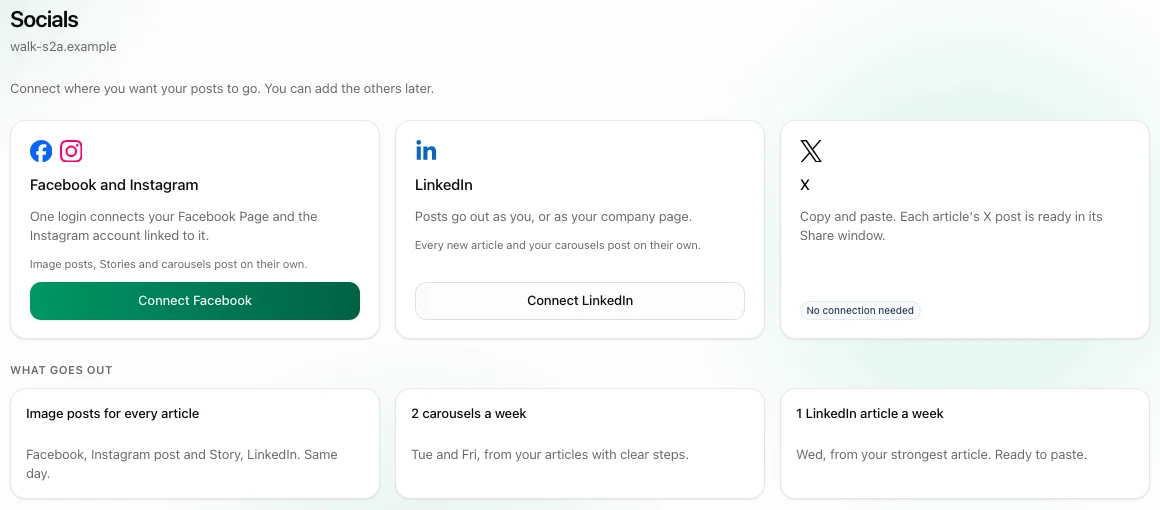
- On Socials, click Connect Facebook.
- Log in to Facebook. One login covers the Page and the Instagram account linked to it.
- Pick the Page to post to. Each website connects to one Page. If no Instagram account is linked, Instagram stays off and Facebook still posts.
- Check the post time and turn each surface on or off: Facebook Page, Instagram feed, Instagram Story.
- Check your first post, then click Turn on autopilot or I'll check it first.
Connect LinkedIn
- On Socials, click Connect LinkedIn on the LinkedIn card.
- Pick your LinkedIn profile or a company page you admin.
- Done. New articles and carousels post to LinkedIn from then on.
You can connect one LinkedIn account per website. To disconnect it, use the LinkedIn settings on the Socials page.
The weekly calendar
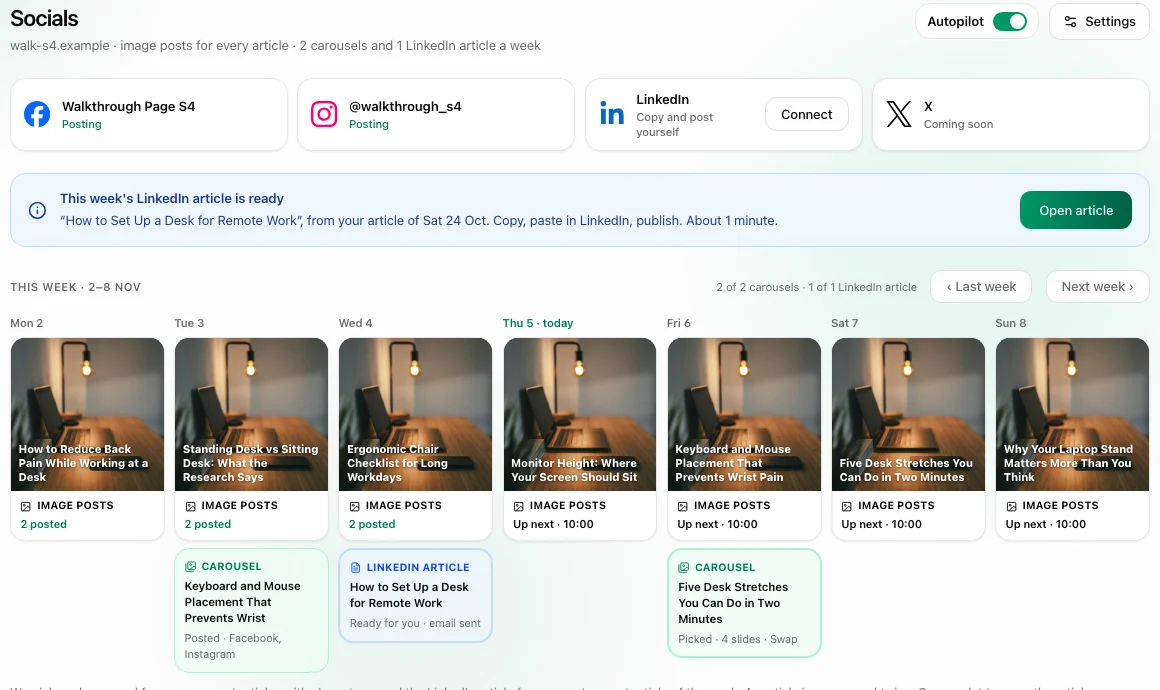
The Socials page shows your channels at the top and the current week below:
- Channel cards show whether Facebook, Instagram and LinkedIn are posting, or need a fix.
- Week grid shows each day's image posts, carousels and LinkedIn article, with a status such as Up next, Posted or Ready for you.
- Up next shows the next post, with Review posts, Post now and Skip.
- Posted lists what has gone out, with a link to each live post.
Use Last week and Next week to move through the calendar.
Edit, skip or post a post
- Edit: open a post with Review posts to change the words, swap the image or move the time.
- Carousels: open the slot to swap the article, edit the slide text, skip it or post it now.
- Post now: sends the post straight away.
- Skip: drops the post so it does not go out.
- LinkedIn article: open it, copy the text, paste it on LinkedIn and publish. Then add the LinkedIn link or mark it done. If you do not do this within a week, it expires.
Settings and autopilot
Open Settings on the Socials page to change:
- the post time and timezone
- whether image posts go out the same day or the next day
- the carousel days and the LinkedIn article day
- whether image posts, carousels or the LinkedIn article are on
Turn Autopilot off at the top of the page to stop automatic posting. Grandranker still writes every post, but nothing goes out until you click Post now on it. Turn it back on any time.
When a banner shows
Banners appear at the top of the Socials page. Each one says what to do.

Facebook and Instagram posts are waiting
Your Facebook login ran out, often after a password change.
- Click Reconnect Facebook.
- Log in to Facebook again.
- Waiting posts go out after that. Nothing is lost.
Instagram posts are paused
Instagram restricted your account, so it refuses our posts. Facebook keeps posting.
- Click Open Instagram and clear the notice in the Instagram app.
- Back on Socials, click Fixed it? Reconnect. Instagram posting resumes at once.
- If you do not reconnect, we try again on the date shown in the banner.
LinkedIn posts are waiting
LinkedIn ended your login. Facebook and Instagram keep posting.
- Click Log in to LinkedIn.
- Log in to LinkedIn.
- The waiting posts and carousels go out after that.
A carousel did not go out
We could not make the slides for that day's carousel.
- Click Open carousel.
- Pick another article, or leave it. We try again at 14:00 the same day.
Other notices
- Confirm your identity on Facebook: only Facebook stops. In the Facebook app, go to Menu → Settings & privacy → Settings → Accounts Center and tap Confirm your identity. No reconnect is needed.
- Relink Instagram: click Relink, reconnect your Meta account and select the Page again. Instagram posting resumes for new articles.
- Socials ended: your posts are kept, but nothing goes out until you renew.
FAQ
Do I need LinkedIn?
No. Without LinkedIn, you post the weekly LinkedIn article and the carousel PDF yourself.
Can I use a Facebook Page on two websites?
No. A Facebook Page connects to one website only.
Which networks does Socials post to?
Facebook, Instagram and LinkedIn.
Does Socials post to X?
No. X is copy and paste. Every article's X post is written for you: open the article, click Share, pick the X tab, then Copy or Open X to post it yourself. There is no X account to connect.
Why was my Instagram post skipped?
Instagram can refuse a post, for example when the account is restricted or unlinked from the Page. The Socials page says why. Facebook still goes out.
Do I still need the free share buttons?
Yes, if you want to post something yourself. They are on each article. See Social Posts.
Still stuck? [email protected]