Content Engine
Article Settings
Writing style, branding, internal links and other generation settings.
Control how every future article for a website is written, illustrated, and linked at app.grandranker.com/article-settings (or Article Settings in the sidebar). The left rail jumps between sections; each shows a live preview. Changes autosave and apply going forward — existing articles aren't rewritten.
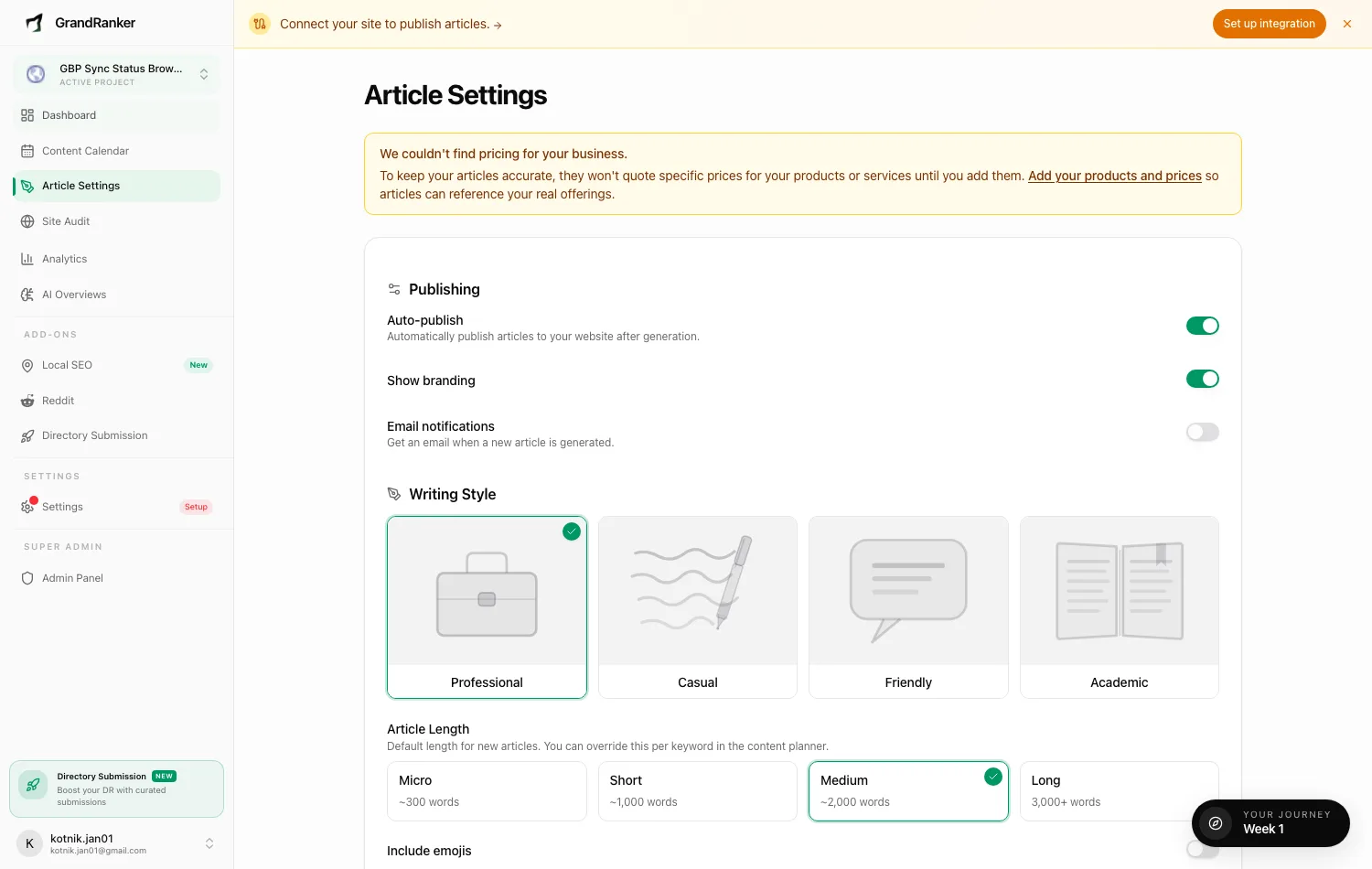
Publishing & writing style
- Auto-publish, Show branding, Email notifications: publish automatically, toggle footer branding, toggle the "new article generated" email.
- Writing Style: Professional, Casual, Friendly, or Academic.
- Article Length: default for new articles — Micro (~300 words), Short (~1,000), Medium (~2,000), Long (3,000+). Override per keyword in the content planner.
- Include emojis, First-person writing ("I"/"we"), Mention competitor products & services (turn off to stay brand-only).
- Custom Instructions: up to 2,000 characters applied to every article.
- Your services / offers: up to 10 services with optional URLs; articles link the most relevant.
- Learn from your articles: paste up to 3 links so Grandranker matches your tone and formatting.
Call to action
Show call-to-action blocks adds buttons pointed at your most relevant product. Configure Button text, Fallback link, Style (Button, Banner, Inline band), Placement (Mid-article + end, Mid-article only, End only), and count (1-3 for long articles; short ones get one closing CTA).
Visuals
- Image styles: Real Life, Sketch, Watercolor, Cinematic, or Digital Illustration.
- Image shape: Widescreen (1200×675), Square (1000×1000), or Portrait (800×1200).
- Brand color: auto-detected, used in diagrams and photo accents.
- Title-Based Featured Image: puts the article title on the featured image in your brand color.
- People-focused photos: real people over empty objects — best for care, coaching, education sites.
- Brand logo: upload a transparent PNG; branded photos (van, sign, uniform) use it, not an invented one.
- Image captions, YouTube videos: toggle each.
A Premium Images add-on ($49/month) upgrades to better image models, 5 images per article instead of 4, and custom style presets.
Links
- Name / Title: your byline on generated articles.
- Blog URL: where your blog index lives.
- Sitemap URL: usually
https://example.com/sitemap.xml; feeds internal linking. See Sitemap & Liftability. - Only link to my own website: keeps third-party URLs out of structured data.
Internal Linking
With Use all pages from sitemap on, every discovered page becomes a link candidate; each article links only to what fits. Shows page count, a Refresh button, and a browsable list.
- Additional links: custom URLs always included.
- Excluded links: URLs never linked.
Candidates also come from Search Console top pages and previous articles, scored and placed by fit, scaled to article length.
No sitemap? Add one in Links, or connect Google Search Console so Grandranker can discover your pages.
FAQ
Do changes apply to existing articles?
No. Edit existing articles in the editor.
Can I set different settings for one article?
Yes — override content type, length, and instructions per keyword in the Content Planner's settings modal.
Where do I change the content language?
In General Settings, under Language. Each website writes in one language.
Still stuck? [email protected]