Integrations

WordPress
Connect a self-hosted WordPress site and publish automatically.
Connect under Integrations → Add New Integration at app.grandranker.com/integrations/create. Two ways: the WordPress Plugin (recommended, no credentials to copy) or the REST API method with an Application Password.
What you need: admin access to your WordPress site, and (for the REST API method) the ability to create an Application Password on your user profile. The WordPress REST API must be enabled — it is by default on most installations.
How to Connect
Option 1: WordPress Plugin (recommended)
- Open Integrations → Add New Integration and pick WordPress Plugin.
- Click Install on WordPress. In your WordPress admin, click Install Now, then Activate.
- Back in Grandranker, click I've installed it. Copy the generated connection key — it won't be shown again.
- In WordPress, open Grandranker in the admin sidebar, paste the key, and click Save & Connect.
- Grandranker picks up the connection within a few seconds and shows a green Connected to WordPress banner.
After connecting, set a Publish category. All articles publish under it. Leave blank to use "Blog".
Option 2: REST API with an Application Password
- In WordPress, go to Users → Profile → Application Passwords, name it (e.g. "GrandRanker"), and click Add New Application Password. Copy the password — it won't be shown again.
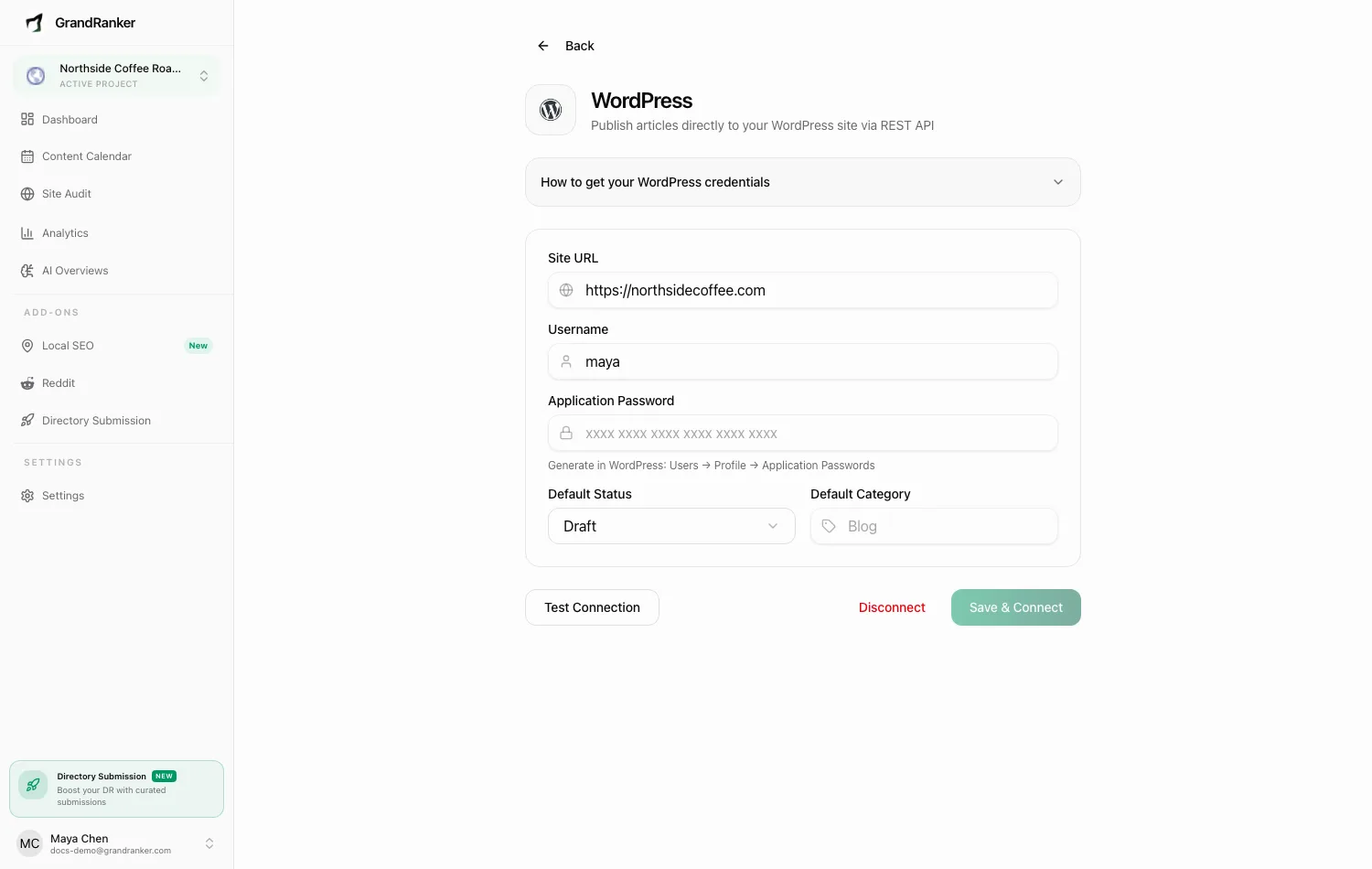
- In Grandranker, open the WordPress REST API integration page (linked as "self-hosted WordPress" from the WordPress.com integration page).
- Fill in Site URL (e.g.
https://yourblog.com), Username, and Application Password. - Choose a Default Status (Draft or Published) and optionally a Default Category.
- Click Test Connection, then Save & Connect.
Publishing & Verifying
Click Publish on any article to push it to WordPress as a new post using your default status and category. Draft status lands the post as a draft for you to review. After connecting, Default Category becomes a dropdown of your real categories.
Verify in your WordPress admin → Posts.
Troubleshooting
"This looks like a WordPress.com hosted site"
Application Passwords don't work there. If your Site URL ends in .wordpress.com, use WordPress.com instead — one-click OAuth.
Test Connection fails
- Site URL must be exact, including
https://. - Username must match the Application Password's owner.
- Paste the password exactly as generated (spaces are fine).
- Some security plugins block the REST API — allow it and retry.
Plugin connection never completes
Paste the key into the Grandranker page in the WordPress sidebar and click Save & Connect there. Lost the key? Generate a new one.
Articles publish but land in the wrong category
Set Default Category (REST API method) or Publish category (plugin method).
Still stuck? [email protected]