Integrations

Shoptet
Publish blog posts to your Shoptet store.
Connect your e-shop once with a Shoptet API token on the Products page, then pick a blog section for published articles.
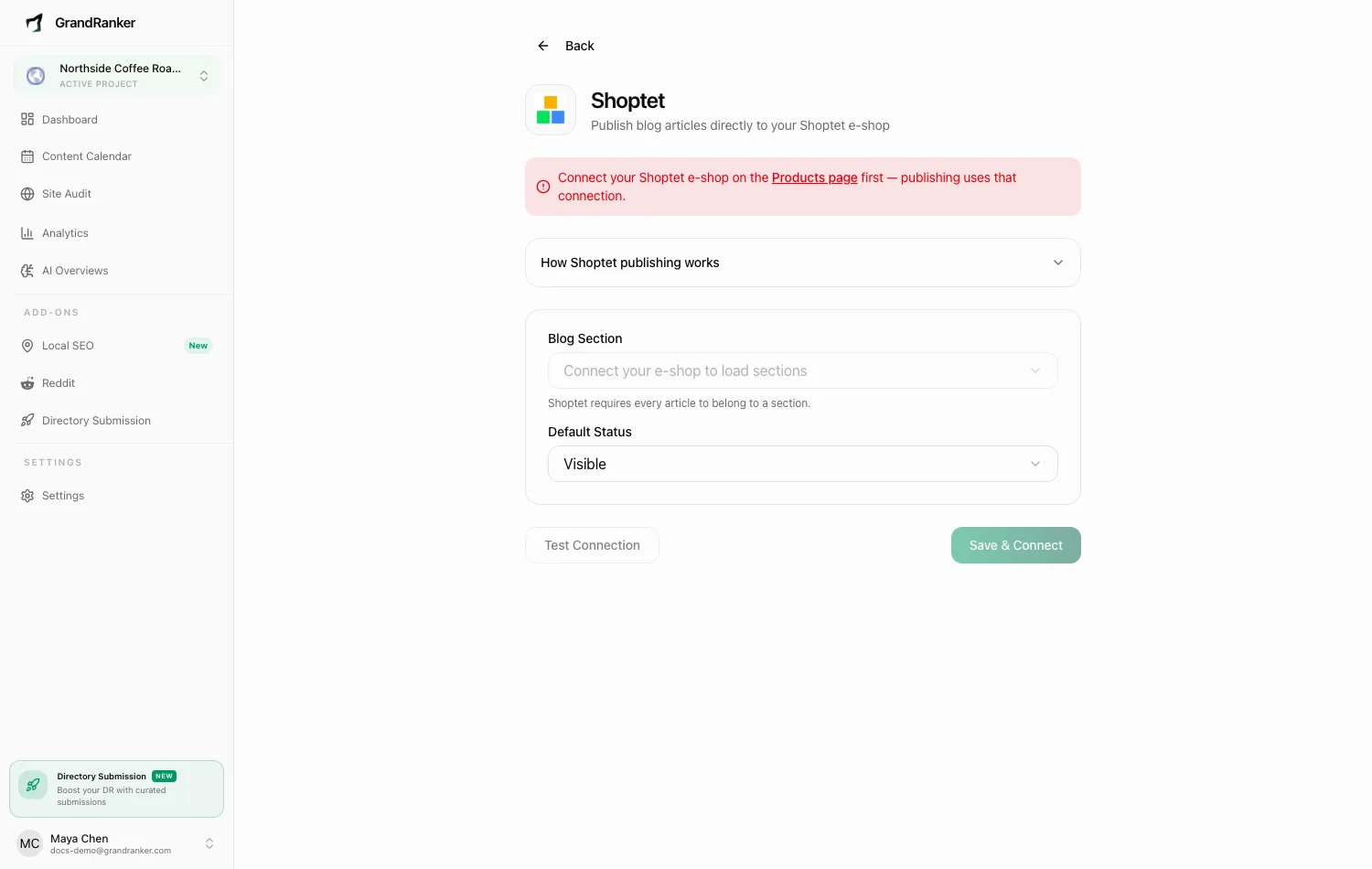
What you need: a Shoptet e-shop on the Shoptet Premium tariff (API access is Premium-only) and an API access token, created in your Shoptet administration under Connections → Access to API.
How to Connect
- Connect your e-shop first: open the Products page in Grandranker. In Shoptet, go to Connections → Access to API, create a token, and paste it into API Token in the Connect Shoptet dialog. Click Connect.
- Go to Integrations and choose Shoptet (skipped step 1? connect there first).
- Choose a Blog Section — mandatory, loaded from your e-shop.
- Choose a Default Status: Visible (immediate) or Hidden (created but not shown until you make it visible in Shoptet).
- Click Test Connection, then Save & Connect.
Publishing & Verifying
Articles publish into the blog section you selected, with title, body, URL slug and meta tags. To verify: publish one, then check that section in Shoptet. Hidden articles need flipping to visible in Shoptet, or change the default in Grandranker.
One connection powers both publishing and product sync — see E-commerce Product Sync.
Troubleshooting
"Connect your Shoptet e-shop on the Products page first"
Publishing reuses the Products-page connection and has no credentials of its own.
The Blog Section dropdown says "Could not load sections from Shoptet"
Check the token has access to the Articles endpoint group, then reload.
The dropdown says "This e-shop has no blog sections yet"
Create a blog section in Shoptet, then reload and select it.
I can't create an API token in Shoptet
Requires the Shoptet Premium tariff. Contact Shoptet about upgrading.
Still stuck? [email protected]