Integrations

Joomla
Publish articles to a Joomla site.
Publish articles straight to your Joomla site via its Web Services API. Choose the content category and published/unpublished status.
What you need: a site on Joomla 4.0 or newer, admin access to enable two core plugins, and a user account (a Super User works out of the box) to generate the API token.
How to Connect
- In Joomla admin, go to System → Plugins and enable Web Services - Content and User - Joomla API Token.
- Go to Users → Manage, open the account you want to publish as (a Super User works out of the box).
- Open the Joomla API Token tab, enable it, and save.
- Copy the token — it's only shown to that user.
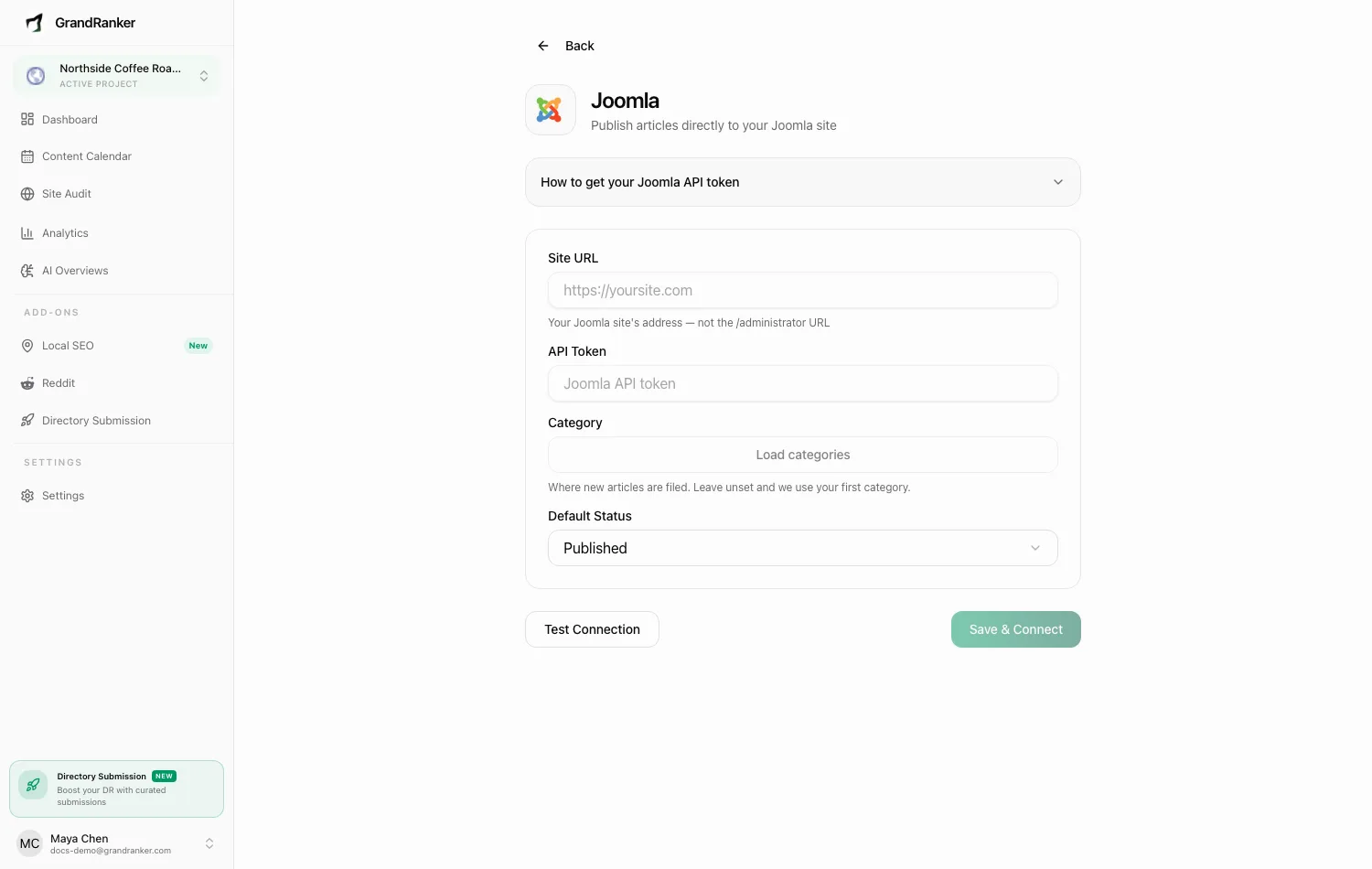
- In Grandranker, open Integrations, pick Joomla, and fill in:
- Site URL: your Joomla site's address (e.g.
https://yoursite.com). Not the /administrator URL. - API Token: the token from step 4.
- Site URL: your Joomla site's address (e.g.
- Click Test Connection. On success, the Category dropdown loads automatically (or click Load categories).
- Pick a Category — where new articles are filed. Leave unset and Grandranker uses your first category.
- Set Default Status to Published or Unpublished.
- Click Save & Connect.
Publishing & Verifying
Articles publish in your chosen category and status. Scheduled articles from the Content Planner publish automatically.
Publish one article and check Content → Articles in Joomla admin — it should be there, in the right category and state. If Published, check the front end wherever that category is shown.
Disconnect from the Joomla integration page.
Troubleshooting
Test Connection fails
- Confirm both plugins are enabled.
- Site URL must be the public site root with
https://, not/administrator. - Re-copy the API Token — regenerating it in Joomla invalidates the old one.
- Requires Joomla 4.0+.
The category list won't load
Fix the connection first — it uses the same site URL and token. If the test passes but the list is empty, create a category under Content → Categories.
Articles publish but don't appear on the site
- Unpublished default status means articles wait in Joomla admin.
- A published article only shows if its category is reachable through a menu item or blog layout.
Publishing stopped after a site change
A deleted/disabled user or regenerated token breaks publishing — generate a new token (steps 2-4) and re-save. Security extensions blocking /api paths can too — allowlist Joomla's API endpoint.
Still stuck? [email protected]