Integrations
Notion
Send articles to a Notion database.
Publish articles as rows in a Notion database. You map which database properties get the title, status, URL, and publish date.
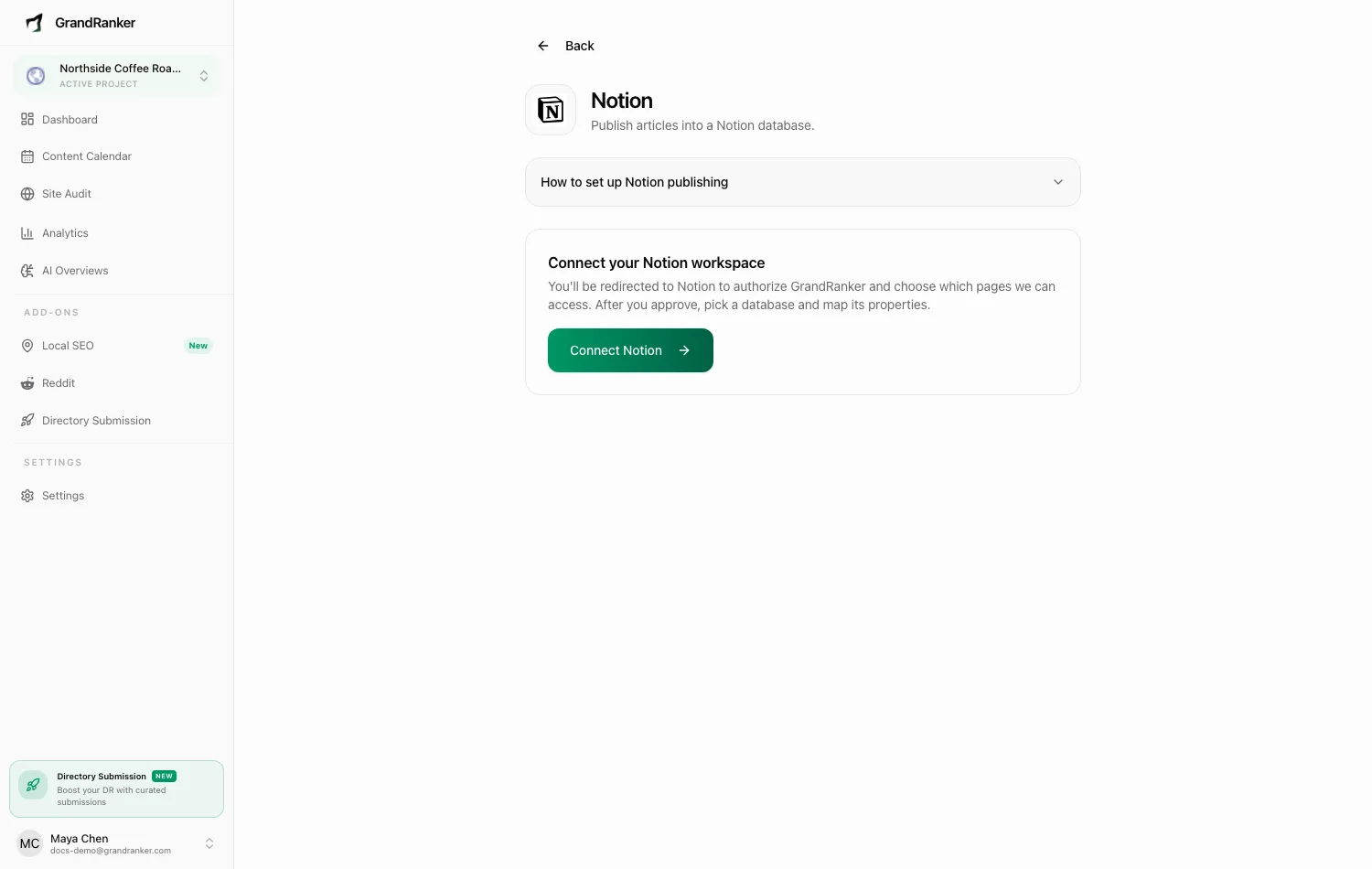
What you need: a Notion workspace you can authorize, and a full-page database in it with a Title property. Sharing a plain page will not work. Only databases appear in the picker.
How to Connect
- In Notion, create or open a full-page database with a Title property. Add Status, URL, and a Date property if you want to map them later.
- In Grandranker, open Integrations, pick Notion, and click Connect Notion. Authorize Grandranker in Notion and choose which pages it can access.
- In Notion, open the database, click the
•••menu, go to Connections → Connect to, and pick your Grandranker integration. - Back in Grandranker, the page shows Connected. Open the Database dropdown and select your database.
- Map the properties:
- Title property (required): article title.
- Status property (optional) + a Default status value (e.g. "Published") Grandranker sets on each row.
- URL property (optional): article's URL.
- Published date property (optional): publish date.
- Click Save Settings.
Publishing & Verifying
Each published article adds a row: title in your mapped property, content in the page body, and any mapped status/URL/date filled in. Scheduled articles from the Content Planner send automatically.
Publish one article and check your Notion database — a new row with the mapped properties, and content in the page body.
Disconnect from the Notion integration page.
Troubleshooting
"No databases found" / database missing from the list
Only databases explicitly connected to the integration show up. In Notion, open the database, click ••• → Connections, and connect Grandranker. It must be a database, not a plain page. Also check you authorized the right workspace during OAuth — if not, disconnect and reconnect.
"Could not load that database"
Likely deleted, moved, or disconnected. Re-add the connection in Notion and select it again.
No properties show up for mapping
Dropdowns filter by type (Title, Status/Select, URL, Date). Add a property of that type in Notion, then re-select the database to reload its schema.
Articles arrive without a status
The Default status value must exactly match an option on that property in Notion (case-sensitive).
Still stuck? [email protected]