Integrations

BigCommerce
Publish blog posts to your BigCommerce store.
Publish Grandranker articles to your BigCommerce blog with a Store API access token and store hash. Already connected on the Products page for product sync? Reuse that token — no second API account.
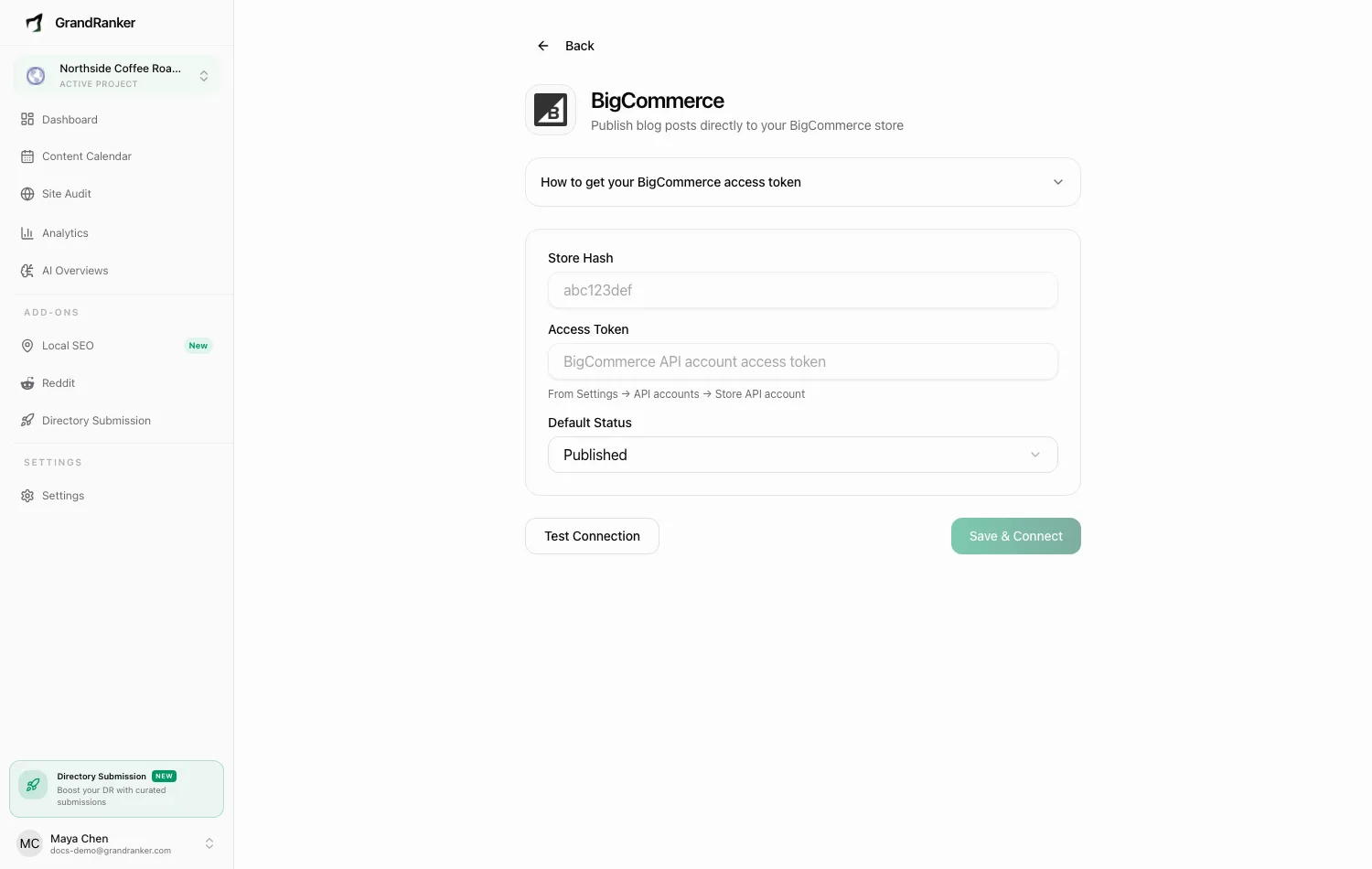
What you need: access to your BigCommerce control panel with permission to create API accounts, and the store's blog feature (built into BigCommerce Stencil storefronts).
How to Connect
- In BigCommerce, go to Settings → API accounts → Create API account → Store API account.
- Set scopes: Content: modify, Products: read-only, Information & Settings: read-only.
- Save and copy the Access Token.
- In Grandranker, open Integrations → BigCommerce and fill in:
- Store Hash: the code in your API path, e.g.
abc123fromapi.bigcommerce.com/stores/abc123/v3/. - Access Token: from step 3.
- Default Status: Draft or Published.
- Store Hash: the code in your API path, e.g.
- Click Test Connection, then Save & Connect.
Already connected on the Products page? The store hash pre-fills — leave Access Token blank to reuse it.
Publishing & Verifying
Articles publish with your default status. Scheduled articles from the Content Planner publish automatically.
To verify: publish one article, check it appears in your BigCommerce blog as draft/published. If Published, check the storefront blog URL.
Disconnect anytime from the integration page.
Troubleshooting
Test Connection fails
- Store Hash — the short code from the API path, not your store URL.
- Access Token — must be from a Store API account, shown once at creation. Lost it? Create a new one.
- Scopes must match step 2 — no Content: modify, no post creation.
Posts publish but don't show on my storefront
Draft stays hidden until published in the control panel. Headless storefronts don't render the built-in blog automatically.
The token stopped working
Deleting or regenerating the API account invalidates it. Create a fresh one with the same scopes and re-save.
I want to publish to a different store
Enter that store's Store Hash and matching Access Token — mismatched pairs fail the test.
Still stuck? [email protected]