Integrations

Webflow
Publish to a Webflow CMS collection.
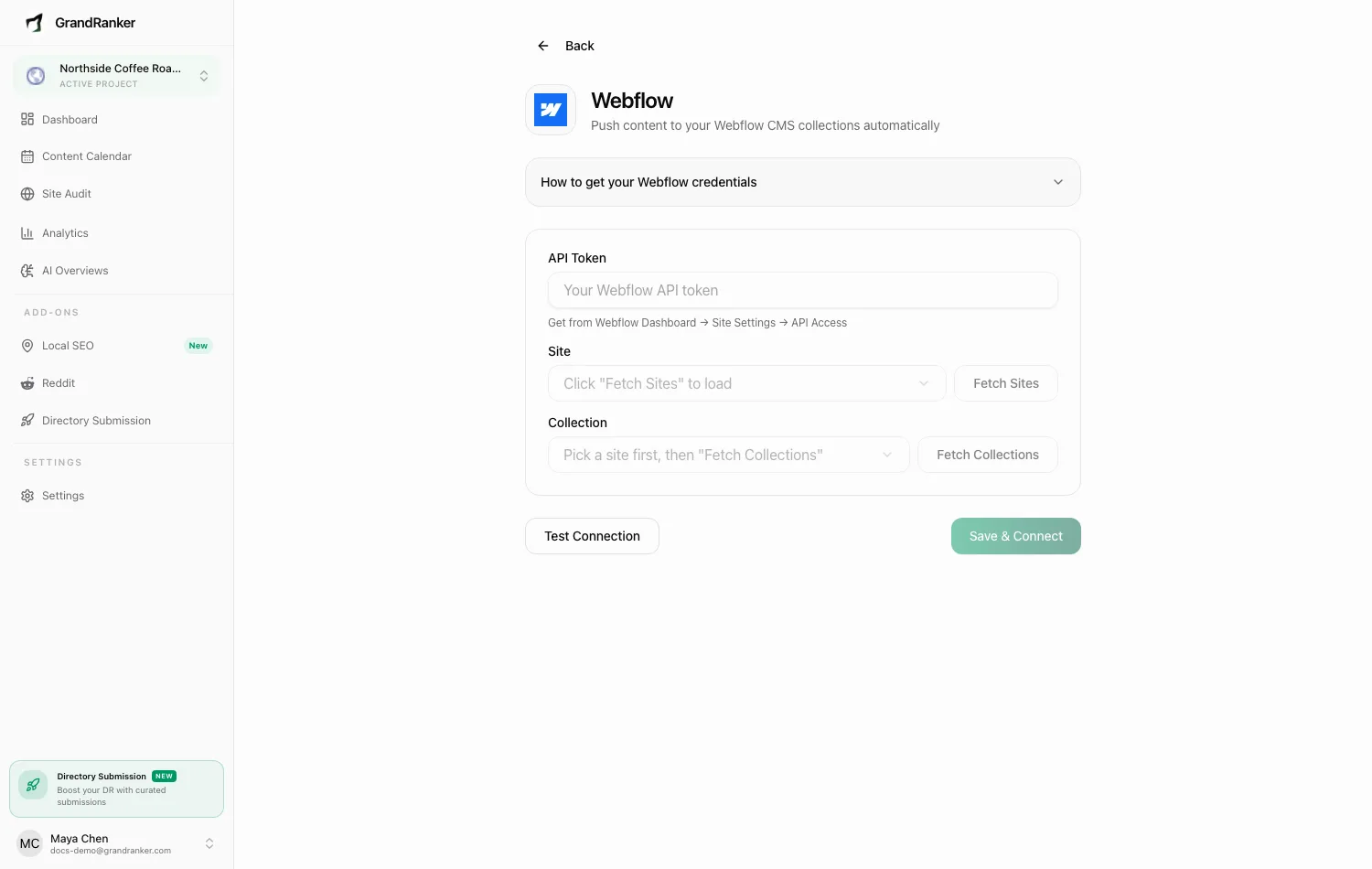
Connect with a site-scoped API token, pick a site and collection, and Grandranker maps article fields to your collection automatically.
What you need: a Webflow site with CMS access, and permission to generate an API token in Site Settings. No CMS collections yet? Grandranker can create a ready-made "Blog Posts" collection during setup.
How to Connect
- In Webflow, open your site → Site Settings → Apps & Integrations → API Access and click Generate API token.
- Under Data scopes, enable CMS: read & write, Sites: read, and Authorized User: read. Generate and copy the token — you can't view it again.
- In Grandranker, open Integrations → Add New Integration at app.grandranker.com/integrations/create, pick Webflow, and paste the token into API Token.
- Click Fetch Sites and pick a Site (auto-selected if you only have one).
- Click Fetch Collections and pick the CMS Collection you publish to.
- Review the Field mapping (auto-detected) panel — shows which field gets the body, summary, featured image, publish date, and author.
- Click Test Connection, then Save & Connect.
Don't type Site or Collection IDs by hand — Webflow's 24-character hex IDs aren't visible in the dashboard URL. Use the dropdowns.
Publishing & Verifying
Articles publish as items in your collection using the detected mapping. A missing field is skipped; the rest still publishes. Default mapping: post-body, post-summary, main-image, published-date, author.
Verify in your Webflow CMS panel — body content and image should be in the right fields.
Troubleshooting
"Could not fetch sites"
Token missing a scope, or pasted incompletely. Regenerate with all three scopes and paste the full value.
No CMS collections on the site
Click Create Blog Posts collection on the Fetch Collections error to auto-create, select, and map one.
Articles publish but some fields are empty
Compare Field mapping (auto-detected) against your collection's fields. Contact support if detection looks wrong.
Items appear in the CMS but not on the live site
Webflow only shows CMS items after the site is published. Check the collection page template is bound, then republish in Webflow.
Still stuck? [email protected]