Integrations

CloudCart
Publish blog posts to your CloudCart store.
Connect your store URL and a CloudCart API key once, and every article you approve is created in your CloudCart blog automatically.
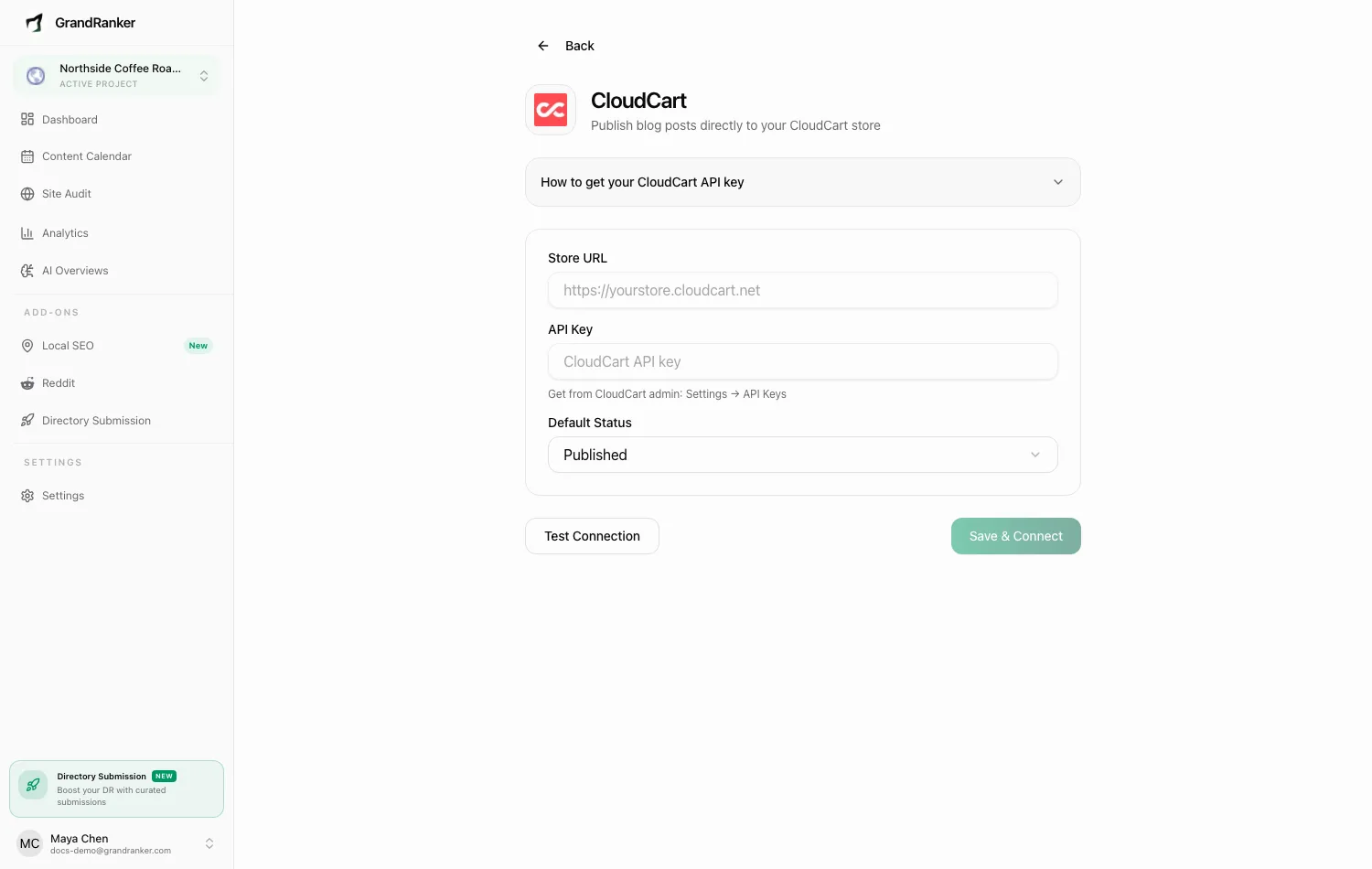
What you need: admin access to your CloudCart store and a CloudCart API key. Create the key in your CloudCart admin under Settings → API Keys (yourdomain.cloudcart.net/admin/settings/api_keys).
How to Connect
- In Grandranker, go to Integrations and choose CloudCart (click Show all integrations if not in the first list).
- In CloudCart admin, go to Settings → API Keys, click Create new API key, and copy it.
- Back in Grandranker, fill in Store URL (e.g.
https://yourstore.cloudcart.net) and paste the key into API Key. - Pick a Default Status: Published (live immediately) or Draft (unpublished for review).
- Click Test Connection, then Save & Connect.
Publishing & Verifying
Publish manually from the editor or automatically via your content plan. Grandranker creates the post with the article's title, content, and metadata.
To verify: publish one article, then check your CloudCart admin's blog section. Draft posts show in the drafts list instead — not on the storefront until published in CloudCart.
Troubleshooting
"Connection failed" when testing
Check the Store URL — full URL with https://, matching your CloudCart domain. Confirm the API key was copied fully, no stray spaces. Still stuck? Create a fresh key.
Articles publish but don't appear on the storefront
Draft posts are hidden — publish them from the CloudCart admin, or switch to Published.
The connection worked before but now fails
API keys can be revoked or regenerated in CloudCart. Create a new key, paste it into the integration screen, test, and save again.
"Your session has expired" message
A Grandranker session issue, not CloudCart. Refresh and retry.
Still stuck? [email protected]