Content Engine
Articles & Editor
Review, edit and publish AI-generated articles.
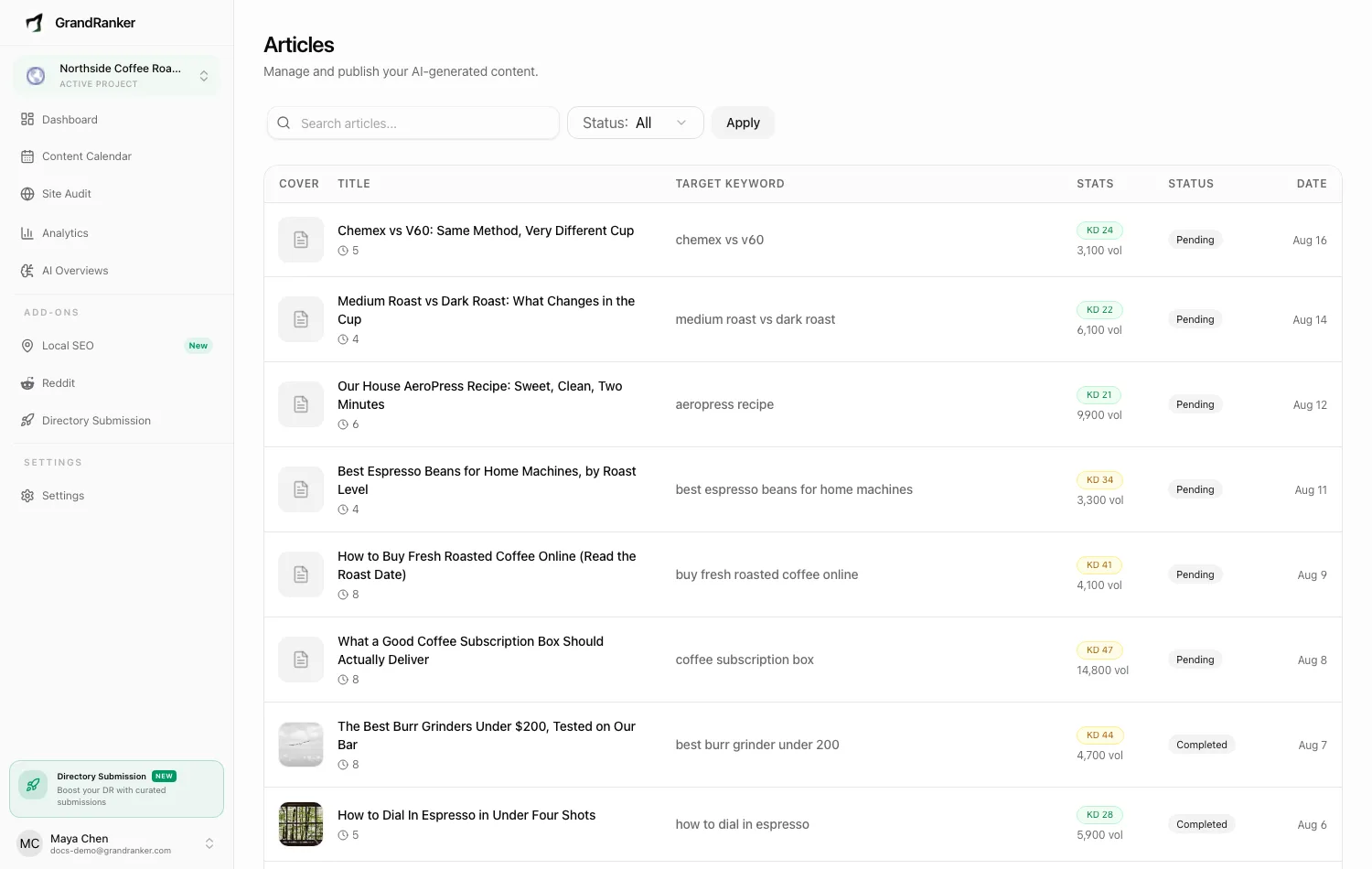
Every article Grandranker has written lives on the Articles page (app.grandranker.com/articles, or View Articles on the dashboard). Each has a detail page and editor.
How an article gets written
On a keyword's scheduled day (or when you hit Generate):
- Research: SERP analysis, search intent, plus product data on e-commerce sites.
- Plan: outline, title, meta description, URL slug, FAQs.
- Write: draft, then checks for brand fit, competitor differentiation, accuracy, and word budget.
- Enrich: internal/external links, YouTube videos, images, table of contents, JSON-LD schema, SEO score.
With Auto-publish on, an article publishes when its scheduled date arrives, unless it needs review or publishing fails. A connected CMS receives it on your website. With no integration connected, it is marked published locally in Grandranker; connect an integration to publish it to your website. With auto-publish off, it waits as a draft.
The articles list
Filter by search or the Status dropdown: All, Draft, Published, Publish failed, Failed, Needs refresh.
- draft: not yet live. A future publish date shows as scheduled.
- published: published through your integration, or locally in Grandranker if none is connected. Check View live on your site to confirm the website post.
- Publish failed: the CMS rejected it; the article page explains why (expired token, Cloudflare block, etc.) with a retry.
- Needs refresh: Search Console shows it underperforming. Low-CTR cases get a one-click Fix title & meta.
The article page
Sidebar: Status & Actions (Edit, Publish to Website/Unpublish, Delete, Markdown/Google Sites downloads), SEO Settings (URL Slug, Meta Title, Meta Description), Article Score (click Analyze Article for a 0-100 score across Title, Meta, Structure, Keyword Usage, Readability, Link Quality, Media), plus Cover Image, Target Keyword, History, and Webhook History.
Share opens ready-made social posts.
The editor
Edit opens a rich-text editor: headings, formatting, links, images, lists, blockquotes, code, tables, video embeds, and callouts. Select text for the format bar, or use an empty line's plus button to insert blocks.
Below the content you manage FAQs and Image Captions; the sidebar sets Publish Date and Category. Changing an image opens a picker: Media Library, Upload, Stock Photos, AI Image.
Your edits are safe: unsaved changes are kept locally, and every save creates a revision you can restore from History.
Publishing
Publish to Website sends the article to your connected integration — see Integrations. With none connected, publishing marks it published locally and prompts you to connect one. After your first publish, Grandranker offers Publish all for remaining drafts. Scheduled drafts publish automatically; failed publishes retry.
Unpublish Article pulls the post down and reverts it to draft.
FAQ
Can I edit an article after it's published?
Yes — edit, save, publish again. Grandranker updates the existing post rather than duplicating it.
Why is my article a draft when auto-publish is on?
Its publish date is in the future, a generation warning requires review, or publishing failed. Check the article page for the reason. With no integration connected, auto-publish marks eligible articles published locally; it does not put them on your website.
I turned on auto-publish. Why are my older drafts still drafts?
Auto-publish only applies to articles that reach their scheduled date after you turn it on. Drafts that already exist stay drafts: open each one and click Publish.
Can I write in my own style?
Yes. Set writing style, length, and tone in Article Settings, with per-article overrides on the Content Planner.
Still stuck? [email protected]