Analytics & Tracking
Google Search Console
Connect GSC to track impressions, clicks and indexing.
Connect Google Search Console (GSC) to bring your search queries, clicks and rankings into the Analytics page and power Rank Tracking.
What you need: a Google account that is a verified owner or user of your site in Search Console. Grandranker requests read-only access. It never changes anything in your Google account.
How to Connect
- Open Analytics and click Connect Search Console (or Connect GSC on the Search Console tab). You can also connect during onboarding.
- Sign in with the Google account that owns your site in Search Console and approve access.
- Pick a property under Select a Property — a site Google has confirmed you own. If you have exactly one, Grandranker selects it automatically.
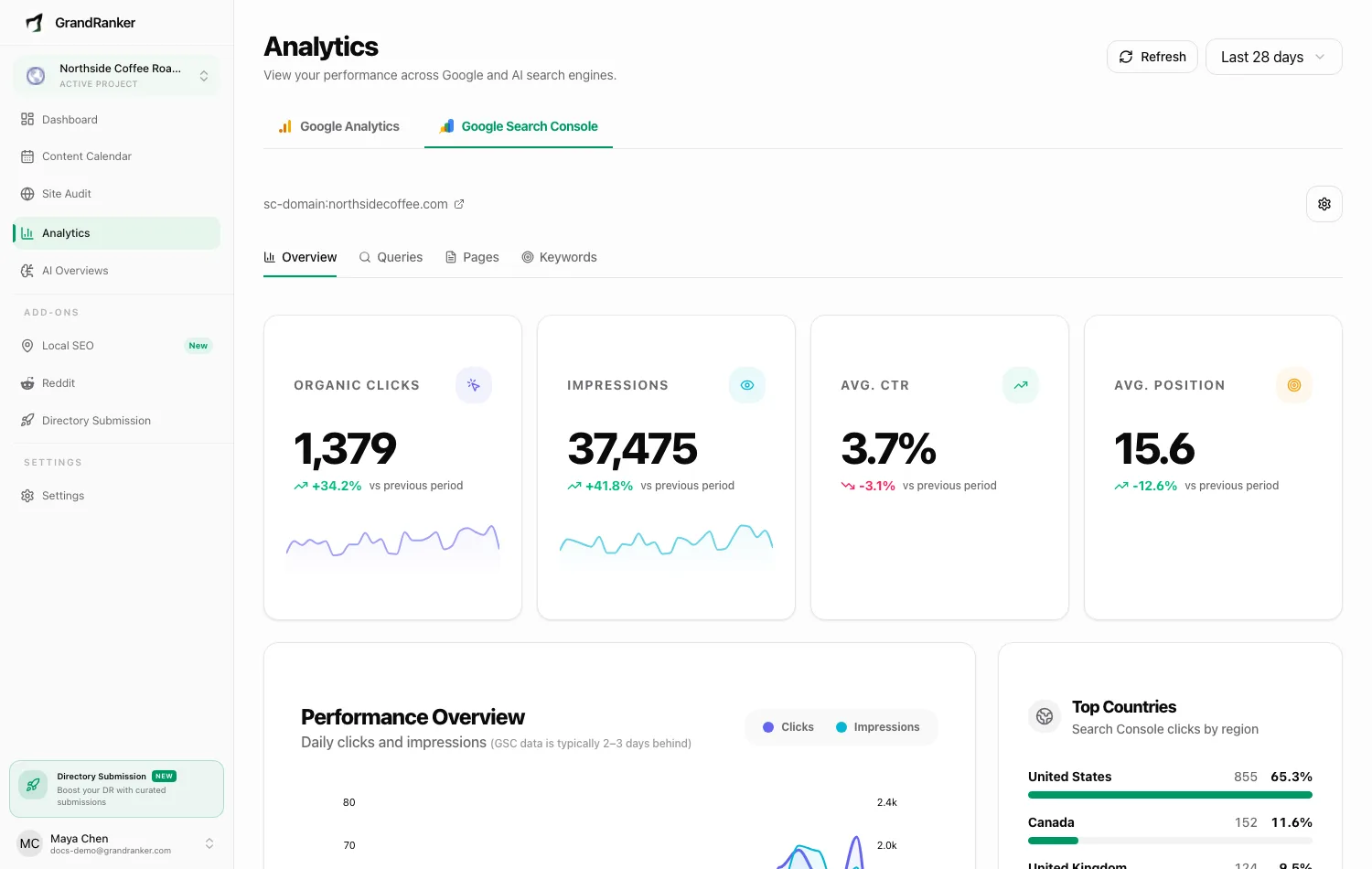
- Click Continue. The Search Console tab now loads clicks, impressions, CTR and position.
To change the property later, use the settings menu (gear icon) on the Search Console tab → Change Property. Disconnect removes the connection.
What the connection powers
- Search performance: organic clicks, impressions, average CTR and average position, with daily charts and country breakdowns.
- Queries and pages: search terms and URLs Google showed, with per-row clicks, impressions, CTR and position.
- Rank Tracking: daily position snapshots built from GSC data.
Troubleshooting
"No verified sites found"
Your Google account has no verified site here. Add and verify it at search.google.com/search-console, or click Use a different Google account and reconnect with the one that owns it. Then Check again.
A property shows "not verified"
Ownership was never confirmed in Search Console, so Grandranker can't select it. Finish verification there — a domain property needs a TXT record at your DNS provider.
"Google won't share data for [your property]"
The connected account isn't a verified owner or user of that property. Verify ownership, choose another verified property, or reconnect with the account that owns it.
"Search Console isn't finished connecting"
You authorized Google but never picked a property. Return to the Search Console tab and finish selection.
"Google connection expired"
Click Reconnect Google and approve access again. Your property and history are kept.
Recent days look empty
GSC data is typically 2-3 days behind. Not a sync problem.
Still stuck? [email protected]