Integrations

PrestaShop
Publish content to a PrestaShop store.
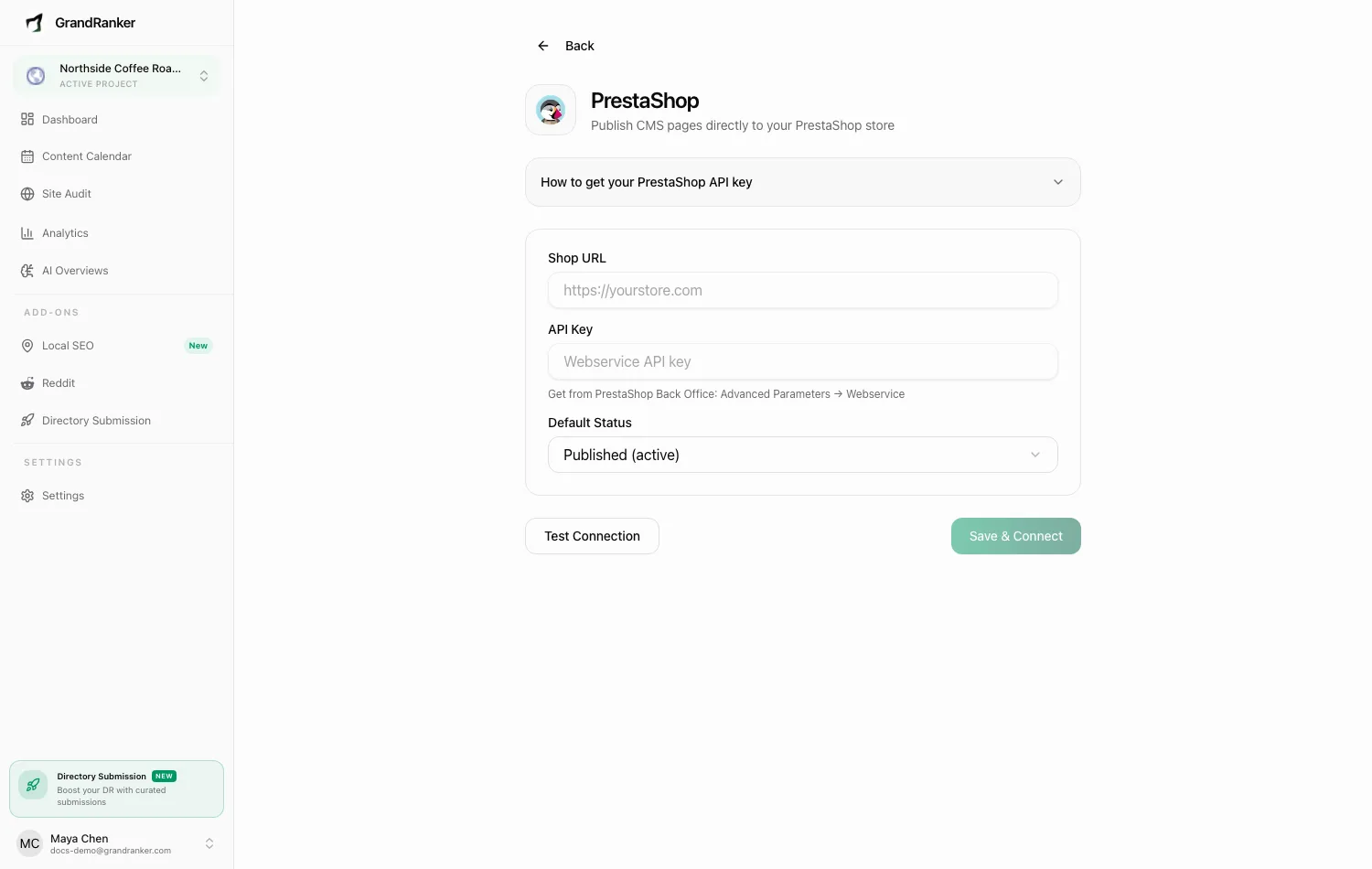
Connect your shop URL and a webservice key once. Grandranker publishes approved articles as PrestaShop CMS pages via its Webservice API.
What you need: access to your PrestaShop Back Office and a webservice key with the right permissions: GET, POST, PUT, DELETE for content_management_system and GET for languages.
How to Connect
- In Grandranker, go to Integrations and choose PrestaShop.
- In your Back Office, go to Advanced Parameters → Webservice, enable it if inactive.
- Click Add new webservice key, generate one.
- Give it GET, POST, PUT, DELETE for
content_management_system, and GET forlanguages. Copy it. - In Grandranker, enter your Shop URL (e.g.
https://yourstore.com) and paste the key into API Key. - Pick a Default Status: Published (active) for immediate, or Draft (inactive) for review.
- Click Test Connection, then Save & Connect.
Publishing & Verifying
Published articles arrive as CMS pages under Design → Pages in your Back Office. Draft (inactive) pages aren't visible on your storefront until activated or switched to Published (active).
Troubleshooting
"Connection failed" when testing
- Webservice disabled — check Advanced Parameters → Webservice.
- Key missing permissions — needs GET, POST, PUT, DELETE on
content_management_system, GET onlanguages. - Shop URL wrong — use the root URL with
https://, no admin path.
The test passes but publishing fails
Confirm POST and PUT are enabled for content_management_system — a test can pass while writes are still blocked.
Requests are blocked by my hosting or firewall
Some hosts block PrestaShop webservice calls. Ask your host to allow API requests to /api, or check your WAF/security plugin rules.
Pages publish but I can't find them
They're under Design → Pages, not the blog module. Grandranker never publishes to third-party blog modules.
Still stuck? [email protected]