Content Engine
Content Planner
Plan and schedule articles on the content calendar.
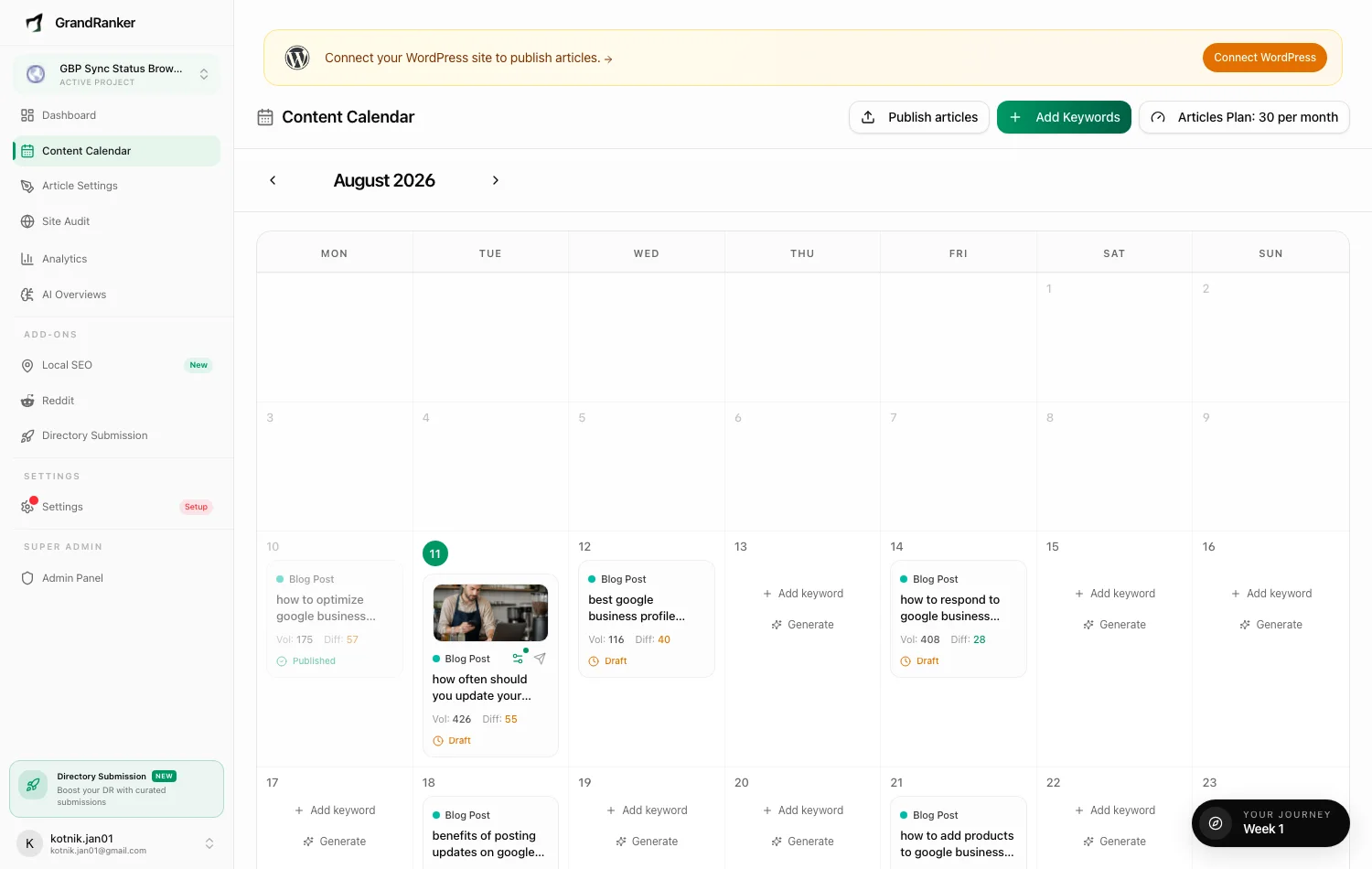
The Content Calendar (app.grandranker.com/content-planner) is a month view where each scheduled keyword sits on the day its article gets written. Grandranker fills it automatically during onboarding and with monthly refills, then generates one article per scheduled day. Use the calendar to review and adjust that plan.
Reading the calendar
Each card shows the keyword, content type (Blog Post, How-To Guide, Listicle, Comparison, Alternatives, Ultimate Guide, or Product Review), volume, difficulty, and a status badge. On mobile, cards show only title, status, and image preview.
- Generating...: article being written now.
- Draft: exists, waiting for review or its publish date.
- Published: published through your integration, or locally in Grandranker if none is connected. Local publication does not put the article on your website.
- Overdue: past its day; the daily backfill retries automatically.
Click a card to open its article. Use the arrows to browse ~6 months back and 2 months ahead.
Rescheduling with drag & drop
Drag any unpublished card to a different day. If that day is full, Grandranker swaps the two keywords instead of rejecting the move. Published articles can't be dragged.
Adding keywords to the plan
Hover an empty future day for:
- Add keyword: manually schedule a keyword for that date.
- Generate: open the AI keyword generator (pick type and count; counts against the monthly AI quota).
Add Keywords in the header goes to the full Keywords page.
Per-article settings
Click the gear icon on a card to open Keyword Settings and override how that article is written:
- Content Type: one of the seven types.
- Article Length: Default (~2,000 words), Micro (~300), Short (~1,000), Medium (~2,000), or Long (3,000+).
- Custom Instructions: up to 2,000 characters of free-form guidance.
If a card has no article yet and its date is within the next few days, Generate starts it immediately.
Publishing drafts
Publish articles in the header pushes every due draft to your connected CMS at once (future-scheduled drafts untouched). No integration yet? The dialog offers Connect integration. See Integrations overview.
Your monthly article volume
The Articles Plan pill shows your cadence: 30 articles/month by default (one/day). Upgrade to 60/month (2/day) or 90/month (3/day) per website. New capacity applies immediately.
Local SEO tip: if your plan skews too general, a banner offers Optimize Mix — it swaps low-priority general keywords for local ones toward a 50/50 balance. Swapped keywords return to your unscheduled backlog, not deleted.
FAQ
Do I have to schedule anything manually?
No. Onboarding builds the first 30 days, monthly refills add ~30 more, and daily jobs generate and publish on schedule.
What happens to a day I leave empty?
Nothing generates. Drag a keyword onto it or use Add keyword / Generate.
Why did an article generate on a different day than shown?
A same-day guard pass retries failed runs later that day; a backfill retries past-due keywords for up to a week before returning them to the pool.
Can I remove a keyword from the calendar?
Yes — the trash icon on a card (available until an article exists) removes it after confirmation.
Still stuck? [email protected]