Account & Billing
Team & Roles
Invite teammates and manage permissions.
Manage team access at https://app.grandranker.com/users (Settings → Team Members).
Roles
| Role | What they can do |
|---|---|
| Owner | Everything, including billing. The person who created the organization. |
| Admin | Full access except billing by default. Domains, settings, team, integrations, webhooks, analytics, content. |
| Member | Day-to-day SEO work: keywords, articles, analytics, dashboard, team list. |
One owner per organization; the role can't be assigned or removed through the UI. Invite others as Admin or Member.
Inviting a teammate
- Team Members → Invite Member.
- Enter Email Address, pick a Role.
- Send Invitation.
The invitee gets an email with Accept Invitation. No account yet? They create one on accept. Already logged in with that email? They join instantly.
Invitations expire after 7 days. From Pending Invitations: Resend Invitation (extends expiry), Copy Link, or Cancel Invitation.
An email can only belong to one organization — invites to an address already tied elsewhere can't be accepted.
Managing members
The members table shows role, join date and status. From the row menu (needs manage team permission):
- Edit Details — change name or switch role between Member/Admin.
- Remove from Team — removes their access; their account isn't deleted.
You can't edit or remove yourself or the owner, or demote/remove the last remaining admin.
FAQ
Do extra team members cost anything?
No. Seats are unlimited, no per-seat charge.
Can a member see billing?
No — only the owner (and admins granted billing permission). See Plans & Billing.
Can one person belong to two organizations?
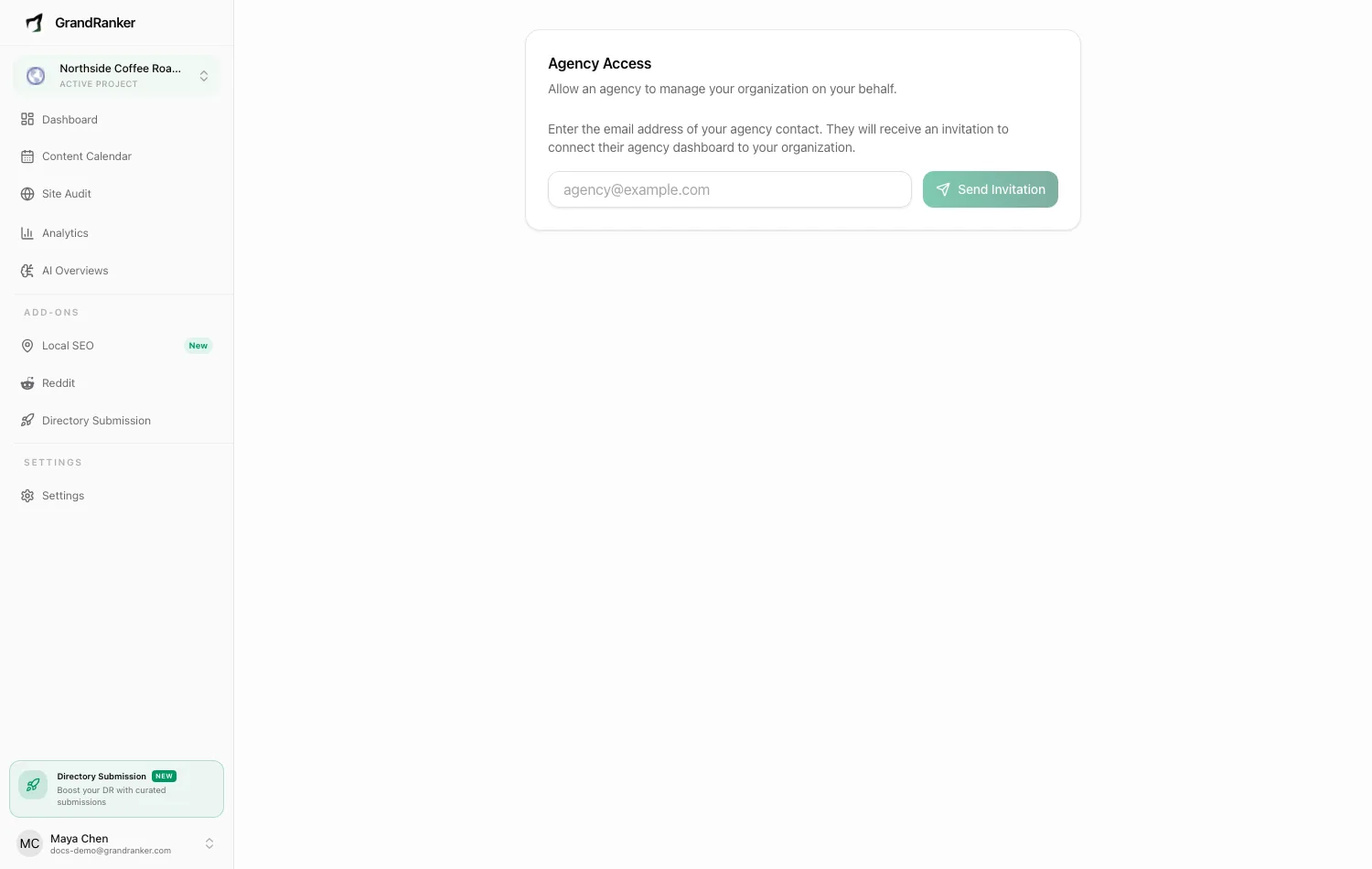
Not with the same email. Managing multiple clients? Use Agency Mode instead.
The invitation link says it's expired
Admin: Team Members → Pending Invitations → Resend Invitation — issues a fresh 7-day window.
Still stuck? [email protected]