Content Engine
Domains & Websites
Add, configure and manage the websites Grandranker writes for.
Manage websites under Settings → Domains (app.grandranker.com/domains). Each website is its own SEO agent — separate keywords, calendar, article settings, integrations, and analytics. Nothing is shared between sites.
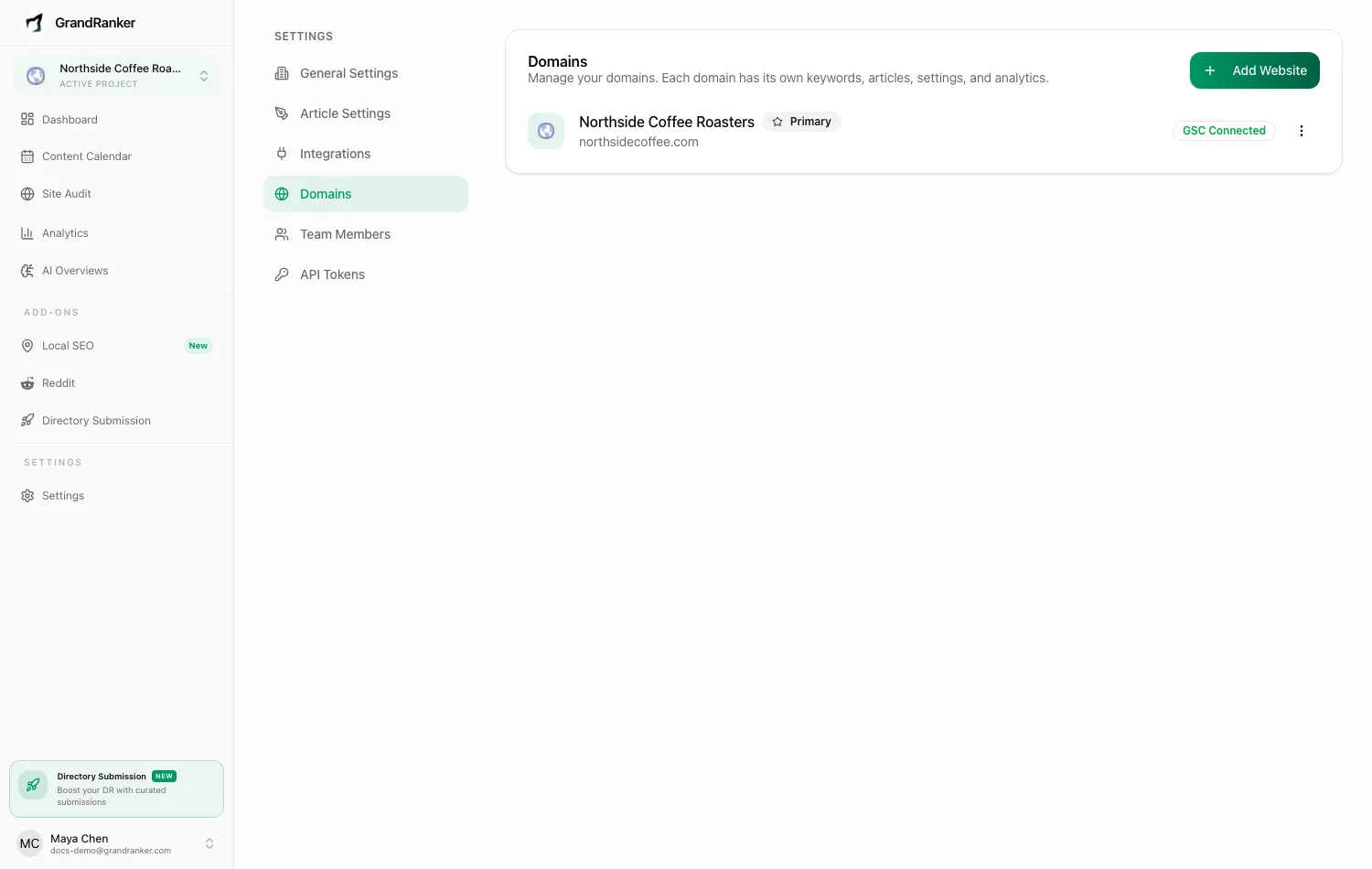
The Domains list
Each row shows the site's name and URL, a Primary badge on your main site, and a GSC Connected badge once Google Search Console is linked. From the row menu:
- Edit: change the Domain Name or Website URL.
- Set as Primary: make this the workspace's main site.
- Delete: permanently removes the site and all its keywords, articles, and settings. Cannot be undone.
Switch between websites any time. Every screen (keywords, planner, articles, analytics) shows data for the active website only.
Adding a website
Click Add Website. Your first site is included in your plan; each additional one is billed separately (monthly, 6-month, or yearly — yearly is cheapest per month). Enter a Website name and optionally the URL, then checkout.
Onboarding then walks you through:
- Website URL: Grandranker fetches your site and auto-detects business name, description, industry, language, country, brand color, and platform.
- Business Details: review and correct what was detected.
- Target Audience, Competitors, Pain Points: feeds keyword research and content generation.
- Connect Your Blog: optionally set your Sitemap URL and Blog URL.
- Grandranker generates keyword ideas, builds a 30-day calendar, and starts your first article.
Tip: auto-detection isn't perfect — double-check the description and language in step 2. Everything downstream is built on this profile.
Per-website settings
- General Settings: business details, Language, Country, plus Target Audiences, Competitors, Pain Points. Auto-fill with AI re-analyzes your site. Add at least two audiences and two pain points.
- Article Settings: how articles are written and look. See Article Settings.
- Integrations: where articles publish. See the Integrations overview.
- Team Members and API Tokens: access control and the REST API.
FAQ
How many websites can I add?
No cap. First site is on your plan; each extra is a paid add-on.
Does deleting a website stop its billing?
Yes, it cancels the Articles Plan subscription. If the site was billed separately, check Plans & Billing after deleting.
Can I change the website URL later?
Yes, via Edit. A URL can only be registered once — if it's already taken, contact support.
Can I move my plan to a new domain?
If it's the same business on a new address (a rebrand or a new domain), open Edit and change the Website URL. Your articles, keywords and backlinks stay on that site and on your plan. Don't use Add Website for this: it creates a second site that is billed separately.
If you publish through a hosted blog, add the record for the new subdomain (for example blog.newdomain.com) under Integrations → Hosted Blog. A connected store or CMS on the new domain needs to be reconnected.
If the new domain belongs to a different business, contact support instead. We re-analyse the business profile and rebuild the keyword plan so the articles match the new site.
What does "Primary" mean?
Your first website becomes primary automatically. Set as Primary moves the badge to any other site.
Still stuck? [email protected]