Integrations

Shopify
Publish blog posts to your Shopify store.
Publish Grandranker articles as Shopify blog posts. Only the blog is touched — products, orders, and themes stay untouched.
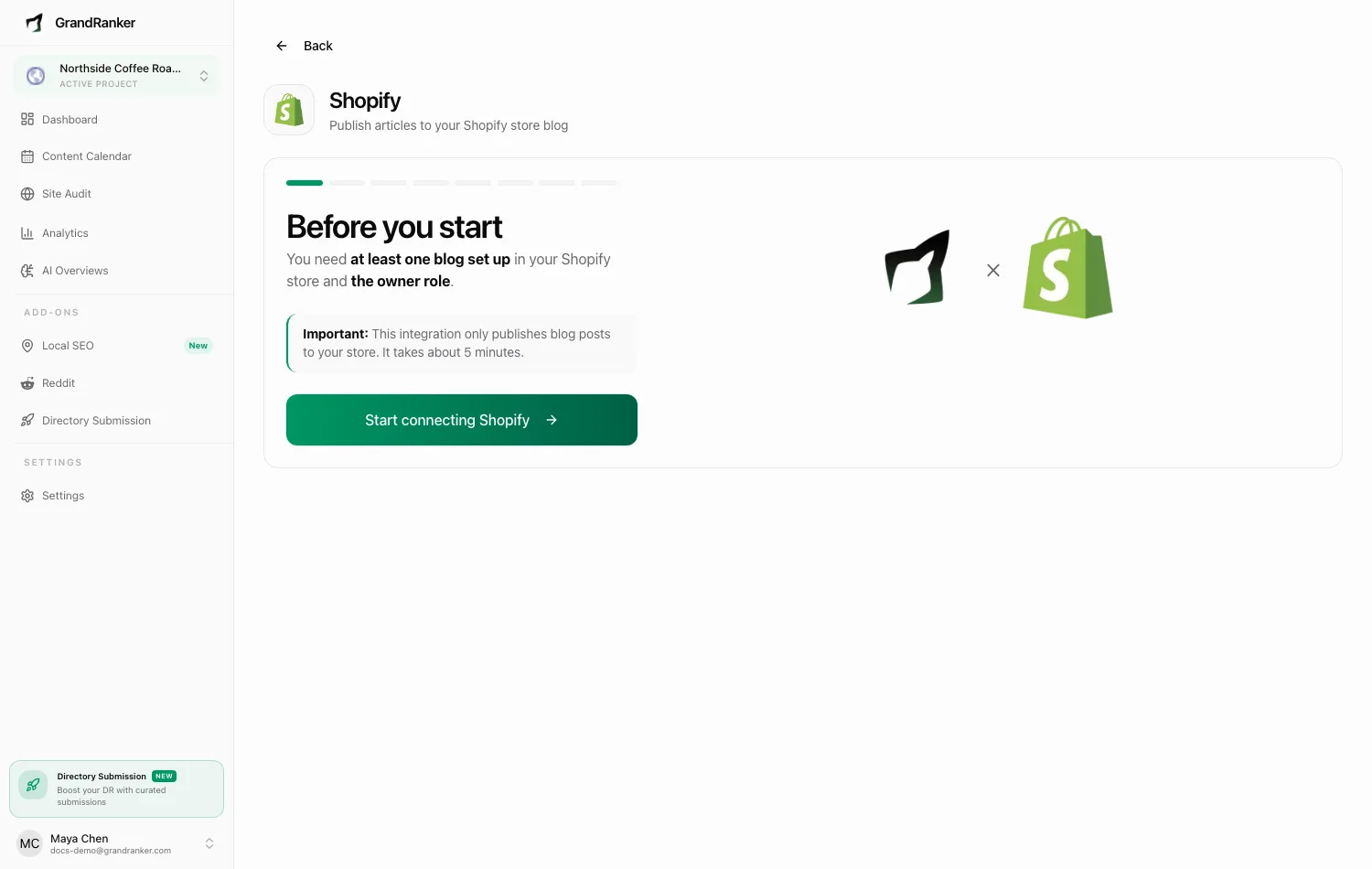
Three ways to connect:
- Shopify App Store: installed the app? Already connected — open Grandranker from your Shopify admin to pick the blog.
- One-click connect: enter your store URL, approve on Shopify.
- Custom app wizard: in-app wizard, ~5 minutes.
What you need: at least one blog set up in your Shopify store, and the store owner role. The integration requests the read_content, write_content, and read_products scopes.
How to Connect
One-click connect
- Open Integrations → Add New Integration at app.grandranker.com/integrations/create and pick Shopify.
- Enter your Store URL (e.g.
yourstore.myshopify.com; a custom domain likeyourstore.comalso works). Find it under Settings → Domains in your Shopify admin. - Click Connect with Shopify, approve the read/write blog permission.
- Grandranker picks the first available blog and shows your next draft — change the blog or default status later with Save settings.
Custom app wizard
If your account uses the custom-app flow, a video wizard walks you through:
- Store name: Shopify admin → Settings → Domains, copy your
.myshopify.comURL. - Create a Shopify app: Apps → Develop apps → Build apps in Dev Dashboard → Create app. Name it anything.
- App URL: in the app's Configuration, paste the App URL the wizard shows.
- Redirect URL: same page, paste the wizard's Redirect URL into Allowed redirection URL(s).
- Content permissions: API Access → Scopes, paste
read_content, write_content, read_products, then Done → Release, confirm. - Install the app: Dev Dashboard → app Overview → Install app, confirm in your store.
- Credentials: app Settings, copy Client ID and Client Secret into the wizard, click Connect to Shopify.
Grandranker opens your next draft. Change the blog or default status later with Save settings.
Publishing & Verifying
Published articles appear under Online Store → Blog posts in the blog you selected. Draft arrives hidden for review; Published goes live immediately.
The integration page shows your store name, domain, connection date, and granted scopes.
Match your blog theme
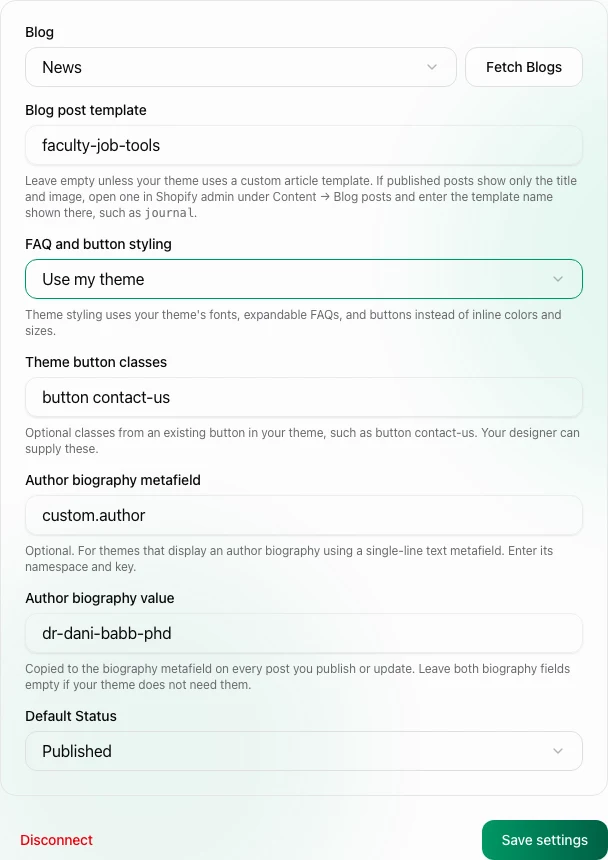
Open your Shopify integration settings to control how future publishes and updates appear:
- Blog post template: Enter the custom article template suffix used by your existing posts, such as
journal. Leave it empty to use Shopify's theme default. The template controls the page header and title styling. - FAQ and button styling: Choose Use my theme to remove GrandRanker's inline FAQ sizes and button colors. FAQs become expandable sections with
faq-blocktheme classes. Your theme controls their appearance. - Theme button classes: If your theme uses special button classes, copy them from an existing button, for example
button contact-us. Leave empty to usebutton. - Author biography metafield and Author biography value: Some themes display a biography from a separate article metafield. Enter its namespace and key, such as
custom.author, and the value used by a correctly configured article. This supports single-line text metafields; it does not replace the article's normal author name. The configured value is applied to every article you publish or update.
Saving these settings does not republish existing articles. Check an existing Shopify post's template and metafield values before filling them in. For a blog with multiple authors, change the biography value to match the author before publishing.
Troubleshooting
"No blogs found. Make sure your store has a blog."
Create one: Online Store → Blog posts → Manage blogs, then Fetch Blogs again.
"That doesn't look like a .myshopify.com domain"
Copy the full .myshopify.com URL from Settings → Domains, not your custom storefront domain. An admin.shopify.com/store/... URL also works.
I installed from the App Store but Grandranker asks nothing
Expected — open Grandranker from your Shopify admin to pick the blog.
"Grandranker was uninstalled from your Shopify store"
Reinstall from the Shopify App Store, then open Grandranker from your Shopify admin to pick the blog again.
The custom-app connect fails on the last step
Re-check Client ID and Secret (secret starts with shpss_), and confirm you released the scopes (Done → Release) and installed the app.
Still stuck? [email protected]