Account & Billing
Account Settings
Profile, sign-in, notifications and organization settings.
Account Settings (/settings/profile) is your personal profile. Workspace Settings covers business profile, integrations, domains and team, shared by your organization. Article Settings sits beside the Content Calendar for writing, branding and publishing controls.
Profile
Settings → Profile: update Name and Email address, click Save.
- Changing email marks it unverified until you resend and confirm.
- Sign in with a magic link sent to your email, or with Google. There is no password.
Appearance
Settings → Appearance: Light, Dark, or System. Saved per browser, applies immediately.
API Tokens
Settings → API Tokens — create and revoke tokens for the REST API and MCP. See REST API & Tokens.
Workspace settings
Visibility depends on role — see Team & Roles:
- General Settings (
/general-settings, admins and owners) - Integrations — CMS connections. See Integrations overview.
- Domains — your websites. See Domains & Websites.
- Team Members — invitations and roles.
General Settings
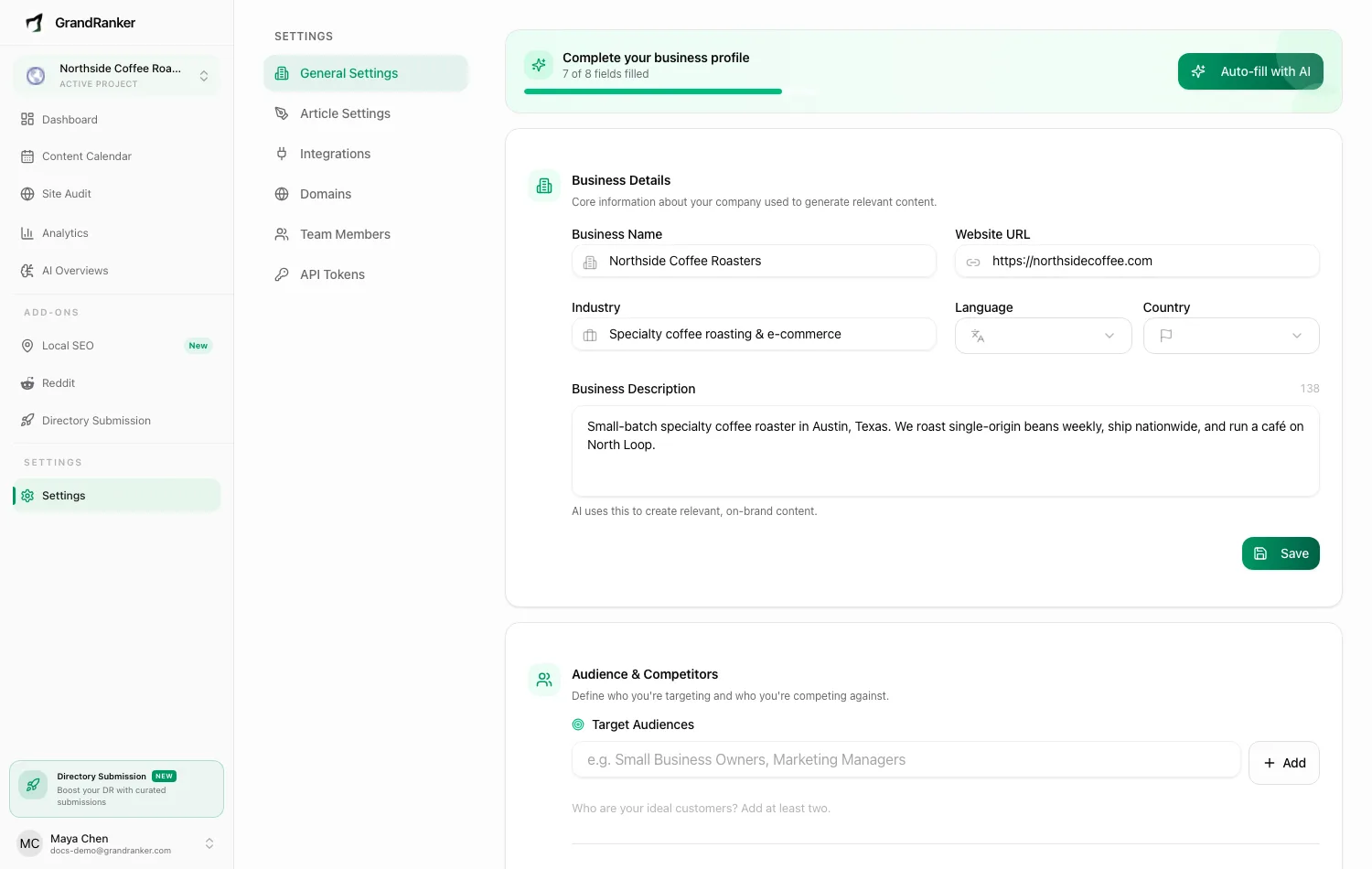
The business profile that grounds generated content:
- Business Details: name, website URL, industry, language, country, description. Language/country here control content generation, not the app UI.
- Audience & Competitors: target audiences, competitors, pain points — at least two audiences and two pain points for relevant articles.
- Product Catalog: toggle for e-commerce features so articles can reference products. See E-commerce Product Sync.
Incomplete profile? Auto-fill with AI analyzes your website and fills in the fields — review and save each section after.
Danger zone at the bottom: deleting a website permanently removes it and all its keywords, articles and analytics. Cannot be undone.
Email notifications
Article Settings → Publishing: Email notifications toggle emails you on every new article. Same section holds Auto-publish and Show branding.
If publishing fails, Grandranker also emails the organization owner with the fix. See Troubleshooting.
FAQ
How do I change my password?
There is no password. Enter your email on the login page and click the link we send you, or sign in with Google.
Can I change the interface language?
No — that field is content language only.
Who can edit workspace settings?
Admin or owner for General Settings, Integrations and Domains. Members handle keywords and articles only.
Still stuck? [email protected]