Content Engine
Keywords
How keyword research works and how to manage your keyword pool.
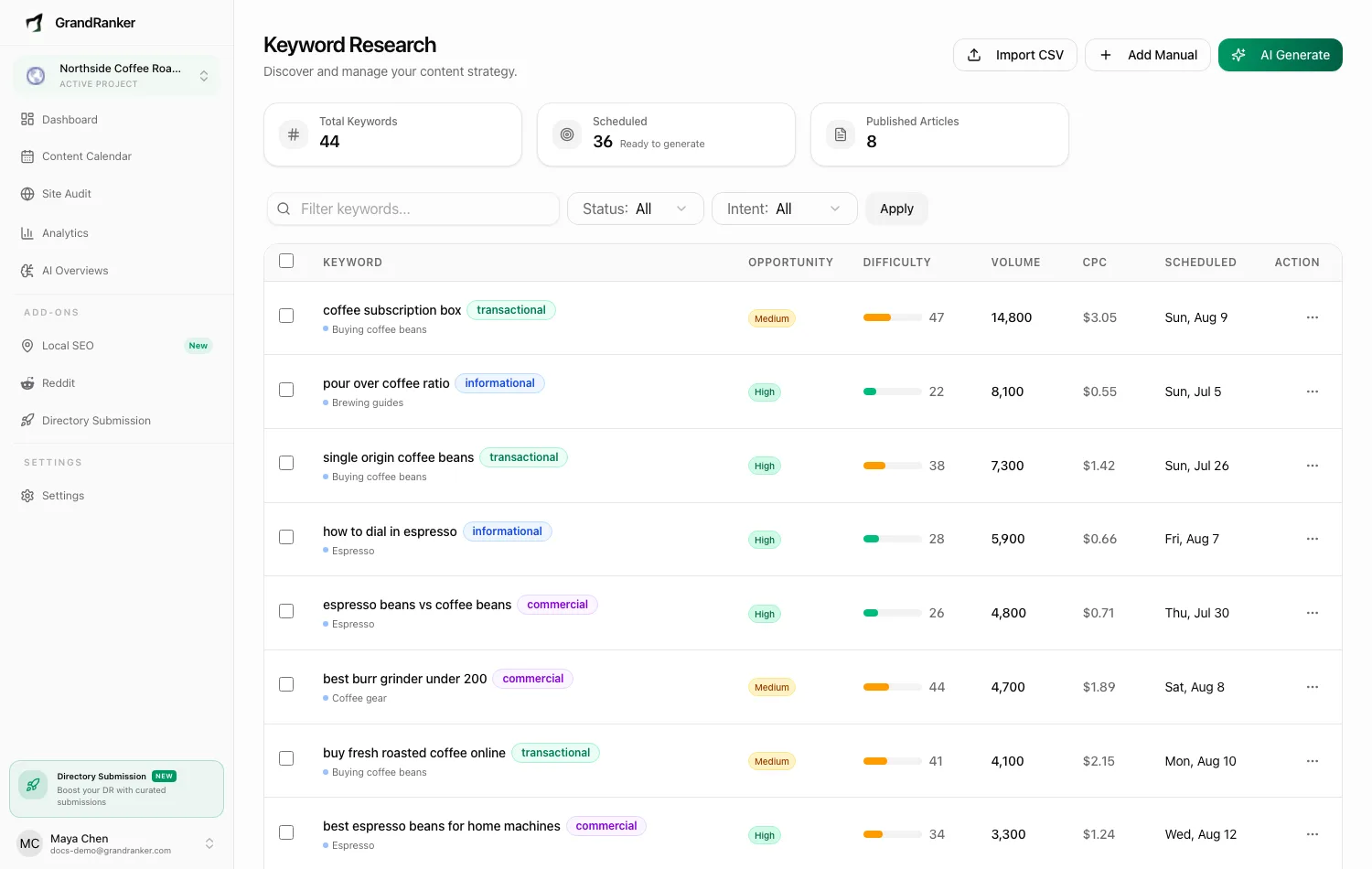
Keywords are the fuel of your content plan: every article Grandranker writes starts from a keyword. The Keyword Research page (reached via Add Keywords on the Content Calendar, or directly at app.grandranker.com/keywords) is where you see, add, and manage them.

How keyword research works
Grandranker researches keywords for you (during onboarding, on demand, and automatically every month):
- AI research identifies topic clusters for your business from your brand profile (description, target audiences, pain points, competitors), then expands them into concrete keyword ideas.
- Real search data comes from DataForSEO: monthly search volume, keyword difficulty, CPC, competition, and trend. Search intent (informational, commercial, transactional, navigational) comes from the same source.
- Difficulty is authority-aware: Grandranker checks your site's domain rating and targets keywords you can realistically rank for. New sites get mostly easy keywords; established sites get a harder mix.
- AI estimation as fallback: when DataForSEO has no data for a keyword in your market (common for long-tail terms in smaller languages), Grandranker estimates the volume. Those rows show an est chip; keywords with no detectable search demand get an unverified badge.
Each month, around your renewal date, Grandranker automatically refills your calendar with roughly 30 fresh keywords, so the plan never runs dry.
The keyword table
Columns: Keyword (with its intent badge and cluster), Opportunity (High when volume is at least 500 and difficulty under 40), Difficulty, Volume, CPC, Scheduled, and an action menu. Above the table:
- Filter keywords...: free-text search.
- Status filter: All, Pending, Generating, Completed, Failed.
- Intent filter: All, Informational, Commercial, Transactional, Navigational.
Unscheduled keywords show a Schedule button in the Scheduled column. One click places the keyword on the next free calendar day. Select rows with the checkboxes to Delete in bulk.
Adding keywords
Three buttons in the header:
AI Generate
Opens the Generate Keywords dialog: pick a Generation Type (Competitors & Target Audiences, Competitors Only, or Target Audiences Only), optionally narrow to specific competitors or audiences, set the Number of Keywords, and click Generate. New keywords appear within a few minutes with full metrics.
Quota: AI generation is limited to 30 keywords per website per month; the dialog shows how many you have left. The counter resets monthly. Manual and CSV keywords don't count against it.
Add Manual
Add a single keyword by hand. Only the Keyword field is required. Grandranker enriches it immediately with real volume, difficulty, CPC, and intent data, and schedules it to the next free calendar slot.
Import CSV
Upload a CSV with columns keyword, search_volume, difficulty (first row is treated as a header). Imports are capped at 1,000 keywords per file; each imported keyword is scheduled and then enriched with metrics in the background.
Keyword statuses
- Pending: scheduled, waiting for its generation day.
- Generating: an article is being written right now; the page live-updates.
- Completed: the article exists.
- Failed: generation hit an error; you can retry from the article or calendar.
FAQ
What does the "Google update" badge mean?
The keyword's ranking dropped during a Google algorithm update rollout. Positions often recover after the rollout completes. Wait before reacting. A banner on the page tells you when an update is rolling out.
Can I control which day a keyword's article is written?
Yes. Keywords live on the Content Planner calendar, where you can drag them between days.
Do keywords get deleted when their article is written?
No. The keyword flips to Completed and stays linked to its article.
Questions? Contact us at [email protected].