Integrations

WordPress.com
Connect a WordPress.com site via OAuth.
Connect via OAuth — approve Grandranker on WordPress.com, no passwords or API keys.
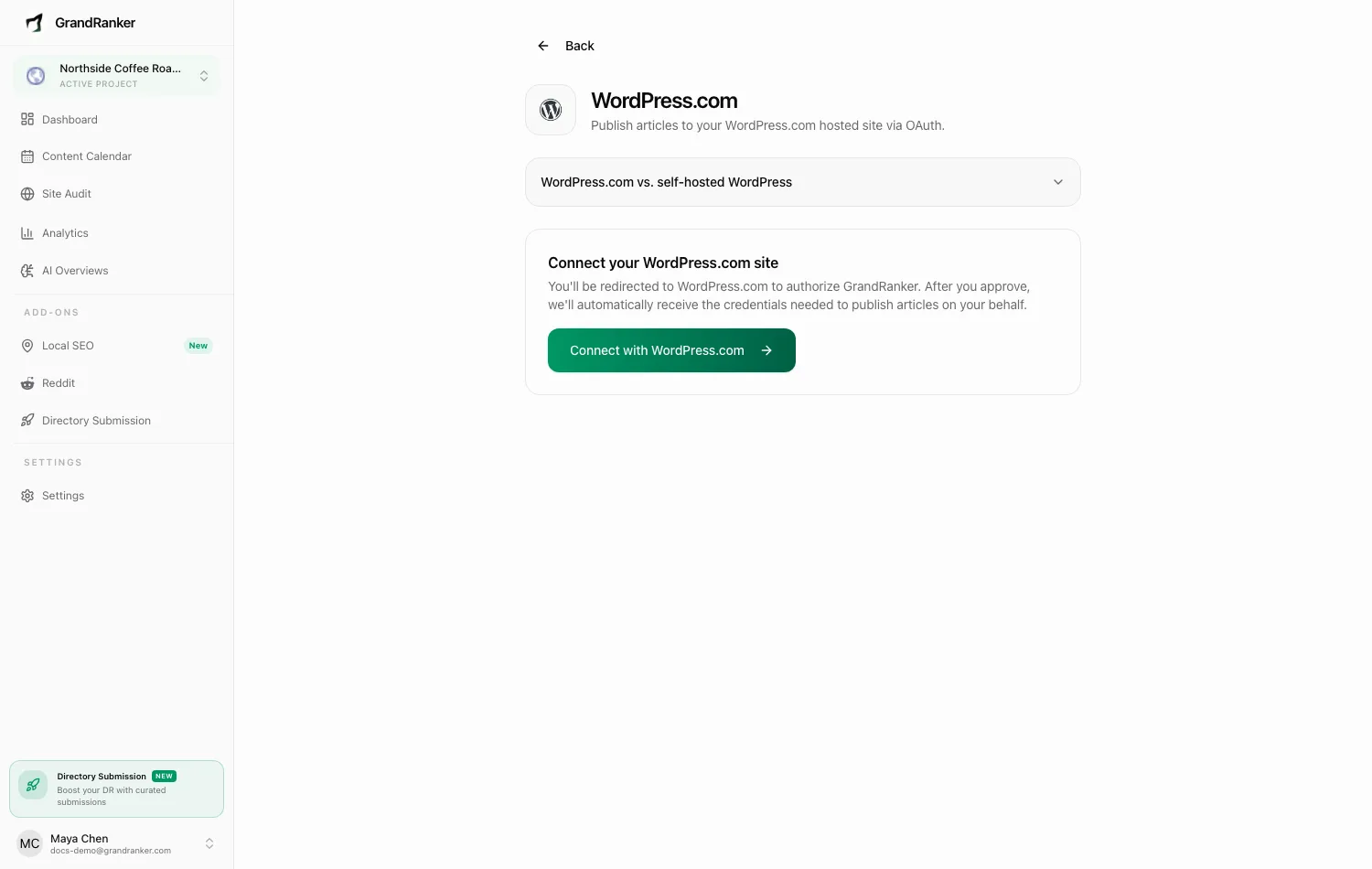
Use this if your site is hosted on WordPress.com: URLs like yoursite.wordpress.com, or a custom domain on a WordPress.com Business/Pro plan. If you run WordPress on your own server and can generate Application Passwords, use self-hosted WordPress instead.
What you need: a WordPress.com account with access to the site you want to publish to.
How to Connect
- Open Integrations → Add New Integration at app.grandranker.com/integrations/create and pick WordPress.com.
- Click Connect with WordPress.com and authorize Grandranker.
- You're returned to Grandranker with a Connected badge showing your blog URL and connection date.
- Optionally adjust settings and click Save Settings:
- Default Status: Draft or Published (new connections default to Published).
- Default Category: pick from your site's real categories, or leave on Default (Blog).
Publishing & Verifying
Publish an article and it appears on your WordPress.com site with your chosen status and category. Draft status needs review and publish on your WordPress.com dashboard.
Verify in your site's posts list on WordPress.com, or click the connected blog URL on the integration page.
Troubleshooting
The category dropdown is empty
It fills from your site's real categories. If none load, Grandranker falls back to a free-text field — type the category name (e.g. "Blog"). Reload later to see the dropdown.
I connected the wrong site
Click Disconnect, then Connect with WordPress.com again and choose the right site.
The authorization redirect fails or shows an error
Any OAuth error shows at the top of the integration page. Retry; if you manage multiple WordPress.com accounts, make sure you're logged into the one that owns the site.
My site is self-hosted, not on WordPress.com
Use the WordPress integration instead — either the plugin or an Application Password works.
Still stuck? [email protected]