Integrations

Ghost
Publish posts to a Ghost publication via the Admin API.
Publishes articles straight to Ghost via the Admin API — works with Ghost(Pro) and self-hosted Ghost. Create a custom integration in Ghost, paste its Admin API key into Grandranker, and choose whether new posts land as drafts or go live.
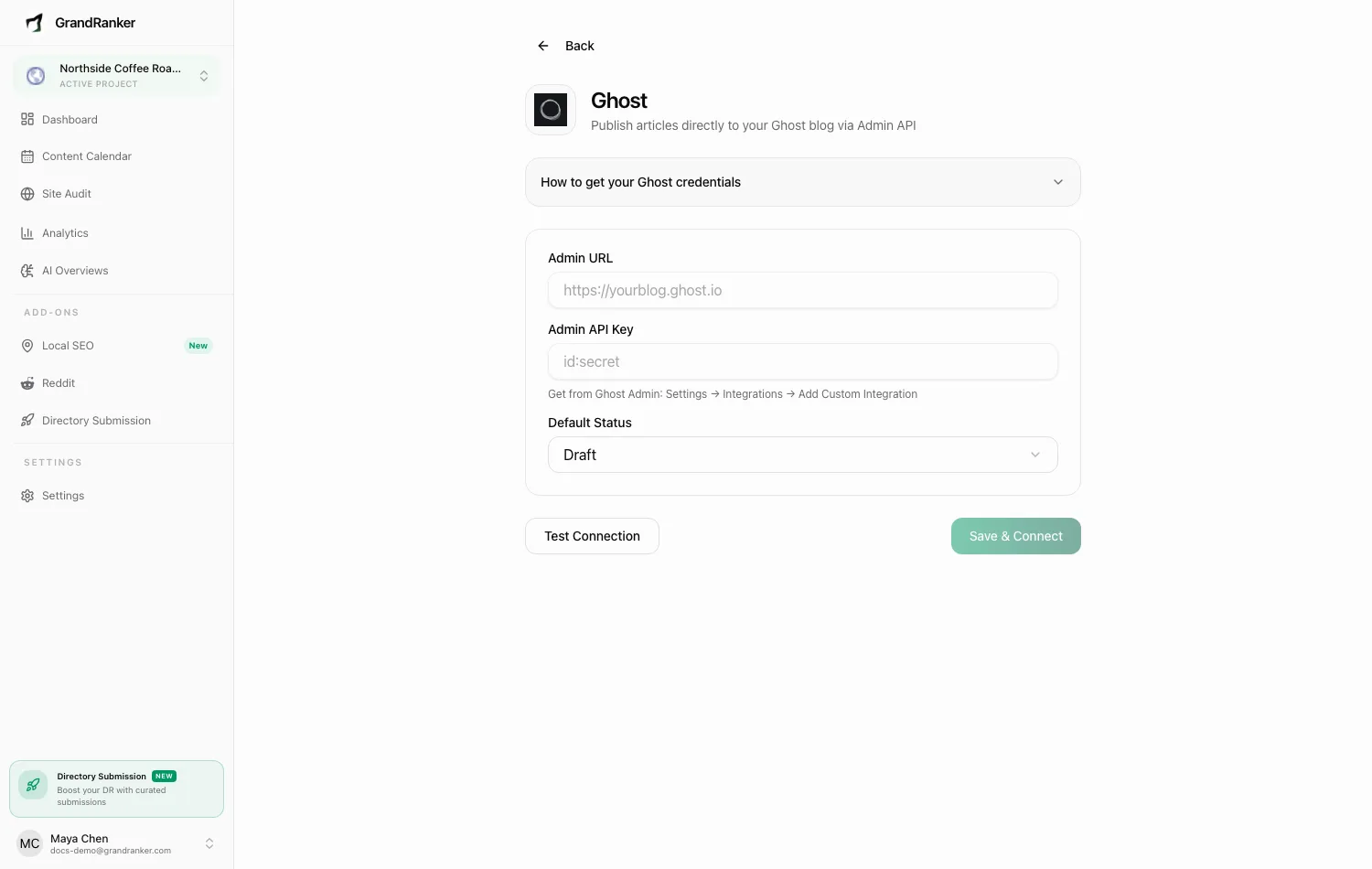
What you need: admin access to your Ghost site (Settings → Integrations) and your Ghost site's URL.
How to Connect
- Log in to Ghost Admin → Settings → Integrations.
- Click Add Custom Integration and name it (e.g. "GrandRanker").
- Copy the Admin API Key — it looks like
id:secret. - In Grandranker, open Integrations, pick Ghost, and fill in:
- Admin URL: your Ghost site address, e.g.
https://yourblog.ghost.io. - Admin API Key: the
id:secretkey from step 3. - Default Status: Draft (posts wait for review) or Published (posts go live immediately).
- Admin URL: your Ghost site address, e.g.
- Click Test Connection — expect "Connection successful!".
- Click Save & Connect.
Publishing & Verifying
Articles publish with your chosen default status. Articles approved on the Content Planner publish automatically on their scheduled date.
Publish one article, then check Ghost Admin → Posts — it should appear as draft or published per Default Status. If live, open the post URL and check formatting.
To disconnect, open the Ghost integration page and click Disconnect — existing posts are untouched.
Troubleshooting
Test Connection fails
- Admin URL must be your site's root (e.g.
https://yourblog.ghost.io), withhttps://, no trailing/ghost. - Admin API Key must be the Admin key (
id:secret), not the Content API key. Copy the whole string. - Firewall or security plugin? Make sure
/ghost/api/admin/isn't blocked.
"Failed to test connection. Please check your credentials and try again."
Request never reached Ghost — wrong URL, site offline, or a network block. Confirm the site loads at the exact Admin URL entered.
Posts arrive but nothing goes live
Default Status is set to Draft. Switch to Published on the integration page and save.
The key stopped working
Deleting or regenerating the Ghost integration invalidates the old key. Recreate it, copy the new key, and re-save the form.
Still stuck? [email protected]