Integrations
E-commerce Product Sync
Sync products via WooCommerce, Ecwid, XML or CSV for product-aware content.
Give Grandranker a catalog of your products so articles reference real names, URLs, prices and features instead of generic mentions. Add products from one or more sources — store connection, XML feed, CSV, or manual entry — and combine as many as you like.
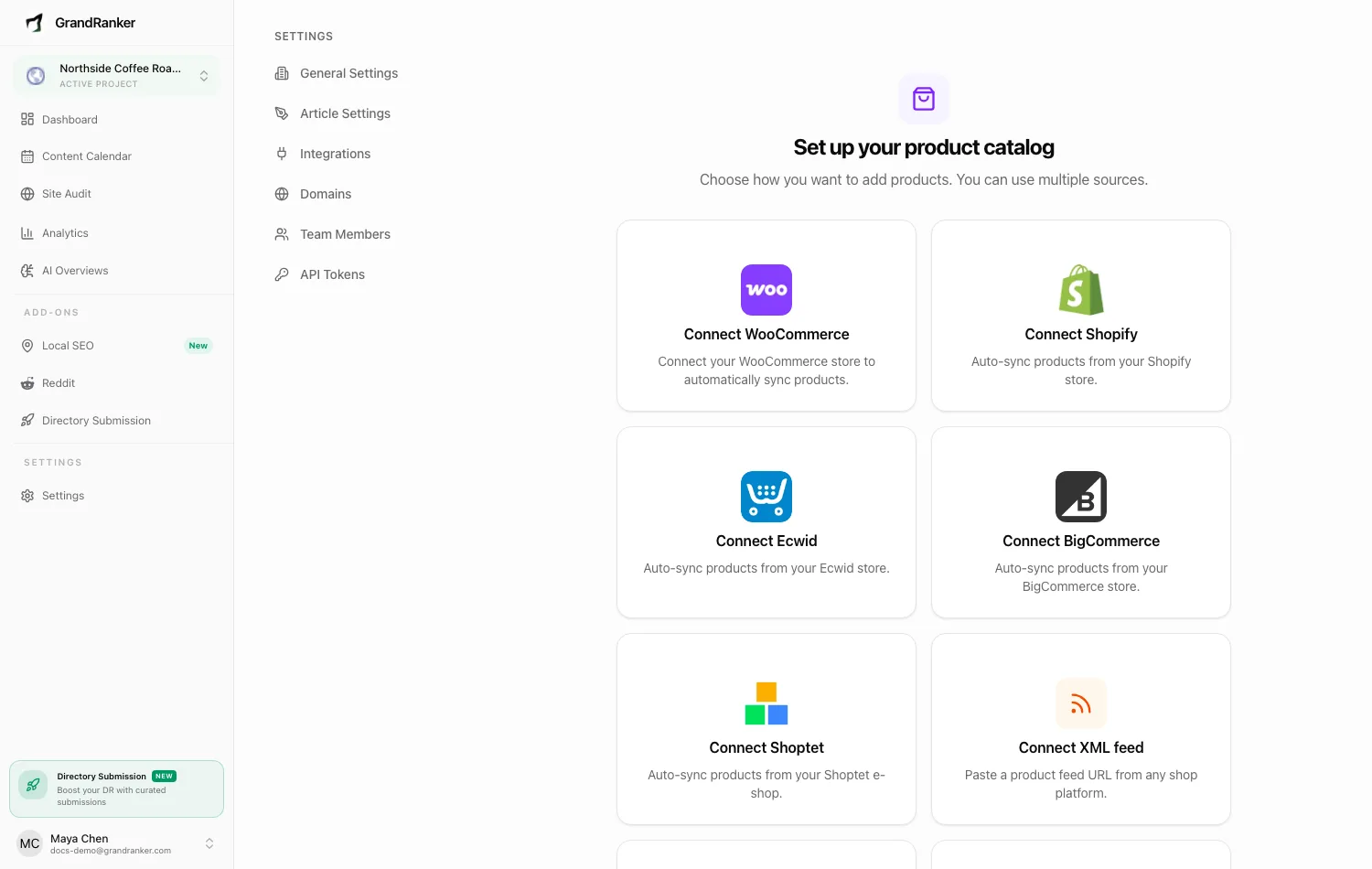
What you need: the Product Catalog feature enabled — flip the switch in Settings → General ("Enable e-commerce features to reference products in generated articles") to reveal the Products page.
How to Connect
- Enable Product Catalog in Settings → General. You land on the Products page.
- Choose a source:
WooCommerce: enter your store URL, click Connect, approve access in WordPress admin. Or "Connect with API keys instead" using a Read/Write REST API key from WooCommerce → Settings → Advanced → REST API (Consumer Key ck_…, Consumer Secret cs_…).
Shopify: auto-syncs via your existing Shopify connection. See Shopify.
Ecwid: in Ecwid admin, Apps → My apps → develop your own app, create a custom app, copy the Store ID and Secret Token into the connect dialog.
BigCommerce: Settings → API accounts → Create API account → Store API account, with Products (read-only), Content (modify) and Information & Settings (read-only) scopes. Paste the Store Hash and Access Token.
Shoptet: Connections → Access to API, create a token, paste it in. Requires Shoptet Premium. Same connection powers Shoptet blog publishing.
XML feed: paste a product feed URL (e.g. https://yourshop.com/export/products.xml). Heureka/Zboží, Google Merchant and Shoptet native formats are auto-detected.
CSV import: upload a CSV, max 1MB. Required columns: name, url. Optional: description, category, price, key_features, image_url. Use the Download CSV template link; you get a preview before importing.
Add manually: Name and URL required, plus description, category, price, up to 10 key features, image, and an Active toggle.
Publishing & Verifying
Connected stores and feeds sync automatically; each source also has Sync Now. Check the Products page — items appear with a source icon. Toggle a product's Active switch to control whether articles may reference it.
Troubleshooting
WooCommerce connection fails
Switch to API keys: create a Read/Write key under WooCommerce → Settings → Advanced → REST API, then "Connect with API keys instead". Make sure the store URL includes https:// and points at the site root.
CSV import is rejected
Confirm it's a .csv under 1MB with name and url columns. Start from the template. The dialog shows the exact error.
Only part of my catalog shows
Large catalogs are sampled in the UI, but articles search your full live catalog. Shoptet is the exception — its API has no product search, so articles can only reference the synced subset.
Shoptet source shows a re-authorization notice
The token expired or was revoked. Create a fresh one under Connections → Access to API and reconnect.
Still stuck? [email protected]