# GrandRanker Docs
> The full text of every GrandRanker docs page. Index: https://grandranker.com/llms.txt
---
# Welcome to Grandranker
> What Grandranker does and how the pieces fit together.
Grandranker researches keywords, writes SEO articles, and publishes them to your CMS automatically.
## What Grandranker does
- **Content Engine:** researches keywords, plans a content calendar, and writes SEO-optimized articles automatically.
- **Analytics & Tracking:** connects Google Search Console and GA4, tracks keyword rankings and backlinks.
- **AI Visibility:** monitors how ChatGPT, Google AI Overviews, and other AI engines mention and cite your brand.
- **Local SEO:** Google Business Profile management, map rank tracking, reviews, and posts.
- **Integrations:** one-click publishing to WordPress, Shopify, Webflow, Wix, and 18 more platforms.
## Where to start
1. Add your website in [Domains & Websites](/docs/content-engine/domains-and-websites).
2. Review your keyword pool in [Keywords](/docs/content-engine/keywords).
3. Connect your CMS from the [Integrations overview](/docs/integrations).
4. Watch articles appear on your [Content Planner](/docs/content-engine/content-planner).
## Need help?
Press ⌘K to search these docs.
---
# Onboarding Walkthrough
> Set up your first website, keywords and content plan step by step.
Six short steps, about five minutes, mostly pre-filled by AI. Check the suggestions and correct anything off — your keywords and articles are built from these answers.
## Step 1: What's your website?
Enter your URL and click **Continue**. Grandranker detects your audience, competitors, and value proposition, and pre-fills the rest.
Can't reach your site? Fix the URL and retry, or click **Skip and fill in details manually**.
## Step 2: Tell us about your business
- **Business Name:** how your brand is referred to in content.
- **Content Language:** the language your articles are written in. Changing it regenerates the business description.
- **Target Country:** the market your keywords and search data target. Language suggests a matching country, but your choice wins.
- **Industry / Niche:** pick the closest match.
- **Business Description:** 50-2,000 characters — what you sell and to whom.
If your site couldn't be reached, the pre-filled values are a best guess — check every field.
## Step 3: Who is your target audience?
Add 2-7 segments (e.g. "Small business owners", "CTOs"). Suggestions load automatically; use **AI Suggest** for more, or type your own and press Enter. At least two are required.
## Step 4: Who are your competitors?
Add up to 7, as company names or domains. **AI Discover Rivals** finds more. At least one is required.
## Step 5: What pain points do you solve?
List up to 7 problems your customers have that you solve.
## Step 6: Connect your blog
Two optional but recommended fields:
- **Sitemap URL:** usually `/sitemap.xml` or `/sitemap_index.xml`. Helps Grandranker understand your existing pages.
- **Blog URL:** your blog index (e.g. `/blog`), not a single post. Generated articles link back here.
Grandranker tries to auto-detect both — double-check, then click **Finalize Setup**.
## Generating your plan
A progress screen shows Grandranker researching keywords, scoring them, and building your 30-day content calendar, then starting your first article.
While you wait, connect your CMS — if Grandranker detected your platform, it's offered right on this screen. See the [Integrations overview](/docs/integrations) for every option.
You'll then see your growth plan and land on the [Dashboard](/docs/get-started/dashboard-and-journey). If your website isn't connected yet, a banner reminds you.
---
# Connect an AI Agent
> Connect Claude Code, Cursor, VS Code or ChatGPT to Grandranker over MCP.
Grandranker runs an MCP server, so an AI agent can research keywords, write and publish articles, and read your rankings and AI visibility for you. This page has the copy-paste setup for each client and the full tool list.
- **MCP endpoint**: `https://app.grandranker.com/mcp/grandranker`
- **Auth**: `Authorization: Bearer YOUR_API_TOKEN`. Create a token at **Settings → API Tokens** (`https://app.grandranker.com/settings/api-tokens`). Steps: [REST API & Tokens](/docs/account/rest-api).
- **Plain-text docs for agents**: every docs page is also Markdown at its URL + `.md` (for example `/docs/agents.md`). The index is [/llms.txt](/llms.txt), the full text is [/llms-full.txt](/llms-full.txt).
## Claude Code
Run this in your terminal, with your token in place of `YOUR_API_TOKEN`:
```bash
claude mcp add --transport http grandranker https://app.grandranker.com/mcp/grandranker --header "Authorization: Bearer YOUR_API_TOKEN"
```
Then run `/mcp` inside Claude Code to check that `grandranker` is connected.
## Cursor
Add this to `.cursor/mcp.json` in your project (or `~/.cursor/mcp.json` for every project):
```json
{
"mcpServers": {
"grandranker": {
"url": "https://app.grandranker.com/mcp/grandranker",
"headers": { "Authorization": "Bearer YOUR_API_TOKEN" }
}
}
}
```
Open **Cursor Settings → MCP** and check that `grandranker` shows a green dot.
## VS Code
Add this to `.vscode/mcp.json` in your workspace. VS Code asks for the token the first time and stores it securely:
```json
{
"inputs": [
{ "type": "promptString", "id": "grandranker-token", "description": "Grandranker API token", "password": true }
],
"servers": {
"grandranker": {
"type": "http",
"url": "https://app.grandranker.com/mcp/grandranker",
"headers": { "Authorization": "Bearer ${input:grandranker-token}" }
}
}
}
```
Open Copilot Chat in **Agent** mode and pick the Grandranker tools from the tools menu.
## ChatGPT (developer mode)
ChatGPT needs OAuth, which is coming soon. ChatGPT connectors sign in with OAuth and cannot send an API token header. Grandranker's OAuth sign-in for MCP is not live yet, so these steps will work once it ships. Until then, use Claude Code, Cursor or VS Code.
1. In ChatGPT, open **Settings → Apps & Connectors → Advanced settings** and turn on **Developer mode**.
2. Go back to **Apps & Connectors** and click **Create**.
3. Name it `Grandranker` and paste `https://app.grandranker.com/mcp/grandranker` as the MCP server URL.
4. Pick **OAuth** as the authentication and click **Create**.
5. Sign in with your Grandranker account when asked.
6. In a new chat, pick **Developer mode** from the **+** menu and turn on the Grandranker connector.
## Available tools
Each tool needs the matching token scope and only reaches websites in your own workspace. Most tools take a `domain_id`, so start with `list_domains`.
| Tool | What it does |
|---|---|
| `list_domains` | List your websites and their IDs |
| `get_domain` | Get one website with its brand profile and article settings |
| `list_keywords` | List keywords with volume, difficulty, intent and status |
| `get_keyword` | Get one keyword with its latest rank and status |
| `add_keyword` | Add a keyword |
| `research_keywords` | Start AI keyword research (runs in the background) |
| `list_articles` | List articles with status and published state |
| `get_article` | Get one article with full content, scores and status |
| `get_article_social_posts` | Read the social captions already generated for an article |
| `score_article` | Get SEO, quality and readability scores |
| `generate_article` | Generate an article from a keyword (runs in the background) |
| `regenerate_article` | Rewrite an article using the current settings (runs in the background) |
| `edit_article` | Edit an article's fields |
| `publish_article` | Publish a completed article to your connected platform |
| `unpublish_article` | Unpublish an article back to draft |
| `get_ai_overview_visibility` | AI-search visibility across Google AI Overviews, AI Mode, ChatGPT, Perplexity, Claude and Gemini |
| `list_ai_overview_queries` | List monitored AI-search queries with their latest status |
| `get_rank_overview` | Rank-tracking summary and position distribution |
| `list_tracked_keywords` | Tracked keywords with current position and change |
| `get_keyword_rank_history` | Position history for one tracked keyword |
| `get_settings` | Read the business data, audience and writing instructions |
| `update_business` | Update business data |
| `update_audience` | Update target audience, ICP, pain points and competitors |
| `update_article_settings` | Update writing instructions and article settings (overwrites, doesn't append) |
| `list_api_endpoints` | List every REST endpoint the agent can call |
| `api_request` | Call any REST endpoint that has no dedicated tool |
`generate_article`, `regenerate_article` and `research_keywords` count against your plan limits and return right away. The agent then checks `get_article` or `list_keywords` until the result is ready.
## A first prompt to try
> List my Grandranker websites, then show the 10 keywords with the lowest difficulty for the first one and generate an article for the best match.
---
# Dashboard & Journey
> Read your dashboard and follow the guided journey checklist.
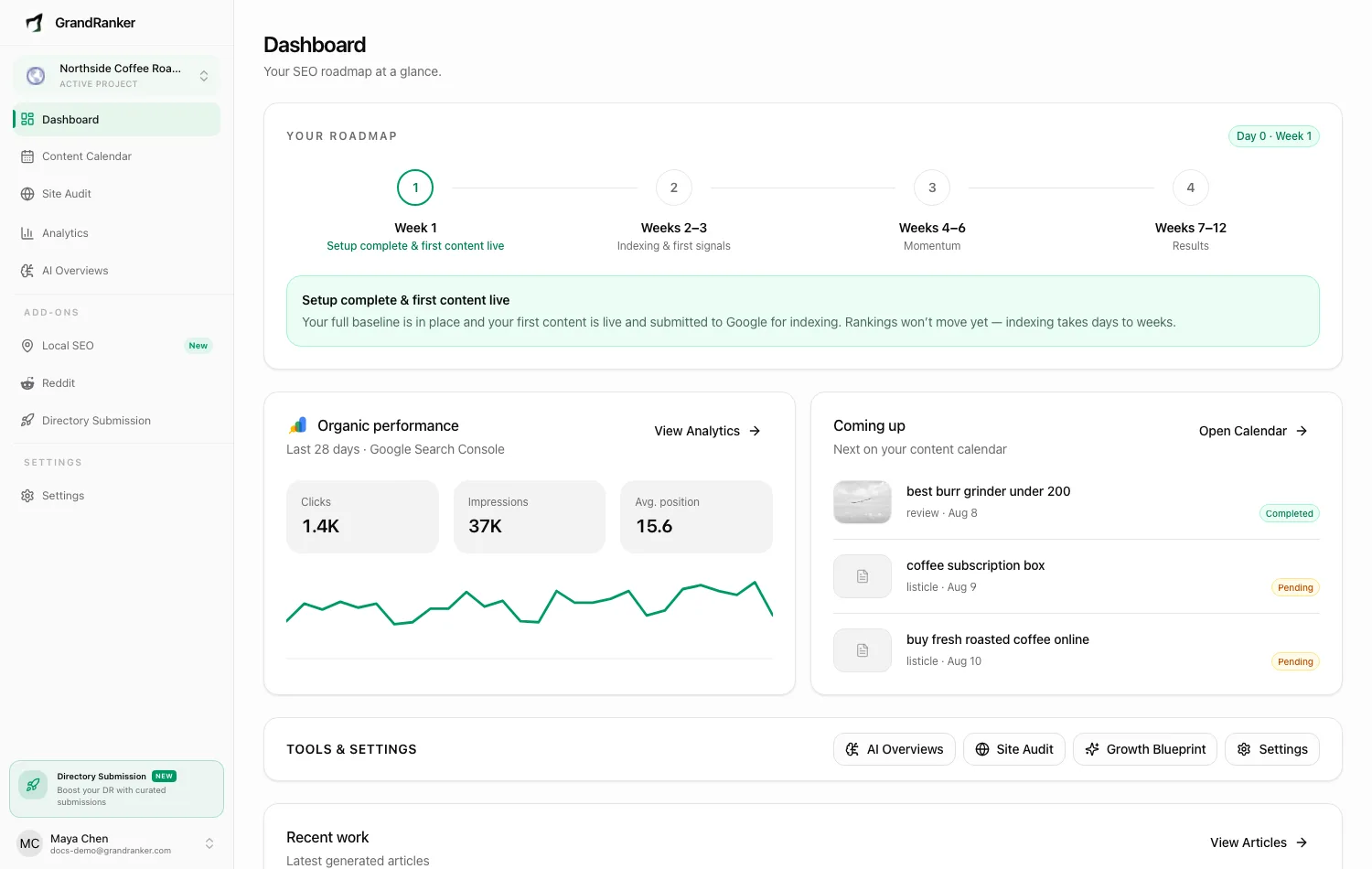
The Dashboard is your home screen: your 90-day journey progress, organic performance trend, and upcoming and recent content. The Journey page expands it into a week-by-week timeline.

## Next reward
The dark card at the top counts down to your next expert review:
- **Day 21: Expert SEO audit** — indexing, early rankings, and your highest-impact next steps.
- **Day 90: Strategy review** — your real performance turned into a next-quarter plan.
- **Every 90 days after: Quarterly strategy review** — rankings, traffic, AI citations, and the next quarter's plan.
When unlocked, the card switches to "Available now" with a button to request it by email.
Rankings don't move in week 1 by design. Indexing takes days to weeks — expect first signals in weeks 4-8, with results building through weeks 8-12.
## Organic performance
With Google Search Console connected: last 28 days of **Clicks**, **Impressions**, and **Avg. position** as a trend chart. Otherwise, a **Connect Search Console** button. See [Google Search Console](/docs/analytics/google-search-console).
## Coming up
The next articles on your content calendar, with date and status. Click **Open Calendar** to manage the schedule in [Content Planner](/docs/content-engine/content-planner).
## Tools & settings
Quick links to AI Overviews, Site Audit, your Growth Blueprint, and Settings.
## Recent work
Your latest articles with status (published, draft, generating, failed). Click one to open it in the editor, or **View Articles** for the full list. See [Articles & Editor](/docs/content-engine/articles-and-editor).
## The Journey page
Open **Your Journey** from the sidebar:
- **Day and week counter:** time since your website was added.
- **Foundation checklist:** site scanned across AI platforms, baseline rankings captured, keywords entered tracking, technical audit complete, first article published — each with live detail (e.g. keywords tracked).
- **Visibility score:** percentage of tracked keywords ranking in the top 10. A lagging metric — expect it to move in weeks 4-12, not week one.
- **Timeline:** every roadmap stage, with what's happening, what to expect, what to do, and a shortcut to the relevant screen.
## FAQ
### What happens after day 90?
Months 4-6 compound authority, 7-12 build market leadership, year 1+ defends and expands. Publishing, tracking, and optimization keep running, and quarterly reviews keep unlocking.
---
# Frequently Asked Questions
> Quick answers to the most common Grandranker questions.

## Getting started
### How long does setup take?
About five minutes: six onboarding steps, then Grandranker researches keywords, builds a 30-day calendar, and starts your first article. See [Onboarding Walkthrough](/docs/get-started/onboarding).
### Do I need to connect a CMS?
No — articles are always available in the app to review, edit, and export. Connecting a [CMS](/docs/integrations) lets Grandranker publish for you. No CMS at all? Use [Hosted Blog](/docs/integrations/hosted-blog).
### Can I try Grandranker before paying?
There is no free trial. Every plan comes with a 14-day money-back guarantee: if Grandranker isn't right for you, email within 14 days of your first payment for a full refund. See [Money-back guarantee](https://grandranker.com/money-back-guarantee).
## Article generation
### How often are articles generated?
Daily, up to your plan's quota, following your [Content Planner](/docs/content-engine/content-planner). A second pass later that day catches anything missed.
### Can I control what gets written?
Yes. The Content Planner calendar sets the keyword and topic per article. Style, branding, and links are in [Article Settings](/docs/content-engine/article-settings).
### Can I edit articles before they go live?
Yes, every article starts as a draft in the editor. Whether it publishes automatically depends on your auto-publish setting (see below).
## Publishing
### Do articles publish automatically?
Only if auto-publish is on for that website. Off means articles wait as drafts for manual review. See [Articles & Editor](/docs/content-engine/articles-and-editor).
### What happens if publishing fails?
Grandranker retries once a day. After the retry cap, you're notified to fix the integration and republish manually. See [Troubleshooting](/docs/account/troubleshooting).
### Can I schedule when articles publish?
Yes, each article follows the publish date set by your content calendar.
## Languages
### What languages can Grandranker write in?
Over 100, from English and Spanish to Slovenian and Swahili. Pick your primary language during onboarding.
### Can one website publish in multiple languages?
Not yet. Each website writes in one language, which you can change any time in General Settings under **Language**.
## Billing
### How does billing work?
Billed through Stripe at the organization level. Manage plan, payment method, and invoices in the billing portal (requires billing permission). See [Plans & Billing](/docs/account/plans-and-billing).
Shopify merchants: if you installed via Shopify, billing runs through your Shopify invoice instead of Stripe.
### I run an agency: can I manage multiple clients?
Yes. Agency mode manages separate client organizations from one account. See [Agency Mode](/docs/account/agency-mode).
### How do I upgrade, downgrade, or cancel?
Upgrade from **Billing** in the user menu. To downgrade, cancel, or ask about a charge, email [info@grandranker.com](mailto:info@grandranker.com).
---
# Domains & Websites
> Add, configure and manage the websites Grandranker writes for.
Manage websites under **Settings → Domains** ([app.grandranker.com/domains](https://app.grandranker.com/domains)). Each website is its own SEO agent — separate keywords, calendar, article settings, integrations, and analytics. Nothing is shared between sites.

## The Domains list
Each row shows the site's name and URL, a **Primary** badge on your main site, and a **GSC Connected** badge once Google Search Console is linked. From the row menu:
- **Edit**: change the **Domain Name** or **Website URL**.
- **Set as Primary**: make this the workspace's main site.
- **Delete**: permanently removes the site and all its keywords, articles, and settings. Cannot be undone.
Switch between websites any time. Every screen (keywords, planner, articles, analytics) shows data for the active website only.
## Adding a website
Click **Add Website**. Your first site is included in your plan; each additional one is billed separately (monthly, 6-month, or yearly — yearly is cheapest per month). Enter a **Website name** and optionally the URL, then checkout.
Onboarding then walks you through:
1. **Website URL**: Grandranker fetches your site and auto-detects business name, description, industry, language, country, brand color, and platform.
2. **Business Details**: review and correct what was detected.
3. **Target Audience**, **Competitors**, **Pain Points**: feeds keyword research and content generation.
4. **Connect Your Blog**: optionally set your **Sitemap URL** and **Blog URL**.
5. Grandranker generates keyword ideas, builds a 30-day calendar, and starts your first article.
Tip: auto-detection isn't perfect — double-check the description and language in step 2. Everything downstream is built on this profile.
## Per-website settings
- **General Settings**: business details, **Language**, **Country**, plus **Target Audiences**, **Competitors**, **Pain Points**. **Auto-fill with AI** re-analyzes your site. Add at least two audiences and two pain points.
- **Article Settings**: how articles are written and look. See [Article Settings](/docs/content-engine/article-settings).
- **Integrations**: where articles publish. See the [Integrations overview](/docs/integrations).
- **Team Members** and **API Tokens**: access control and the REST API.
## FAQ
### How many websites can I add?
No cap. First site is on your plan; each extra is a paid add-on.
### Does deleting a website stop its billing?
Yes, it cancels the Articles Plan subscription. If the site was billed separately, check Plans & Billing after deleting.
### Can I change the website URL later?
Yes, via **Edit**. A URL can only be registered once — if it's already taken, contact support.
### Can I move my plan to a new domain?
If it's the same business on a new address (a rebrand or a new domain), open **Edit** and change the **Website URL**. Your articles, keywords and backlinks stay on that site and on your plan. Don't use **Add Website** for this: it creates a second site that is billed separately.
If you publish through a hosted blog, add the record for the new subdomain (for example `blog.newdomain.com`) under **Integrations → Hosted Blog**. A connected store or CMS on the new domain needs to be reconnected.
If the new domain belongs to a different business, contact support instead. We re-analyse the business profile and rebuild the keyword plan so the articles match the new site.
### What does "Primary" mean?
Your first website becomes primary automatically. **Set as Primary** moves the badge to any other site.
---
# Keywords
> How keyword research works and how to manage your keyword pool.
Every article starts from a keyword. Manage them at [app.grandranker.com/keywords](https://app.grandranker.com/keywords), or via **Add Keywords** on the Content Calendar.

## Where keywords come from
Grandranker researches them during onboarding, on demand, and automatically each month (~30 fresh keywords around your renewal date).
- **Ideas** come from your brand profile — description, audiences, pain points, competitors.
- **Metrics** (volume, difficulty, CPC, intent) come from DataForSEO.
- **Difficulty is authority-aware.** New sites get easier keywords; established sites get a harder mix.
- **No data?** Grandranker estimates the volume — marked **est**. Keywords with no detectable demand get **unverified**.
## The table
Columns: Keyword, Opportunity (High = volume 500+ and difficulty under 40), Difficulty, Volume, CPC, Scheduled.
Filter by text, status, or intent. **Schedule** places a keyword on the next free calendar day. Tick rows to delete in bulk.
## Adding keywords
- **AI Generate** — generate from competitors and/or target audiences. Limit: 30 per website per month.
- **Add Manual** — type one keyword; metrics and a calendar slot are added automatically.
- **Import CSV** — columns `keyword, search_volume, difficulty`, max 1,000 rows per file.
Only AI generation counts against the monthly quota. Manual and CSV keywords are unlimited.
## Statuses
- **Pending** — waiting for its generation day.
- **Generating** — being written right now.
- **Completed** — the article exists.
- **Failed** — retry from the article or calendar.
## FAQ
### What does the "Google update" badge mean?
The keyword dropped during a Google algorithm rollout. Positions usually recover — wait it out.
### Can I choose which day an article is written?
Yes, drag the keyword between days on the [Content Planner](/docs/content-engine/content-planner).
### Are keywords deleted after the article is written?
No. They flip to **Completed** and stay linked to the article.
---
# Content Planner
> Plan and schedule articles on the content calendar.
The **Content Calendar** ([app.grandranker.com/content-planner](https://app.grandranker.com/content-planner)) is a month view where each scheduled keyword sits on the day its article gets written. Grandranker fills it automatically during onboarding and with monthly refills, then generates one article per scheduled day. Use the calendar to review and adjust that plan.

## Reading the calendar
Each card shows the keyword, content type (Blog Post, How-To Guide, Listicle, Comparison, Alternatives, Ultimate Guide, or Product Review), volume, difficulty, and a status badge. On mobile, cards show only title, status, and image preview.
- **Generating...**: article being written now.
- **Draft**: exists, waiting for review or its publish date.
- **Published**: published through your integration, or locally in Grandranker if none is connected. Local publication does not put the article on your website.
- **Overdue**: past its day; the daily backfill retries automatically.
Click a card to open its article. Use the arrows to browse ~6 months back and 2 months ahead.
## Rescheduling with drag & drop
Drag any unpublished card to a different day. If that day is full, Grandranker swaps the two keywords instead of rejecting the move. Published articles can't be dragged.
## Adding keywords to the plan
Hover an empty future day for:
- **Add keyword**: manually schedule a keyword for that date.
- **Generate**: open the AI keyword generator (pick type and count; counts against the monthly AI quota).
**Add Keywords** in the header goes to the full [Keywords](/docs/content-engine/keywords) page.
## Per-article settings
Click the gear icon on a card to open **Keyword Settings** and override how that article is written:
- **Content Type**: one of the seven types.
- **Article Length**: Default (~2,000 words), Micro (~300), Short (~1,000), Medium (~2,000), or Long (3,000+).
- **Custom Instructions**: up to 2,000 characters of free-form guidance.
If a card has no article yet and its date is within the next few days, **Generate** starts it immediately.
## Publishing drafts
**Publish articles** in the header pushes every due draft to your connected CMS at once (future-scheduled drafts untouched). No integration yet? The dialog offers **Connect integration**. See [Integrations overview](/docs/integrations).
## Your monthly article volume
The **Articles Plan** pill shows your cadence: 30 articles/month by default (one/day). Upgrade to 60/month (2/day) or 90/month (3/day) per website. New capacity applies immediately.
Local SEO tip: if your plan skews too general, a banner offers Optimize Mix — it swaps low-priority general keywords for local ones toward a 50/50 balance. Swapped keywords return to your unscheduled backlog, not deleted.
## FAQ
### Do I have to schedule anything manually?
No. Onboarding builds the first 30 days, monthly refills add ~30 more, and daily jobs generate and publish on schedule.
### What happens to a day I leave empty?
Nothing generates. Drag a keyword onto it or use **Add keyword** / **Generate**.
### Why did an article generate on a different day than shown?
A same-day guard pass retries failed runs later that day; a backfill retries past-due keywords for up to a week before returning them to the pool.
### Can I remove a keyword from the calendar?
Yes — the trash icon on a card (available until an article exists) removes it after confirmation.
---
# Articles & Editor
> Review, edit and publish AI-generated articles.
Every article Grandranker has written lives on the **Articles** page ([app.grandranker.com/articles](https://app.grandranker.com/articles), or **View Articles** on the dashboard). Each has a detail page and editor.

## How an article gets written
On a keyword's scheduled day (or when you hit **Generate**):
1. **Research**: SERP analysis, search intent, plus product data on e-commerce sites.
2. **Plan**: outline, title, meta description, URL slug, FAQs.
3. **Write**: draft, then checks for brand fit, competitor differentiation, accuracy, and word budget.
4. **Enrich**: internal/external links, YouTube videos, images, table of contents, JSON-LD schema, SEO score.
With **Auto-publish** on, an article publishes when its scheduled date arrives, unless it needs review or publishing fails. A connected CMS receives it on your website. With no integration connected, it is marked published locally in Grandranker; connect an integration to publish it to your website. With auto-publish off, it waits as a draft.
## The articles list
Filter by search or the **Status** dropdown: All, Draft, Published, Publish failed, Failed, Needs refresh.
- **draft**: not yet live. A future publish date shows as **scheduled**.
- **published**: published through your integration, or locally in Grandranker if none is connected. Check **View live on your site** to confirm the website post.
- **Publish failed**: the CMS rejected it; the article page explains why (expired token, Cloudflare block, etc.) with a retry.
- **Needs refresh**: Search Console shows it underperforming. Low-CTR cases get a one-click **Fix title & meta**.
## The article page
Sidebar: **Status & Actions** (**Edit**, **Publish to Website**/**Unpublish**, **Delete**, Markdown/Google Sites downloads), **SEO Settings** (**URL Slug**, **Meta Title**, **Meta Description**), **Article Score** (click **Analyze Article** for a 0-100 score across Title, Meta, Structure, Keyword Usage, Readability, Link Quality, Media), plus **Cover Image**, **Target Keyword**, **History**, and **Webhook History**.
**Share** opens ready-made [social posts](/docs/content-engine/social-posts).
## The editor
**Edit** opens a rich-text editor: headings, formatting, links, images, lists, blockquotes, code, tables, video embeds, and callouts. Select text for the format bar, or use an empty line's plus button to insert blocks.
Below the content you manage **FAQs** and **Image Captions**; the sidebar sets **Publish Date** and **Category**. Changing an image opens a picker: **Media Library**, **Upload**, **Stock Photos**, **AI Image**.
Your edits are safe: unsaved changes are kept locally, and every save creates a revision you can restore from History.
## Publishing
**Publish to Website** sends the article to your connected integration — see [Integrations](/docs/integrations). With none connected, publishing marks it published locally and prompts you to connect one. After your first publish, Grandranker offers **Publish all** for remaining drafts. Scheduled drafts publish automatically; failed publishes retry.
**Unpublish Article** pulls the post down and reverts it to draft.
## FAQ
### Can I edit an article after it's published?
Yes — edit, save, publish again. Grandranker updates the existing post rather than duplicating it.
### Why is my article a draft when auto-publish is on?
Its publish date is in the future, a generation warning requires review, or publishing failed. Check the article page for the reason. With no integration connected, auto-publish marks eligible articles published locally; it does not put them on your website.
### I turned on auto-publish. Why are my older drafts still drafts?
Auto-publish only applies to articles that reach their scheduled date after you turn it on. Drafts that already exist stay drafts: open each one and click **Publish**.
### Can I write in my own style?
Yes. Set writing style, length, and tone in [Article Settings](/docs/content-engine/article-settings), with per-article overrides on the [Content Planner](/docs/content-engine/content-planner).
---
# Article Settings
> Writing style, branding, internal links and other generation settings.
Control how every future article for a website is written, illustrated, and linked at [app.grandranker.com/article-settings](https://app.grandranker.com/article-settings) (or **Article Settings** in the sidebar). The left rail jumps between sections; each shows a live preview. Changes autosave and apply going forward — existing articles aren't rewritten.

## Publishing & writing style
- **Auto-publish**, **Show branding**, **Email notifications**: publish automatically, toggle footer branding, toggle the "new article generated" email.
- **Writing Style**: **Professional**, **Casual**, **Friendly**, or **Academic**.
- **Article Length**: default for new articles — **Micro** (~300 words), **Short** (~1,000), **Medium** (~2,000), **Long** (3,000+). Override per keyword in the content planner.
- **Include emojis**, **First-person writing** ("I"/"we"), **Mention competitor products & services** (turn off to stay brand-only).
- **Custom Instructions**: up to 2,000 characters applied to every article.
- **Your services / offers**: up to 10 services with optional URLs; articles link the most relevant.
- **Learn from your articles**: paste up to 3 links so Grandranker matches your tone and formatting.
## Call to action
**Show call-to-action blocks** adds buttons pointed at your most relevant product. Configure **Button text**, **Fallback link**, **Style** (Button, Banner, Inline band), **Placement** (Mid-article + end, Mid-article only, End only), and count (1-3 for long articles; short ones get one closing CTA).
## Visuals
- **Image styles**: **Real Life**, **Sketch**, **Watercolor**, **Cinematic**, or **Digital Illustration**.
- **Image shape**: **Widescreen** (1200×675), **Square** (1000×1000), or **Portrait** (800×1200).
- **Brand color**: auto-detected, used in diagrams and photo accents.
- **Title-Based Featured Image**: puts the article title on the featured image in your brand color.
- **People-focused photos**: real people over empty objects — best for care, coaching, education sites.
- **Brand logo**: upload a transparent PNG; branded photos (van, sign, uniform) use it, not an invented one.
- **Image captions**, **YouTube videos**: toggle each.
A Premium Images add-on ($49/month) upgrades to better image models, 5 images per article instead of 4, and custom style presets.
## Links
- **Name** / **Title**: your byline on generated articles.
- **Blog URL**: where your blog index lives.
- **Sitemap URL**: usually `https://example.com/sitemap.xml`; feeds internal linking. See [Sitemap & Liftability](/docs/content-engine/sitemap-and-liftability).
- **Only link to my own website**: keeps third-party URLs out of structured data.
## Internal Linking
With **Use all pages from sitemap** on, every discovered page becomes a link candidate; each article links only to what fits. Shows page count, a **Refresh** button, and a browsable list.
- **Additional links**: custom URLs always included.
- **Excluded links**: URLs never linked.
Candidates also come from Search Console top pages and previous articles, scored and placed by fit, scaled to article length.
No sitemap? Add one in Links, or connect Google Search Console so Grandranker can discover your pages.
## FAQ
### Do changes apply to existing articles?
No. Edit existing articles in the [editor](/docs/content-engine/articles-and-editor).
### Can I set different settings for one article?
Yes — override content type, length, and instructions per keyword in the [Content Planner](/docs/content-engine/content-planner)'s settings modal.
### Where do I change the content language?
In General Settings, under **Language**. Each website writes in one language.
---
# Social Posts
> Auto-generated social media posts for every article.
Every article comes with ready-made social posts for **X**, **LinkedIn**, **Reddit**, **Facebook**, and **Instagram**. Each is written from the article, in its language, and respects platform conventions (X stays under the character limit with room for the link; Reddit gets a separate title and body).

Sharing gets articles crawled and linked sooner, and on Reddit it feeds the brand signals AI engines like ChatGPT and Google AI Overviews pick up.
## Where to find them
Posts live with each article, not on a separate page:
- On an article's page, click the floating **Share** button.
- On the [Content Planner](/docs/content-engine/content-planner) calendar, click the share icon on any generated article.
Both open the **Share article** modal.
## Generating posts
Posts generate automatically right after Grandranker finishes an article in your primary language. If an article has none yet (older articles, language variants), click **Generate posts** to create all five. **Regenerate posts** replaces the full set.
## Using the posts
One tab per platform. For each post:
- **Copy**: copies the text.
- **Share**: opens the platform's composer pre-filled where supported — X's tweet composer, Reddit's submit page (title filled, body on your clipboard), LinkedIn's and Facebook's share dialogs.
- **Open image**: opens the article's image in a new tab to attach manually.
The article link is appended automatically when you share.
Publish first for LinkedIn and Facebook. Their Share buttons unlock once the article is published and has a live link. Instagram has no web composer, and its posts are image-only — click Open image, save the article image, then create a post in the Instagram app and paste the copied text as the caption. Instagram captions can't contain clickable links, so point readers to the link in your bio.
Grandranker never posts on your behalf — nothing auto-publishes, no account connection required.
## FAQ
### Can I edit a post before sharing?
Not in Grandranker. Copy and tweak it in the platform's composer, or click **Regenerate posts**.
### What makes the Reddit post different?
A title plus a longer body, written to read like a genuine contribution. See [Reddit Opportunities](/docs/add-ons/reddit-opportunities) for going further there.
### Do posts include the article link?
The stored text is link-free so you can reuse it anywhere. Clicking **Share** appends the published URL automatically.
---
# Sitemap & Liftability
> How Grandranker reads your sitemap and scores existing pages.
Two things here: how Grandranker reads your XML sitemap, and the **Liftability Score** — a 0-100 score for how likely AI models are to cite a page.

## How Grandranker uses your sitemap
Your sitemap tells Grandranker which pages exist. It feeds internal linking (sitemap pages become link candidates — see [Article Settings](/docs/content-engine/article-settings)), the GEO Site Audit (checks a sitemap exists and robots.txt points to it), and onboarding (auto-detects your sitemap and blog URL).
### Automatic discovery
Usually nothing to configure. Grandranker reads `robots.txt` for `Sitemap:` directives, checks common locations (`/sitemap.xml`, `/sitemap_index.xml`, `/wp-sitemap.xml`), and validates the response is real XML. Indexes are followed recursively; non-page sitemaps and asset URLs are skipped.
Pages are cached 24 hours — use **Refresh** in Internal Linking settings to re-fetch.
### Setting the sitemap URL manually
Non-standard path? Set it in onboarding (**Connect Your Blog** → **Sitemap URL**) or later in **Article Settings → Links** → **Sitemap URL**.
No sitemap set? Without a sitemap (or Google Search Console), Grandranker can't discover your pages for internal links.
## Liftability Score
The [Liftability screen](https://app.grandranker.com/liftability) scores any URL on how likely AI models like ChatGPT, Claude, and Perplexity are to cite it. Paste a URL and click **Scan URL**, or **Or scan top-cited pages from AI Overview data** to score pages AI engines already cite most in your space.
### The 12 LLM-citation factors
Each scan scores 12 weighted criteria, 0-10 each:
| Factor | Weight |
|---|---|
| Answer-first structure | 12% |
| Heading hierarchy | 10% |
| Structured lists | 10% |
| FAQ sections | 10% |
| Schema markup | 10% |
| Table data | 8% |
| Citation-worthy stats | 8% |
| Readability | 8% |
| Content length | 7% |
| Author/expertise signals | 7% |
| Internal linking | 5% |
| Freshness signals | 5% |
The weighted total lands 0-100: 80+ **Excellent**, 60+ **Good**, 40+ **Fair**, 20+ **Poor**, below 20 **Very Poor**.
### Reading the results
- **Criteria Breakdown**: every factor's score.
- **Recommendations**: up to five fixes, tagged **High Priority** or **Improvement**.
- **Your Page vs. Top-Cited**: after scanning cited pages, a comparison against the pages cited most.
- **Scan History**: click a row to reload it. Re-scanning overwrites the previous score.
## FAQ
### What does "liftability" mean?
How easily AI engines can cite, quote, and reference your content.
### Why does "scan cited pages" say there's no citation data?
It needs AI Overview monitoring running first. See the [AI Visibility overview](/docs/ai-visibility/overview).
### The scan failed to fetch my URL. Why?
The page must be publicly reachable — firewalls, bot protection, or an unpublished page will block it.
### Does Grandranker generate a sitemap for my site?
No, it reads your existing one. The [GEO Audit](/docs/ai-visibility/geo-audit) flags a missing sitemap.
---
# Google Search Console
> Connect GSC to track impressions, clicks and indexing.
Connect Google Search Console (GSC) to bring your search queries, clicks and rankings into the [Analytics page](/docs/analytics/analytics-page) and power [Rank Tracking](/docs/analytics/rank-tracking).

What you need: a Google account that is a verified owner or user of your site in Search Console. Grandranker requests read-only access. It never changes anything in your Google account.
## How to Connect
1. Open [Analytics](https://app.grandranker.com/analytics) and click **Connect Search Console** (or **Connect GSC** on the Search Console tab). You can also connect during onboarding.
2. Sign in with the Google account that owns your site in Search Console and approve access.
3. Pick a property under **Select a Property** — a site Google has confirmed you own. If you have exactly one, Grandranker selects it automatically.
4. Click **Continue**. The Search Console tab now loads clicks, impressions, CTR and position.
To change the property later, use the settings menu (gear icon) on the Search Console tab → **Change Property**. **Disconnect** removes the connection.
## What the connection powers
- **Search performance**: organic clicks, impressions, average CTR and average position, with daily charts and country breakdowns.
- **Queries and pages**: search terms and URLs Google showed, with per-row clicks, impressions, CTR and position.
- **Rank Tracking**: daily position snapshots built from GSC data.
## Troubleshooting
### "No verified sites found"
Your Google account has no verified site here. Add and verify it at [search.google.com/search-console](https://search.google.com/search-console), or click **Use a different Google account** and reconnect with the one that owns it. Then **Check again**.
### A property shows "not verified"
Ownership was never confirmed in Search Console, so Grandranker can't select it. Finish verification there — a domain property needs a TXT record at your DNS provider.
### "Google won't share data for [your property]"
The connected account isn't a verified owner or user of that property. Verify ownership, choose another verified property, or reconnect with the account that owns it.
### "Search Console isn't finished connecting"
You authorized Google but never picked a property. Return to the Search Console tab and finish selection.
### "Google connection expired"
Click **Reconnect Google** and approve access again. Your property and history are kept.
### Recent days look empty
GSC data is typically 2-3 days behind. Not a sync problem.
---
# Google Analytics 4
> Connect GA4 to see traffic and conversions next to your content.
Connect Google Analytics 4 (GA4) to see visits, sources, devices and top pages next to your [Search Console](/docs/analytics/google-search-console) data on the [Analytics page](/docs/analytics/analytics-page).

GA4 and Search Console are separate connections. Use either alone, or together: Search Console shows how you rank, GA4 shows what the traffic does.
What you need: a Google account with access to a GA4 property for your site. Grandranker requests read-only access.
## How to Connect
1. Open [Analytics](https://app.grandranker.com/analytics) and click **Connect GA4** on the Google Analytics tab.
2. Sign in with the Google account that has access to your GA4 property and approve access.
3. Choose your property under **Select a GA4 Property**. You only see properties this account can access.
4. Click **Continue**. The Google Analytics tab now loads your traffic data.
To switch accounts, click **Disconnect Account** on the property-selection card, then reconnect with the right Google account.
## What you see once connected
For your chosen period (7 days to 12 months):
- **Metric cards**: Users, Sessions, Pageviews, Bounce Rate, Avg Duration.
- **Traffic Overview**: daily sessions chart.
- **Devices**: desktop, mobile, tablet split.
- **Top Sources** and **Top Pages** (with bounce rate per page).
A **Last synced** timestamp shows when data was last pulled.
## Troubleshooting
### "No GA4 properties found in your account"
Create the property, or get access to it, at [analytics.google.com](https://analytics.google.com), then reconnect. Different Google account for Analytics? **Disconnect Account** and connect with that one.
### "Reconnect Google Analytics"
Your authorization expired. Click **Reconnect GA4** and approve access again — your property stays selected.
### "Authorization was cancelled or failed."
You closed or declined Google's consent screen. Start again and approve access.
### The tab shows data for the wrong site
Wrong GA4 property selected. Disconnect, reconnect, and pick the property matching the site you manage in Grandranker.
---
# Analytics Page
> Understand every chart and metric on the Analytics screen.
The [Analytics page](https://app.grandranker.com/analytics) has two tabs — **Google Analytics** (traffic) and **Google Search Console** (search performance) — a period selector (7/28/90 days or 12 months) and a **Refresh** button.

No Google account connected yet? You'll see two connect cards: [Search Console](/docs/analytics/google-search-console) and [Google Analytics 4](/docs/analytics/google-analytics). Both are read-only.
## Google Search Console tab
Header shows the connected property with a settings menu (Change Property, Open in Google, Disconnect). Four views below:
### Overview
- **Metric cards**: Organic Clicks, Impressions, Avg. CTR, Avg. Position, each vs the previous period. For position, lower is better.
- **Performance Overview**: daily clicks and impressions.
- **Top Countries**: clicks by region.
- **Traffic Segmentation**: brand vs non-brand queries, with clicks, impressions and average position for each.
### Queries
Top Search Queries with clicks, impressions, CTR and position. Positions are color-coded: green for top 3, blue for top 10.
### Pages
Top Performing Pages ranked by clicks and impressions, each linked to the live page.
### Keywords
Ranked Keywords with Google's own averaged position — not Grandranker's [Rank Tracking](/docs/analytics/rank-tracking). Use Rank Tracking to follow specific keywords day by day.
## Google Analytics tab
Users, Sessions, Pageviews, Bounce Rate and Avg Duration cards, plus a daily Traffic Overview chart, Devices breakdown, Top Sources and Top Pages. See the [GA4 guide](/docs/analytics/google-analytics).
## FAQ
### Why do the last few days look low or empty?
Search Console data is typically 2-3 days behind.
### What does "vs previous period" compare?
The same-length window right before your selected period.
### Why is the position number higher than what I see myself?
It's averaged across every impression in the period, including other countries and rare phrasings — a single check is one data point.
### Why don't the GSC and GA4 numbers match?
GSC counts clicks from Google search; GA4 counts sessions from all sources. A gap is normal.
### Do I need both connections?
No, each tab works alone. But GA4-only means traffic without rankings, and GSC-only means rankings without on-site behavior.
---
# Rank Tracking
> Track keyword positions over time.
[Rank Tracking](https://app.grandranker.com/rank-tracking) snapshots your tracked keywords' Google positions daily, so you see movement over time, not just today's number.

Positions come from your [Google Search Console](/docs/analytics/google-search-console) connection. Without it, the page shows a "Connect Google Search Console" alert.
Snapshots are taken automatically once a day. Click Refresh Rankings at the top of the page for one on demand.
## Overview stats
Five cards: Tracked Keywords, Top 10 (with top-3 count underneath), Improved (7d), Declined (7d), Avg. Position.
## Position Distribution
A donut chart buckets your keywords: Top 3, 4-10, 11-20, 21-50, 51-100, Not Ranking. You want keywords migrating toward Top 3. "Not Ranking" usually means the page is new, unindexed, or ranking below what Google reports.
## Top Improvers and Top Decliners
Biggest movers of the last 7 days, each with current position and size of change. Check decliners first — a drop on a keyword that drives traffic matters more than a gain on one that doesn't.
## Tracked Keywords table
Volume, current Position, 7d Change, 30d Change, and Best position ever recorded. Position badges are color-coded; "Not ranking" is flagged. Click a row to expand its day-by-day history chart.
## Starting to track keywords
Enable tracking per keyword from your keyword pool — see [Keywords](/docs/content-engine/keywords). Nothing tracked yet shows a **Go to Keywords** button. Also manageable via the [REST API](/docs/account/rest-api).
## FAQ
### How is this different from the Keywords view on the Analytics page?
Analytics shows Google's averaged position for whatever queries appeared in Search Console. Rank Tracking follows keywords you chose, snapshots them daily, and keeps history plus 7/30-day change.
### Why does a keyword show "Not ranking"?
No position found in Search Console data — new page, not indexed, or ranking beyond what Google reports.
### Why did nothing change after I clicked Refresh Rankings?
GSC data itself lags a few days. Refreshing more than once a day rarely shows new movement.
### Do rank snapshots feed anything else?
Yes — [Client Reports](/docs/analytics/client-reports) use the same history, so your client sees what you see.
---
# Backlinks
> Monitor your backlink profile and domain authority.
Backlinks are links from other sites to yours — one of the strongest trust signals search engines use.

The Backlinks screen currently shows Coming Soon. Backlink tracking and analysis is under development.
## What it will do
Track the links pointing at your domain and how your authority develops over time.
## Building backlinks today
- **[Directory Submissions](/docs/add-ons/directory-submissions)**: add-on that lists your business in curated directories matched to your profile and country.
- **Publish content worth linking to**: the [Content Engine](/docs/content-engine/domains-and-websites) produces specific, useful articles. Pages that answer real questions attract links on their own; thin pages don't.
- **Watch the effect in existing analytics**: authority gains show up as broader keyword coverage and better positions in the [Analytics page](/docs/analytics/analytics-page) and [Rank Tracking](/docs/analytics/rank-tracking).
## FAQ
### Does Grandranker build links automatically?
Grandranker offers [Directory Submissions](/docs/add-ons/directory-submissions) and [Backlink Exchange](/docs/add-ons/backlink-exchange). The exchange uses credits: your site earns credits by hosting links to other members and spends credits to receive links from them.
Participation is on by default for eligible websites. Switch it off under **Backlinks → Settings → Network participation** to stop hosting and receiving new exchange links. Already-published links stay until you remove them.
Exchanged links carry search-engine risk and may be devalued, ignored, or penalized. See the [Backlink Exchange guide](/docs/add-ons/backlink-exchange) for eligibility, controls, and the full risk notice. Grandranker does not guarantee rankings or indexation.
### How do I check my backlinks in the meantime?
Use Google Search Console's own "Links" report at search.google.com/search-console. Your [GSC connection](/docs/analytics/google-search-console) in Grandranker covers search performance only.
### Do backlinks matter for AI search too?
Yes. The same authority that lifts Google rankings improves your odds in [AI visibility](/docs/ai-visibility/overview).
---
# Client Reports
> White-label reports you can send to clients.
[Client Reports](https://app.grandranker.com/reports) turn your rank tracking data into a live report you share with one link. No PDFs, no screenshots, no client login — your client always sees current data under their own business name.

Reports are built from the same snapshot history as [Rank Tracking](/docs/analytics/rank-tracking), so what your client sees matches what you see.
## Creating a report
1. **Title (optional)**: e.g. "Monthly ranking overview". Leave empty and the report is titled with the client's business name.
2. **Default range**: Last 7, 30 or 90 days — the range the report opens with. Viewers can switch ranges themselves.
3. Click **Create report**, then **Copy link** and send it to your client.
Each report row shows range, status (Active or Revoked), creation date, and **Last viewed**.
## What the client sees
For the selected date range:
- **Header**: business name, website, date-range toggle, last-updated date.
- **Scorecard**: tracked keywords, top-3/top-10 counts, improved/declined keywords, average position, visibility score.
- **Trend chart**: average position per day.
- **Position distribution**: top 3, top 10, top 100, unranked.
- **Top movers**: biggest gainers and losers.
- **Keyword table**: every tracked keyword with position history.
- **Local results**: for local businesses, map pack rankings and map grid heatmaps (see [Geogrid Rankings](/docs/local-seo/geogrid-rankings)).
The page is noindex, so search engines won't index it.
The link itself is the only credential — anyone with the URL can view that domain's report. Treat it like a shared document.
## Revoking a report
Click **Revoke** to kill a link immediately. It doesn't affect other reports, and you can create a new one anytime. Use this when an engagement ends or a link spread further than intended.
## FAQ
### Does the report update automatically?
Yes, it's live data. "Data as of" reflects the most recent daily snapshot.
### Can I create more than one report per client?
Yes. Reports are per website — hold several active links for the same site, revocable independently.
### The report looks empty. Why?
No tracked keywords or snapshots yet for that website. Set up [Rank Tracking](/docs/analytics/rank-tracking) first, then share the link.
### Do my clients need a Grandranker account?
No.
### I manage multiple client sites. Where do reports fit?
Each website has its own Client Reports page and links. Running many clients under one account? See [Agency Mode](/docs/account/agency-mode).
---
# AI Overviews & AI Visibility
> Track how AI search engines mention and cite your brand.
See whether ChatGPT, Perplexity, Google AI, and other platforms mention and cite your brand on the **AI Overviews** page (in the sidebar of [app.grandranker.com](https://app.grandranker.com/ai-overviews)).

## How scanning works
Scans run once per week per platform against your top active queries. The Dashboard shows when you were last checked and, if on cooldown, how long until it unlocks. A newly enabled platform scans immediately.
First time here, click **Run First Scan** — Grandranker generates queries from your brand profile and scans right away.
## The Dashboard tab
- **AI Visibility Score**: headline score combining mentions, citations, and share of voice, with trend.
- **Brand Mentioned**: how often AI brings up your brand.
- **Linked to Your Site**: how often AI cites your site.
- **Share of Voice**: your share of AI mentions versus competitors.
- **Accuracy Score**: how accurately AI represents your brand, out of 100.
Below: a trend chart, competitive quadrant, share of voice breakdown, competitor leaderboard, AI insights, and visibility by search intent. Use the days selector to change the window.
## The other tabs
- **Platforms**: mention rate, citation rate, sentiment, rank per model. See [Platforms & Competitors](/docs/ai-visibility/platforms-and-competitors).
- **Competitors**: leaderboards and trends versus competing brands. Also in [Platforms & Competitors](/docs/ai-visibility/platforms-and-competitors).
- **Queries**: manage the questions Grandranker asks. See [Queries & Prompts](/docs/ai-visibility/queries-and-prompts).
- **Settings**: platforms, brand aliases, competitor overrides, tracked domains, alerts.
## Alerts
Get alerted when your brand drops from a response, a new competitor appears, sentiment shifts, a citation source changes, or your visibility score crosses a threshold. Configure in Settings.
## FAQ
### Which AI platforms are supported?
Google AIO, Google AI Mode, ChatGPT, Perplexity, Claude, Gemini, DeepSeek, and Grok. Pick which to monitor in Settings.
### Why is my visibility score low even though I rank on Google?
Different systems. AI models favor content they can parse and cite. Run a [GEO Audit](/docs/ai-visibility/geo-audit) to find what's holding you back.
---
# Queries & Prompts
> Manage the prompts Grandranker checks across AI platforms.
Queries are the questions Grandranker asks AI models on your behalf, e.g. "What are the best project management tools?" Every scan runs your active queries across your monitored platforms. Manage them on the **Queries** tab of AI Overviews.

## The Monitored Queries table
Header shows active queries against your limit (e.g. `7/10`). Each row shows text, category, sentiment. You can search, filter by category (Comparison, How To, Best Of, Industry) or status (Active/Paused), sort by Query, edit/delete a row, or bulk-delete selected rows.
Click a query for its AI responses per platform, mention/citation counts, and a date picker to compare scans.
## Adding queries
- **Add manually** — enter query text, optionally pick a category.
- **AI suggest** — generates queries from your brand profile. Also runs automatically on **Run First Scan**.
- **Import from keywords** — convert tracked [keywords](/docs/content-engine/keywords) into queries in one click. Stops at your active query limit.
- **Discover** — proposes additional queries; review and add the ones you want.
## Query limits
Max active queries per domain: 10 by default. Past the limit: "Maximum of 10 active queries allowed. Deactivate some queries first." Pause instead of deleting — history is kept and queries can be reactivated.
Keep the list focused on questions that actually drive buying decisions. Ten sharp queries beat fifty vague ones.
## Acting on query results
Bulk-generate articles for selected queries. If AI isn't mentioning you for a query, a page that answers it directly is the fix — it lands in your [content pipeline](/docs/content-engine/articles-and-editor) like any other draft. Queries where competitors appear but you don't are surfaced separately; see [Citations & Content Gaps](/docs/ai-visibility/citations-and-content-gaps).
## FAQ
### What makes a good monitoring query?
A full question with purchase intent, e.g. "What is the best invoicing tool for freelancers?" — not a bare keyword.
### Can I monitor queries in other languages?
Yes. Translate a query into additional languages to see how AI answers differ per market.
### Do paused queries count against my limit?
No. Pausing frees a slot immediately.
---
# Platforms & Competitors
> Choose AI platforms to monitor and compare against competitors.
See how visibility breaks down per AI model and per competing brand on the **Platforms** and **Competitors** tabs of AI Overviews.

## Choosing platforms to monitor
In **Settings → Platforms**, select which platforms Grandranker scans:
- Google AIO (AI Overviews in Google Search)
- Google AI Mode
- ChatGPT
- Perplexity
- Claude
- Gemini
- DeepSeek
- Grok
A newly enabled platform has no data yet, so it scans immediately — no waiting for the weekly cooldown.
## The Platforms tab
Each monitored platform gets a card, sorted by mention rate: **Mentions**, **Citations**, **Sentiment** (Positive/Neutral/Negative), **SoV** (share of voice), **Rank** (average position when the model lists brands).
Platforms with live web search (Google AIO, ChatGPT, Perplexity, Grok) carry a "Web search" badge — most influenced by fresh content and citations.
Below the cards: sentiment by AI model, platform trends over time, and a query-by-platform matrix showing which queries you appear for on which model.
## The Competitors tab
- **Brand Leaderboard**: all brands ranked by AI mention frequency, yours highlighted.
- **Comparison table**: side-by-side metrics for you and each competitor.
- **Visibility over time**: trend lines versus competitors.
- **Visibility by topic**: a radar chart across query categories (needs 3+ categories with data).
The Dashboard also plots everyone on a competitive quadrant of mentions versus citations.
## Where competitors come from
Grandranker detects competitors from your brand profile and from brands AI models name alongside you. To pin the list, set **Settings → Brand & Identity → Competitors Override**.
Also add **Brand Aliases** there: other names AI might use for you (abbreviations, old names, misspellings). Without them, mentions under a variant name may not count.
Click Save after changing settings — platform, alias, and competitor changes only apply once saved.
## FAQ
### Why does a competitor show higher visibility than me even though my product is better?
AI models reward citable content, not product quality. Check [Content Gaps](/docs/ai-visibility/citations-and-content-gaps) for queries they win, and publish content that answers those.
### Can I track a competitor's domain, not just their brand name?
Yes. Add any domain in **Settings → Tracked Domains** to compare citation rates.
### Do more platforms mean slower scans?
No. Each platform scans via its own job.
---
# Citations & Content Gaps
> See which sources AI engines cite and where you are missing.
A mention is good; a **citation** (a link back to you as the source) is better. Grandranker tracks both, and flags content gaps — queries where competitors show up in AI answers and you don't.

## Where citation data appears
- **Dashboard tab**: "Linked to Your Site" card — your overall citation rate and its trend.
- **Platforms tab**: each platform card has a Citations bar, so you see which models cite you vs. just mention you.
- **Query detail page**: open a query from the Queries tab for the raw per-platform responses, with your citations highlighted.
## Tracked domains
In **Settings → Tracked Domains**, add a domain (e.g. `ahrefs.com`) to compare its citation rate against yours — useful for benchmarking a competitor or a publication you'd like to displace.
## Citation Exchange
Opt in under **Settings → Citation Exchange** to get cited by relevant brands in the pool, and cite them back in your articles. The panel shows citations received, given, and pool size. Leave any time.
Only relevant, in-context citations are placed. It's not a link scheme.
## Content gaps
A gap is a query where a competitor appears in the AI response and you don't. Grandranker detects these automatically from scan data. Each gap shows the query, which platforms you're missing from, and which competitors appear instead.
## Closing a gap
Click **Generate Article** on a gap to create a draft for that query using your [article settings](/docs/content-engine/article-settings) — review and publish like any other article. You can also select multiple queries on the Queries tab and bulk-generate.
After publishing, give it a few scan cycles — platforms with web search pick up new content faster than those on training data.
## FAQ
### Why does AI cite my competitor instead of me?
AI favors easy-to-parse sources: clear structure, direct answers, schema markup. Run a [GEO Audit](/docs/ai-visibility/geo-audit) to check your pages are technically citable.
### No content gaps showing?
You appear wherever competitors do in scanned responses. Keep your query list sharp — see [Queries & Prompts](/docs/ai-visibility/queries-and-prompts). Gaps only surface for queries you monitor.
---
# GEO Audit
> Audit how ready your site is for generative engine optimization.
Run the Site Audit from the sidebar or [app.grandranker.com/geo-audit](https://app.grandranker.com/geo-audit) to check whether AI search engines can crawl, parse, and cite your site — plus classic SEO. It runs 30+ checks and turns failures into a ranked fix list.

## Running an audit
- **Quick Audit**: your main page only. Fast — good for a first look or re-checking a fix.
- **Full Site Audit**: crawls and audits every page in your sitemap. The button shows the page count and crawl progress.
Wrong sitemap detected? Set an override URL from the audit page.
## What gets checked
### AI-Crawlability
`llms.txt`, JSON-LD schema, `robots.txt` rules, FAQ schema, content readability, AI crawler access — whether AI engines can find and cite you.
### Technical SEO
SSL, sitemap, canonicals, mobile viewport, page speed, broken links, security headers, mixed content, redirect chains, hreflang, meta robots, HTML lang/charset, favicon, deprecated HTML, text-to-HTML ratio, render-blocking resources, resource hints, inline CSS.
### On-Page
Meta title, meta description, heading hierarchy, Open Graph, Twitter cards, image optimization.
Each check reports Passed, Warning, Failed, or Not Found, with an effort estimate ("~5 min fix" to "Needs developer"). Click a check for an explanation and recommendations; non-applicable checks are excluded from the score.
## Reading the results
- **Site Score**: headline score (full audits also show the average across crawled pages).
- **Top Fixes**: after a full audit, fixes sorted by impact — apply or dismiss each. Fixes to Grandranker-generated articles get a one-click **Republish**.
- **Cross-Page Issues**: problems affecting multiple pages, with severity and affected-page count.
- **Site-Level Checks**: full check list, filterable by category.
- **Page results**: per-page table sortable by score, for full audits.
Export the full report as a PDF with **Export PDF** — handy for a developer or client.
Schema fixes don't always need a developer: the audit can generate the JSON-LD and apply it to content Grandranker publishes.
## FAQ
### How is this different from a normal SEO audit?
It includes one, but AI-Crawlability — `llms.txt`, FAQ schema, readability, crawler access — is what most SEO tools skip, and it's what generative engines use to decide what to cite. See [AI Overviews](/docs/ai-visibility/overview).
### How often should I re-run it?
After shipping fixes, and after major site changes (redesign, migration, new CMS).
### A check needs a developer — what now?
Export the PDF and send it over; they can act on it without account access.
---
# Free AI Visibility Checker
> Check any domain's AI visibility without an account.
Run a real scan across major AI platforms to see if they recommend your business — no account needed. Start at [grandranker.com/free-tools/ai-visibility-checker](https://grandranker.com/free-tools/ai-visibility-checker), or go straight to [app.grandranker.com/check](https://app.grandranker.com/check).

## Running a check
Enter:
- **Brand Name**: e.g. "Acme Inc" — what the checker looks for in AI answers.
- **Website URL**: e.g. `https://acme.com` — used to detect citations of your site.
- **Industry**: picks a realistic question for your market.
The checker asks five AI platforms (ChatGPT, Perplexity, Google AIO, Claude, Gemini) and shows a mentioned/not-mentioned result per platform.
## Reading your results
The first view is a teaser: mentioned/not mentioned per platform. Enter your email and click **Unlock** for the full report — sentiment, share of voice, competitor data, recommendations — expanded in place.
Every check gets a shareable link showing brand, industry, and per-platform results to anyone who opens it.
Checks are rate-limited to 3 per IP per day.
## What the result actually means
"Not mentioned" usually means AI lacks parseable information about you, not that it dislikes your brand — AI assistants pull from structured data, reviews, comparisons, and pages that directly answer questions. You can rank #1 on Google and still be absent from AI answers, since the two systems select sources differently.
## From one-time check to continuous tracking
The free checker is a single snapshot. The full [AI Overviews](/docs/ai-visibility/overview) feature tracks up to 10 queries weekly across up to 8 platforms, with citation tracking, competitor leaderboards, sentiment trends, and alerts. [GEO Audit](/docs/ai-visibility/geo-audit) tells you what to fix on-site; the content engine helps you [publish articles](/docs/content-engine/articles-and-editor) that close [content gaps](/docs/ai-visibility/citations-and-content-gaps).
## FAQ
### Which platforms does the free check cover?
The same five above. Paid AI Overviews adds more, including Google AI Mode, DeepSeek, and Grok.
### Why do my results differ between platforms?
Each pulls data differently — some search the live web, others answer from training data. That's why per-platform tracking matters.
### Can I check a competitor's brand?
Yes, any brand name and website works.
---
# What Local SEO is
> Where your business shows up on Google Maps, and what to do about it each week, in plain words.
When someone nearby searches Google for what you do, Google shows a map with three businesses on it (people in the trade call those three the Map Pack).
Local SEO is the part of Grandranker that tells you whether one of those three is you, and what to do this week if it is not.
It is built for businesses that customers find on a map: plumbers, dentists, restaurants, salons, roofers, clinics, anyone with a Google listing and an area they serve.
You do not need to know anything about search engines to use it.
Every screen speaks about your listing, your reviews and the searches your customers type.

## What it does
Grandranker checks Google Maps from many spots around your business, the way a customer a few streets away would see it, and turns what it finds into a handful of numbers and a short list of tasks.
The sidebar has six places to go, in this order:
- **Home** is the week in one screen.
Across the top, Google's own numbers for your listing: calls, direction requests and website clicks, this month against last month.
Under that, where you stand on the map for each search you check, for example *"12 of 25 spots in the top 3"* with *"Up 3 since Sep 10, 2026"* beside it and a small coloured grid of the spots we reached.
Then what got done this month, your reviews and how many are waiting on a reply, and the first three tasks on this week's list.
- **Tasks** is this week's list in full, with a bar counting what you have finished, a rough size on each task, and a button that does it or opens the right screen.
- **Rankings** shows the map itself, spot by spot, for each search you have checked, and which businesses were seen above you.
- **Reviews** gathers your Google reviews in one place, drafts a reply to each in your own voice, and gives you a link and a QR code to ask customers for more.
It can also answer five-star reviews for you, if you switch that on.
- **Posts** writes and publishes updates, offers and events to your Google listing, so it never looks abandoned.
- **Profile** is your Google listing as Google sees it, editable in place, with a watch that emails you if anything changes without you.
Two emails keep the same work going when you are not looking: one on Monday with this week's tasks, and one on the 4th of each month with your month on Google (where you stand, what changed, calls and directions against the month before, reviews gained, what got done).
Both carry a one-click unsubscribe link.
Most pages have a small **How this works** link under the title that opens the matching page of these docs.
Under **More** in the sidebar there are three more pages: **Businesses above you** (who Google showed instead of you and how they are moving), **Searches** (the searches we check for you, with your position on the map and on your website for each), and **Directories** (where your business is listed across the web).
## What it does not do
Grandranker does not decide who Google shows.
Nothing here promises you a position, and no task on your list claims it will move you up.
What you can control is whether your listing is complete, active and answered, and that is what the weekly tasks keep in shape.
Grandranker also never changes your listing on its own.
Services and descriptions go to Google only when you tick them and press the button.
If someone else changes your listing, you get an email and you choose whether to keep the change or put your value back.
## What you need
- **A business on Google Maps.** Start by typing its name and town; Grandranker finds the listing and starts checking the map straight away, with no Google login.
- **The Google account that manages the listing**, when you are ready.
Connecting it unlocks reviews, posts, photos, editing and the change watch.
See [Setup & Google Business Profile](/docs/local-seo/setup-and-google-business-profile).
## What it costs
Local SEO is included in the Local plan.
On a content plan it is a $39/month add-on, with every feature included and nothing to configure.
Either way one Google listing is included; each additional listing you switch on is $19 per month, and you see the total before anything is charged.
To add it, open [Local SEO in the app](https://app.grandranker.com/local-seo): a plan without it sees the offer there, and a plan with it lands on Home.
## Where to go next
1. [Setup & Google Business Profile](/docs/local-seo/setup-and-google-business-profile): find your business, connect Google, pick your locations.
2. [Rankings & Map Pack](/docs/local-seo/geogrid-rankings): read the map, check a new search, see who was above you.
3. [Reviews & Posts](/docs/local-seo/reviews-and-posts): reply, ask for reviews, publish posts.
4. [Weekly tasks & watching for changes](/docs/local-seo/optimization-and-protection): the weekly list, what your listing is missing, and the change watch.
## FAQ
### Is this the same as ranking my website on Google?
No.
This is about the map and your Google listing, which is what people see when they search for a service near them.
Your website still matters, and the **Searches** page shows your website's position next to your map position for each search, but the tasks here are about the listing.
### Will I see results straight away?
You see where you stand within minutes of your first map check.
Changes to your listing take Google days to weeks to reflect, which is why the list is weekly and capped at ten tasks: steady, not frantic.
### Can I use it for more than one business?
Yes.
Each Google listing you switch on is checked on the map, watched for changes and given its own tasks, and you switch between them at the top of every page.
---
# Setup & Google Business Profile
> Start with your business name, see where you show up, then connect Google Business Profile.
Start by telling Grandranker what your business is called and where it is. We find your listing on Google Maps and start tracking where you rank - no Google login needed. Connecting your Google Business Profile (GBP) comes next, and it unlocks reviews, posts, photos and profile editing.

## Start with your business name
The first onboarding screen asks two things:
1. **What is your business called?** - the name as it appears on Google Maps, for example "Memphis Plumbing Co".
2. **Where are you?** - the town or city, for example "Memphis, TN".

Click **Find my business**. Grandranker searches Google Maps around that town and shows up to five matching listings, closest name first. Each card shows the category, address and rating so you can tell similar businesses apart.
Pick yours and click **That's my business**. Nothing is selected for you, even when only one result comes back - you always confirm.
Next comes one question: **What do customers type to find you?** One search is enough to start, and the box is prefilled with a likely one from your category and town, for example "plumber memphis". Press **Check the map** and the first map check starts for that search; you land on [Rankings](/docs/local-seo/geogrid-rankings) while it runs and the line above the map appears when it finishes. The screen says so too: a check usually takes a couple of minutes, sometimes longer when we are busy. You can add more searches later on the Searches page.
Grandranker also lists a few other searches your customers might use, so you have something to add next.
You don't need to be the owner of the Google listing to do this. The search reads public Google Maps data, the same as any customer searching for you.
### If we can't find your business
- **None of the results is yours?** Click **None of these is my business**.
- **Nothing came back at all?** You'll see "We couldn't find [name] in [town] on Google Maps."
- **Town not recognised?** You'll see "We couldn't place that town or city. Try the search again with a nearby one, or carry on with just your website."
- **Search unavailable?** You'll see "We couldn't reach Google Maps just now." That one is on our side, not yours - try again in a moment.
In every case you can click **Search again** to retry with a different spelling or a nearby town, or **Connect Google Business Profile instead** and pick your listing from your Google account. If your business has no Google listing yet, create one on Google first, then come back and search again: without a listing there is nothing for a map check to find.
### One business at a time
You can add one business this way. If you try to add a second you'll see "You have already added a business. Connect Google Business Profile to add more." Connecting GBP is how you bring in additional locations - see [Adding more locations](#adding-more-locations).
## Connect your Google Business Profile
Ranking data works without it. Reviews, posts, photos, editing your listing and the change watch do not - those need the connection.
1. Click **Connect Google Business Profile** - on the onboarding screen, as the first task on your weekly list, in the "Finish setting up" checklist, or on the **Profile** page under [Local SEO](https://app.grandranker.com/local-seo).
2. Sign in with the Google account that manages the profile and grant access.
3. Grandranker fetches your locations, usually within seconds. Nothing showing? Use **Try again** or **Reconnect Google**.
Use an account with owner or manager access. An account that doesn't manage any listings shows no locations.
If you already started with a business name, connecting Google **upgrades the listing you already have**. It is not added twice, your ranking history is kept, and you are not charged for a second location.
### Connect Google is your first task
Until you connect, your weekly task list shows a single task: **Connect your Google Business Profile**. Every other task edits your profile, lists your services, publishes a post, uploads a photo or replies to a review, and all of those need the connection - so Grandranker shows you nothing it can't help you finish.
This one task can't be dismissed, because everything else waits behind it.
Once you're connected, the weekly list fills in - see [Your weekly tasks](/docs/local-seo/optimization-and-protection#your-weekly-tasks).
## Choose your locations
The picker on the Profile page asks **Which of your businesses should we look after?**
- Tick one or more businesses from the list. Each card shows the business name, category, address and city so you can tell similar listings apart. Businesses you leave unticked are left alone.
- When there is more than one, star the main one. That is the business Grandranker shows you first, and the default for map checks.
- Your plan includes one location. Ticking more shows what they cost before anything is charged - see [Adding more locations](#adding-more-locations) below.
Grandranker pre-fills business name, industry, city and region from GBP - only fields you haven't set.
No website on your listing? You'll be prompted to add one - every business in Grandranker needs a website address.
### Adding more locations
Local SEO includes one Google Business Profile. Each additional profile you switch on is **$19 per month**.
Only the profiles you switch on are billed. You can see every business on your Google account in the list without paying for them; a profile costs nothing until you activate it for tracking, scoring and tasks.
A business you added by name, before connecting Google, is never billed as an extra location.
As you tick profiles, the picker shows a running total, for example "3 selected - 2 extra, $38/month added to your plan." Nothing is charged until you confirm, and the confirmation names the plan the charge lands on. Switch a profile back off and the charge comes off your next invoice, prorated. Your profile and its history are kept, so you can switch it on again later.
If you were already using Local SEO before 2 September 2026, every profile you had switched on at that point stays included at no extra cost, however many that is. You are only charged for profiles you add after that date.
Extra locations appear as their own line on your [billing page](https://app.grandranker.com/billing), with the count and monthly total, so your invoice stays readable.
### If your listing has no website
A Domain in Grandranker needs a website URL. If your Google listing doesn't have one, you'll be asked to add it: "This listing has no website - add yours." Enter your site's URL to finish setup.
## The setup checklist
The Local SEO home shows a **Finish setting up** card until these are done:
- **Connect Google Business Profile**
- **Select your location**
- **Check where you show up on the map**
The card disappears once all three are done. If you started by searching for your business, **Select your location** is already ticked and your first map check starts on its own, so **Connect Google Business Profile** is the only one left.
## The Profile page
The **Profile** page under [Local SEO](https://app.grandranker.com/local-seo) is your Google listing, in this order:
1. **What your listing is missing**: a short amber card naming the empty parts - no description, too few photos, no phone, no website, no hours, no other business types - each with a link that opens the right place to fix it. When there is nothing missing it reads *"Your listing looks complete."*
2. **Your listing**: a picture band across the top, then the name, category, rating, address, phone, website, business types, description and hours, editable in place. Changes go to Google. Rapid edits may hit Google's limit: "Too many profile edits - wait a minute and try again."
3. **Services**: what your listing offers on Google, with **Add services** and **Write descriptions** - see [Add services](/docs/local-seo/optimization-and-protection#add-services).
4. **Photos of your work**: upload up to 20 at once and Grandranker puts one on your listing each Tuesday and Friday - see [Photos of your work](/docs/local-seo/optimization-and-protection#photos-of-your-work).
5. **Attributes**: amenities, accessibility, payments and the other details Google shows on your listing, behind an **Edit attributes** button.
6. **Watch my listing for changes**: the switch that emails you when your listing changes without you - see [Watching for changes](/docs/local-seo/optimization-and-protection#watch-my-listing-for-changes).
7. **Your Google account**, at the bottom: the account that manages the listing, with **Update from Google**, **Disconnect**, and **Add another Google account**. The line under the account shows when it was last updated, and under it sits the notice saying Grandranker works on your profile as a third party.
The picture band at the top of your listing is the cover photo you have on Google. If your listing has no cover photo, the band shows a map of where the business sits instead, with your name on the pin. You can drag it, zoom it with the **+** and **-** buttons, and press the button that appears to come back to the business. No ranking data is drawn on it - it shows where you are, not how you rank. The wheel is deliberately left alone so the map doesn't swallow the page as you scroll past.
Google data (locations, reviews) is updated once a day on its own. Press **Update from Google** to fetch it now.
The numbers Google reports for your listing - calls, direction requests and website clicks - sit at the top of the **Home** screen rather than here.
## FAQ
### Do I need a Google login to start?
No. Enter your business name and town, pick your listing, and rank tracking starts. Connecting Google Business Profile adds reviews, posts, photos, profile editing and protection.
### I don't have the Google login for my business. What now?
Start with your business name and use Rankings and Searches straight away. When you get access to the Google account - or your agency hands it over - connect it then, and the listing you're already tracking is upgraded in place.
### Will connecting Google create a duplicate of my business?
No. Grandranker matches the listing you already added and upgrades it, keeping its ranking history. You are not charged for a second location.
### Can I track more than one location?
Yes. Your plan includes one profile, and each additional one is $19 per month - see [Adding more locations](#adding-more-locations). Switch between profiles across the Local SEO pages.
### Why "This website is already registered on another account"?
Each website belongs to one Grandranker account. Contact support if it's registered elsewhere.
### Can I disconnect Google later?
Yes: **Disconnect** under **Your Google account** at the bottom of the Profile page, with a confirmation before anything happens. Map checks keep working; reviews, posts, editing and the change watch need the connection.
---
# Rankings & Map Pack
> See where you show up on Google Maps, who was seen above you, and the tasks that would help.
The **Rankings** page under [Local SEO](https://app.grandranker.com/local-seo) is headed **Where you show up on Google Maps**.
It answers three questions from the map checks Grandranker runs around your business: where you show up, who was seen above you, and which of your weekly tasks bear on it.

## The line above the map
Every check opens with one line, for example: *"In the top 3 at 12 of 25 spots - up 3 since Sep 10, 2026 - checked Sep 13, 2026"*.
- **In the top 3 at 12 of 25 spots** is this check.
- **up 3 since Sep 10, 2026** compares it with the check before it, counting only the spots both checks actually reached, and only when the two used the same grid around the same centre, with the same spots skipped. With nothing comparable behind it, this part is simply left off.
- **checked Sep 13, 2026** is the day the check ran.
Spots the check could not reach are counted separately as *couldn't check*, never as places you were missing.
The first time you open Rankings, three short bubbles point out the line, the map and the businesses seen above you.
The same figures open your **Home** page for every search you check, with a **See the full map** link that brings you here.
The **Search terms** panel on the left of the map switches the map between your searches.
Each search you have already checked sits at the top as a card with a small 5x5 sketch of its own map - the same colours as the pins, north at the top - so you can see at a glance which searches are going well before you open any of them.
The card also shows your average position and how many spots were in the top 3, and the round arrow button checks that search again.
Underneath, **Not checked** lists every other search we know about, with what Google says about how often it is searched and a **Check** button; the price in spots is stated over the list.
The line, the map and the lists below always describe the same check.
## Check a search
1. Under **Check a search on Google Maps**, type a search your customers use (for example "plumber" or "dentist near me") and press **Check the map**.
Once there is a map on screen the form folds away behind a **Check another search** button, so the result gets the room.
Until then it stays open, because a new business should never have to hunt for it.
2. Grandranker looks at Google Maps from a grid of spots (3×3, 5×5 or 7×7) up to 1, 3, 5 or 10 miles out from your business.
The map reads **Checking spots on the map...** while it runs, usually a couple of minutes, sometimes longer when we are busy.
3. Each pin shows your position at that spot. The legend reads: **Top 3**, **4th-10th**, **Below 10th** (in two shades) and **Not found**, plus **Couldn't check** for spots the check never reached, drawn as a dashed "?".
Above the pins, the check line reads in plain words: how many spots and how far out (*"25 spots, up to 3 miles out"*), then **Usually 6th** (your typical position where you were found), **Seen at 25 of 25 spots**, **In the top 3 at 12 spots**, and, when it applies, how many spots couldn't be checked.
**Filters**: All · Top 3 · Almost in the top 3 (positions 4 to 10) · Not found.
### Adjust the check area
If part of the grid sits over land nobody searches from (fields, a river, an industrial park), those spots drag your numbers down for no reason.
Click **Adjust area** at the top right of the map to change where the check looks.

- **Drag the green crosshair** to move the centre, for example south of a store that sits on the edge of town. The panel says how far you moved it, such as *"Moved 0.6 mi south of your business"*. The centre can sit up to 10 miles from your business.
- **Click a spot to skip it.** Skipped spots are drawn dashed and struck through. They are not checked and do not count toward your average, your top 3 count or any comparison. The centre spot is always checked, and at least 9 spots have to stay on.
- **Save area** keeps it for that business. Every new check uses it, including the automatic re-checks. **Reset to my business** and **Turn all spots back on** undo it.
Past checks keep the area they were run with, so the first check after a change starts a fresh comparison.
On the map, the 5x5 sketches and the legend, skipped spots read **Skipped, not checked**.
### What one pin tells you
A pin that moved since the last comparable check carries a small badge: a green arrow up, a red arrow down.
Click any pin and it opens with your position there, *"Was 5th on Sep 10, 2026"* when there is an earlier check to compare, and the businesses Google showed at the top of that spot.
Where you are outside the top 3, a **How to rank higher here** button opens a short panel: who ranks above you at that spot, what is different about them (reviews, rating, photos), and a link to **See all tasks**.
There is nothing to run by hand after the first check.
Grandranker re-checks the searches you have starred about every 14 days and the rest about every 30, and Rankings always shows the newest completed check for each search.
Showing up less further out is normal: Google favours whoever is closest to the person searching.
The gaps near the middle are the ones worth acting on.
If Google doesn't publish coordinates for your listing (common for service-area businesses), Grandranker centres the grid on your city and region instead, or you can enter a city manually.
## Tasks that improve your ranking

The block under the map shows the tasks from this week's list that bear on map position, such as adding photos, collecting reviews or checking your business types, with an **Open** button for each.
Tasks that can only be done in Google's own editor open there instead.
The closing line says it plainly: these sit in your weekly list on the Tasks page, and there is still only one to-do list.
## Who ranks above you
Under that, Grandranker lists the businesses its checks recorded above you, each with rating, review count and category, and how often: *"above you at 15 spots across 1 search"*.
Three are shown, with **Show 2 more** for the rest.
Where one of them has collected reviews since your last check, a line says so.
Only the top three results are stored at each spot, so this is what was observed, not a complete list of everyone above you: others may sit between them and you.
The **Businesses above you** page under **More** in the sidebar keeps the same list across all your checks, with how each business is moving.
Before your first map check there is nothing to show there, so it says so and offers a **Check the map** button that brings you here.
## Searches

The **Searches** page under **More** in the sidebar is headed **Searches**.
The searches you have starred sit at the top under **Searches we are working on for you**, with a count on the right reading *"6 / 20 tracked"*.
Each one shows two positions: **Google Maps**, where you sit among the businesses shown on the map, and **Website**, where your site appears in Google's ordinary results below the map, with the change since the last check.
Under each search, *"About 480 searches a month"* is a rough size for it, and clicking the row opens the detail behind it.
- **Add a search** lets you type your own; Grandranker checks up to 20 searches on the map at a time.
- **Suggest searches** finds ones we think your customers use. Star one to start checking it; unstar it to stop.
- **Other searches worth adding** lists suggestions you have not starred yet, so nothing appears twice.
Agency accounts on the tabbed layout keep the full research table, with volume, difficulty, intent and movement, and the trend and competitor charts on their Rankings tab.
## FAQ
### How long does a check take?
A 5×5 check looks at 25 spots, usually a couple of minutes, sometimes longer when we are busy.
### Why "Not found" at some spots?
Maps results are distance-sensitive, so this is normal for competitive searches further from your business.
Start with the spots near the middle and the **Almost in the top 3** filter.
A dashed "?" pin is different: the check could not reach that spot, and it is left out of every count.
### Can I delete old checks?
Not on the Rankings page: it always shows the newest completed check for each search.
### Can I compare two checks?
The line above the map does it for you, against the check just before this one, on the spots both checks reached.
Each pin carries its own up or down badge for the same comparison, and says *"Was 5th on Sep 10, 2026"* when you click it.
There is no side-by-side screen to open: the comparison is drawn on the map you are already looking at.
### Can I leave out empty land around my business?
Yes. Use **Adjust area** on the map to move the centre or skip spots. See [Adjust the check area](#adjust-the-check-area).
### Which location do checks use?
The main one by default. Switch businesses at the top of the page to check others.
---
# Reviews & Posts
> Reply to reviews, ask for more, and publish posts to your Google listing.
Reply to Google reviews and publish posts to your listing from one place: the **Reviews** and **Posts** pages under [Local SEO](https://app.grandranker.com/local-seo).
Both need your Google account connected - see [Setup & Google Business Profile](/docs/local-seo/setup-and-google-business-profile).

## Reviews
Reviews arrive from Google once a day.
The top of the page says how the month is going, for example *"7 new reviews this month, 12 in August"*, counted by the date Google gives each review.
The page opens on reviews that still need a reply, lowest rating first, twenty to a page; the **Needs a reply** button carries the count, and **All reviews** shows everything.
Each shows the reviewer's name, rating, comment and how long ago it was left.
**Replying**: press **Draft a reply** and Grandranker writes one matched to the rating and the way you speak to customers, or press **Write my own** for an empty box. Edit it, then **Post reply on Google**; nothing is posted until you press send.
**Draft all replies** drafts a reply to every unanswered review on the page in one go. No two read the same. Nothing is sent until you send it.
**Answer reviews for me** is the switch beside the list. On, it answers five-star reviews for you: only five stars, a day after they land so you can get there first, and at most five a day for a business. Anything less than five stars always waits for you, and the page says so when one is sitting there. The card counts what it sent this month and what is still left for you.
**Before your first review**: the page shows a worked example instead of an empty box, so you can see a review land, the reply we would draft and how it gets posted. While reviews are still coming across from Google it says so, and once everything has an answer it says that too, with the last few replies and who sent them.
**Review Insights**: a short summary of what customers say, and whether the mood is positive, mixed or negative. It needs written comments; ratings with no text cannot be summarised, and the card says so rather than staying empty.
### Answering five-star reviews for you
**Answer five-star reviews for me** is a switch beside the inbox, and it is off until you turn it on.
With it on, Grandranker answers your happiest reviews so you can spend your time on the rest:
- Five stars only. Four and below are yours to answer.
- It waits a day before answering, so a reply never lands the same minute the review does, and it leaves anything older than a week to you.
- It answers at most five a day for one business, and ten a day across your whole account.
- It only answers reviews left after you switched it on. Nothing in your back catalogue is touched.
- It skips anything that needs a person: a review that asks a question, names a complaint, or is written in a language we cannot read. If the draft itself comes back with a link, an email address, a phone number or money off, that one comes to you instead.
Under the switch, a line counts how many it has sent this month.
Turn it off whenever you like, and it stops at once.
### Asking for reviews
**Get More Reviews** shows **Your review link** with a **Copy** button, and *"We space them out so it looks natural"* under the ask.
Copy the link into a text, email or invoice.
**More ways to ask** opens the rest: a QR code to put on a receipt or a counter, **Download QR as PNG**, and **Print a review sheet** for one A4 page with your business name, a neutral ask and the code.
Ask customers once they have left, a few at a time: a steady trickle of reviews looks natural to Google, a burst does not.
If the link cannot be built yet, the card says so in plain words: Google has not told us where your listing lives.
Press **Update from Google** to fetch your listing again; it usually fixes it within a minute.
A business you added by name, not yet linked to a Google account, shows **Connect Google** instead.
How many reviews you answer, how quickly new ones arrive, and whether the unhappy ones get a reply all count towards how complete your listing is.
## Posts
Posts keep your listing looking open for business. How often you post, and how recently, count towards how complete your listing is.
**Types**: Update (the usual kind), Event (title plus start and end dates), Offer (title, optional coupon code and a link to redeem it).
Each post has a summary of up to 1,500 characters, an optional picture, and an optional **Button on the post**: **Learn More**, **Book**, **Order**, **Shop**, **Sign Up** or **Call**. All but Call take a link.
**Writing one**: press **Write a post**. The composer, **Write a Google post**, opens on the writing step (**Step 1 of 2**).

Short of ideas? **Pick a topic** offers a handful drawn from your own listing and the searches we check for you, and tapping one writes the first draft straight away.
Otherwise write it yourself, or type a line under **Help me write** and Grandranker writes the post in your voice, within the limit, with no hashtags.
Either way it is a first draft: change anything you like before it goes out.
Then review it, add or generate a picture (at least 400×300 pixels), choose the button, and publish.
**A phone number in the text**: Google turns down posts with a phone number in them, and it only says so after the post has gone out. So the composer warns you first, naming the number, and the sentence carrying it is dropped before the post is sent. Use the **Call** button on the post instead - it rings the number on your Google profile.
**Publishing**: publish now or pick a date and time; scheduled posts go out on their own. Drafts and scheduled posts can be edited; published ones cannot.
**When a post needs you**: a post Google turned down, one that failed to send, or one whose scheduled time came and went an hour ago is flagged in a notice at the top of the list, so it is never buried under the posts that went out fine. Each line says what happened and offers the one button that fixes it: **Publish again**, **Try again** or **Publish now**.
A post that has gone to Google but that Google has not confirmed yet is marked **Not confirmed yet**, with a link to open your listing on Google and look.
Plans with the Content Planner get one more step at the start, to turn one of your published articles into a post that links back to it, and an **Auto-post new articles** switch above the list.
## FAQ
### Do replies and posts show up on Google right away?
Replies go straight to Google. Posts go out when you publish or at their scheduled time; Google may take a moment to display them.
### Why don't I see any reviews?
They arrive with the daily update after you connect Google. Press **Update from Google** on the Profile page or check back later.
### Can I manage reviews for more than one business?
Yes. Reviews and posts are per business; switch at the top of the page.
---
# Weekly tasks & watching for changes
> The weekly list, what your listing is missing, and the watch that emails you when your listing changes without you.
**Tasks** in the sidebar is a short list of things to do on your Google listing this week.
On the Profile page, a card at the top names what your listing is still missing, and **Watch my listing for changes** emails you when your listing changes without you, so you can decide whether to keep the change or put your value back.

## Your weekly tasks
Grandranker builds a weekly list of tasks for your Google listing, refreshed every Monday from your latest listing data.
It has its own page, **Tasks**, second in the sidebar, and the sidebar carries a count of what is still open.
Home shows the first three with a **See all tasks** link, so you can see what is waiting without leaving the front page.
The page opens with **This week's tasks**, a bar counting what you have finished, then the tasks themselves.
Three show at a time.
The rest are one press away, behind a button that counts them (**Show 4 more**), so the list never reads as a wall, and the week is capped at ten on purpose: changing a lot on your listing at once can get it flagged by Google.
Each task carries a rough size, **~5 min**, **~15 min** or **Takes longer**, and a button that does it or opens the right screen.
Tick the circle when it is done, and the one you finished stays on the page with a line through it and an **Undo** in case you ticked it too soon.
**Refresh** rebuilds the list if you don't want to wait for Monday.
With nothing left, the page reads *"Nothing to do this week. No tasks waiting. Check back Monday."*
Most tasks are done without leaving Grandranker.
A photo task opens an upload box: pick a photo, say what it shows, and Grandranker sends it to your listing.
Others open the Profile, Posts or Reviews page with the right thing already in front of you.
### Tasks with a checklist
Most tasks Grandranker can finish for you, and those show a button that opens the right box here.
A few cannot, and those are the ones that need Google's own screens: attributes on a listing that carries none yet, and services on a listing with no business category set, where there is nothing for us to draft from.
Rather than leave you to hunt for the right button over there, each of those comes with a numbered checklist, a tick box on every step, and a count above them showing how many steps are done.
Where Google already holds some attributes, the task reads **Edit attributes** and opens our own editor instead, the same one the Profile page has.
Ticks are saved as you make them, so you can stop halfway, close the page and come back to the same spot.
Ticking the last step marks the whole task done, and unticking one puts it back on your list.
Where a step names a button that is easy to miss, a **Show me** link under it opens a picture of the screen being described, and **Hide picture** folds it away again.
### Add services
Where Grandranker knows the services businesses in your trade usually list, the services task does the work for you.
Its button reads **Add services** and opens a pick-list here instead of sending you off to Google.

It offers the services other businesses in your trade already have on Google, most widely used first - so the top of the list is what is normal for your trade.
Tick the ones you offer and press the button, which counts your picks: **Add 3 services to Google**.
They go straight onto your Google Business Profile, and the services you already have are kept.
Nothing is sent to Google until you tick it.
A long list opens with the twelve most widely used, a search box above them, and a link at the bottom to show the rest.
Not in the list?
Type it under **Something not listed** and press **Add**: it goes onto your profile in your own words, alongside whatever you ticked.
Google matches its own service names most readily, so use the list where it has what you need and your own words for the rest.
### When your trade has no ready-made list
Google keeps its own wording for services, and it covers some trades far better than others.
Where Grandranker does not yet know enough service names for your trade, the pick-list is written for you instead.
Grandranker drafts service names from your own listing - your business name, your categories, your description and the local searches you are tracking - and shows them with a short explanation of each, the same way as any other pick-list.
Tick the ones you offer and they go onto your profile in those words.
Nothing is drafted from another business's listing, and nothing is sent to Google until you tick it.
Because these are your own words rather than Google's, there is no search box; the list is short by design.
The one case with nothing to offer is a listing with no business category set on Google.
That task keeps its **Open in Google** button, which opens a Google search for your business, and you work through the written steps there.
### Describe your services
Listing a service by name is only half of it.
Google also lets each service carry a short description, and a service with one gives Google more to match a search against.
Where any of your services has no description, the weekly task for it reads **Write descriptions**.
It opens a list of exactly those services, each with a description already written for you from your own profile, in an editable box you can change before anything is sent.
Tick the ones you are happy with and the button counts them: **Write 2 descriptions to Google**.
A description Google already holds is never touched.
Grandranker only fills the empty ones, so a description you wrote yourself cannot be replaced by a written-for-you one.
Google allows 300 characters, and the box counts down as you type.
## What your listing is missing
Your weekly tasks come from the gaps in your Google listing, and the top of the **Profile** page names those gaps in plain words.
The card reads **Your listing is missing a few things** and lists only what is actually empty, each with a link straight to the place that fills it:
- **Business description**
- **Photos**, with where you stand: *"you have 8, aim for 25"*
- **Other business types**, the extra categories beyond your main one
- **Phone number**
- **Website**
- **Business hours**
With nothing missing, the card turns green and reads *"Your listing looks complete."*
That is a measure of completeness, not a grade from Google, and the same gaps are what Monday's tasks are built from.
Reviews, posts and services count too, and those have tasks of their own rather than a line on this card: how many reviews you answer, how quickly new ones arrive, whether the unhappy ones get a reply, how often and how recently you post, and whether your services carry descriptions.
## Recommendations
Concrete recommendations, most useful first, open from the weekly task that asks you to review your listing, on the Profile page. Some are done in place (listing fields sent to Google); others take you to Posts or Reviews. Refresh after changes for an updated set.
## Photos of your work
On the Profile page, **Photos of your work** takes up to twenty photos in one go.
Grandranker adds one of them to your Google listing on Tuesdays and Fridays until they are all up, so the listing always shows recent work, and the weekly "add a photo" task stays quiet while photos are waiting.
The card shows how many are waiting and how many have been added; a waiting photo can be removed before it goes up.
## Watch my listing for changes
Anyone can suggest edits to a Google listing, and Google sometimes applies them: a changed phone number or a swapped website can cost you calls without anyone noticing.
1. On the Profile page, flip **Watch my listing for changes** for a business.
2. Grandranker remembers the listing as it is now: name, phone, website, description, hours, categories.
3. Every time it updates from Google, at least daily, it compares Google's values with what it remembered.
When something has changed, it is held under **Changes we noticed** and you get an email showing what it was and what it is now.
Nothing is changed back until you decide.
Choose **Undo this change** to put your value back on Google, or **Keep it** to accept the new one from now on.
When nothing has changed, the card reads *"No changes made without you. We check every time we update from Google."*
Grandranker never reverts a change on its own.
Google's rules for tools like this one forbid automatically undoing changes Google makes, and require you to be consulted on each one - the email is that consultation.
Edits you make through Grandranker update what it remembers, so the watch never fights your own changes.
## FAQ
### Will Grandranker change my Google listing without asking?
No.
**Add services** and **Write descriptions** send only what you ticked, only when you press the button, and keep what your listing already has.
The change watch puts a value back only when you press **Undo this change**.
### Does the watch block changes from happening?
No, Google doesn't allow that.
It notices a change after the fact and tells you the same day, and a wrong value is live until you press **Undo this change**.
### Which fields are watched?
Name, phone, website, description, hours, categories.
### Why can't a change be undone?
Some fields can't be written back to Google by a tool like this one - change those on Google directly.
### How often should I press Refresh on Tasks?
After any real change to your listing: new photos, review replies, fresh posts.
Otherwise a fresh batch arrives on its own every Monday.
---
# Integrations Overview
> Connect Grandranker to your CMS or store. One guide per platform.
Connect Grandranker to your site, store or endpoint so new articles publish automatically.

Not sure which to pick? Go with [Hosted Blog](/docs/integrations/hosted-blog): we host it on your own subdomain (`blog.yourdomain.com`) — no code to paste, nothing to maintain, and a theme change can't break it. On WordPress, the plugin is just as quick.
Open **Integrations** in the app and Grandranker usually detects your platform and puts it first. Each guide below mirrors the in-app connect wizard.
## Website builders & CMS
## E-commerce platforms
Selling online? [E-commerce Product Sync](/docs/integrations/ecommerce-product-sync) feeds your catalog (WooCommerce, Shopify, Ecwid, BigCommerce, Shoptet, XML feed or CSV) into article generation so content references real products.
## No CMS? No problem
- [Hosted Blog](/docs/integrations/hosted-blog): we host your blog on your own subdomain. Point one DNS record at us and you're live, SSL included.
- [Custom API](/docs/integrations/custom-api): receive every article as JSON on your own endpoint via webhooks
## Building with an AI app builder?
Short guides for the fastest way to add an SEO blog to an AI-built site:
---
# WordPress
> Connect a self-hosted WordPress site and publish automatically.
Connect under **Integrations → Add New Integration** at [app.grandranker.com/integrations/create](https://app.grandranker.com/integrations/create). Two ways: the **WordPress Plugin** (recommended, no credentials to copy) or the **REST API method** with an Application Password.

What you need: admin access to your WordPress site, and (for the REST API method) the ability to create an Application Password on your user profile. The WordPress REST API must be enabled — it is by default on most installations.
## How to Connect
### Option 1: WordPress Plugin (recommended)
1. Open **Integrations → Add New Integration** and pick **WordPress Plugin**.
2. Click **Install on WordPress**. In your WordPress admin, click **Install Now**, then **Activate**.
3. Back in Grandranker, click **I've installed it**. Copy the generated **connection key** — it won't be shown again.
4. In WordPress, open **Grandranker** in the admin sidebar, paste the key, and click **Save & Connect**.
5. Grandranker picks up the connection within a few seconds and shows a green **Connected to WordPress** banner.
After connecting, set a **Publish category**. All articles publish under it. Leave blank to use "Blog".
### Option 2: REST API with an Application Password
1. In WordPress, go to **Users → Profile → Application Passwords**, name it (e.g. "GrandRanker"), and click **Add New Application Password**. Copy the password — it won't be shown again.
2. In Grandranker, open the WordPress REST API integration page (linked as "self-hosted WordPress" from the WordPress.com integration page).
3. Fill in **Site URL** (e.g. `https://yourblog.com`), **Username**, and **Application Password**.
4. Choose a **Default Status** (Draft or Published) and optionally a **Default Category**.
5. Click **Test Connection**, then **Save & Connect**.
## Publishing & Verifying
Click **Publish** on any article to push it to WordPress as a new post using your default status and category. Draft status lands the post as a draft for you to review. After connecting, **Default Category** becomes a dropdown of your real categories.
Verify in your WordPress admin → **Posts**.
## Troubleshooting
### "This looks like a WordPress.com hosted site"
Application Passwords don't work there. If your Site URL ends in `.wordpress.com`, use [WordPress.com](/docs/integrations/wordpress-com) instead — one-click OAuth.
### Test Connection fails
- Site URL must be exact, including `https://`.
- Username must match the Application Password's owner.
- Paste the password exactly as generated (spaces are fine).
- Some security plugins block the REST API — allow it and retry.
### Plugin connection never completes
Paste the key into the **Grandranker** page in the WordPress sidebar and click **Save & Connect** there. Lost the key? Generate a new one.
### Articles publish but land in the wrong category
Set **Default Category** (REST API method) or **Publish category** (plugin method).
---
# WordPress.com
> Connect a WordPress.com site via OAuth.
Connect via OAuth — approve Grandranker on WordPress.com, no passwords or API keys.

Use this if your site is hosted on WordPress.com: URLs like `yoursite.wordpress.com`, or a custom domain on a WordPress.com Business/Pro plan. If you run WordPress on your own server and can generate Application Passwords, use [self-hosted WordPress](/docs/integrations/wordpress) instead.
What you need: a WordPress.com account with access to the site you want to publish to.
## How to Connect
1. Open **Integrations → Add New Integration** at [app.grandranker.com/integrations/create](https://app.grandranker.com/integrations/create) and pick **WordPress.com**.
2. Click **Connect with WordPress.com** and authorize Grandranker.
3. You're returned to Grandranker with a **Connected** badge showing your blog URL and connection date.
4. Optionally adjust settings and click **Save Settings**:
- **Default Status**: Draft or Published (new connections default to Published).
- **Default Category**: pick from your site's real categories, or leave on **Default (Blog)**.
## Publishing & Verifying
Publish an article and it appears on your WordPress.com site with your chosen status and category. Draft status needs review and publish on your WordPress.com dashboard.
Verify in your site's posts list on WordPress.com, or click the connected blog URL on the integration page.
## Troubleshooting
### The category dropdown is empty
It fills from your site's real categories. If none load, Grandranker falls back to a free-text field — type the category name (e.g. "Blog"). Reload later to see the dropdown.
### I connected the wrong site
Click **Disconnect**, then **Connect with WordPress.com** again and choose the right site.
### The authorization redirect fails or shows an error
Any OAuth error shows at the top of the integration page. Retry; if you manage multiple WordPress.com accounts, make sure you're logged into the one that owns the site.
### My site is self-hosted, not on WordPress.com
Use the [WordPress integration](/docs/integrations/wordpress) instead — either the plugin or an Application Password works.
---
# Shopify
> Publish blog posts to your Shopify store.
Publish Grandranker articles as Shopify blog posts. Only the blog is touched — products, orders, and themes stay untouched.

Three ways to connect:
- **Shopify App Store**: installed the app? Already connected — open Grandranker from your Shopify admin to pick the blog.
- **One-click connect**: enter your store URL, approve on Shopify.
- **Custom app wizard**: in-app wizard, ~5 minutes.
What you need: at least one blog set up in your Shopify store, and the store owner role. The integration requests the read_content, write_content, and read_products scopes.
## How to Connect
### One-click connect
1. Open **Integrations → Add New Integration** at [app.grandranker.com/integrations/create](https://app.grandranker.com/integrations/create) and pick **Shopify**.
2. Enter your **Store URL** (e.g. `yourstore.myshopify.com`; a custom domain like `yourstore.com` also works). Find it under **Settings → Domains** in your Shopify admin.
3. Click **Connect with Shopify**, approve the read/write blog permission.
4. Grandranker picks the first available blog and shows your next draft — change the blog or default status later with **Save settings**.
### Custom app wizard
If your account uses the custom-app flow, a video wizard walks you through:
1. **Store name**: Shopify admin → **Settings → Domains**, copy your `.myshopify.com` URL.
2. **Create a Shopify app**: **Apps → Develop apps → Build apps in Dev Dashboard → Create app**. Name it anything.
3. **App URL**: in the app's **Configuration**, paste the App URL the wizard shows.
4. **Redirect URL**: same page, paste the wizard's Redirect URL into **Allowed redirection URL(s)**.
5. **Content permissions**: **API Access → Scopes**, paste `read_content, write_content, read_products`, then **Done → Release**, confirm.
6. **Install the app**: Dev Dashboard → app **Overview → Install app**, confirm in your store.
7. **Credentials**: app **Settings**, copy **Client ID** and **Client Secret** into the wizard, click **Connect to Shopify**.
Grandranker opens your next draft. Change the blog or default status later with **Save settings**.
## Publishing & Verifying
Published articles appear under **Online Store → Blog posts** in the blog you selected. **Draft** arrives hidden for review; **Published** goes live immediately.
The integration page shows your store name, domain, connection date, and granted scopes.
## Match your blog theme
Open your Shopify integration settings to control how future publishes and updates appear:
- **Blog post template:** Enter the custom article template suffix used by your existing posts, such as `journal`. Leave it empty to use Shopify's theme default. The template controls the page header and title styling.
- **FAQ and button styling:** Choose **Use my theme** to remove GrandRanker's inline FAQ sizes and button colors. FAQs become expandable sections with `faq-block` theme classes. Your theme controls their appearance.
- **Theme button classes:** If your theme uses special button classes, copy them from an existing button, for example `button contact-us`. Leave empty to use `button`.
- **Author biography metafield** and **Author biography value:** Some themes display a biography from a separate article metafield. Enter its namespace and key, such as `custom.author`, and the value used by a correctly configured article. This supports single-line text metafields; it does not replace the article's normal author name. The configured value is applied to every article you publish or update.
Saving these settings does not republish existing articles. Check an existing Shopify post's template and metafield values before filling them in. For a blog with multiple authors, change the biography value to match the author before publishing.

## Troubleshooting
### "No blogs found. Make sure your store has a blog."
Create one: **Online Store → Blog posts → Manage blogs**, then **Fetch Blogs** again.
### "That doesn't look like a .myshopify.com domain"
Copy the full `.myshopify.com` URL from **Settings → Domains**, not your custom storefront domain. An `admin.shopify.com/store/...` URL also works.
### I installed from the App Store but Grandranker asks nothing
Expected — open Grandranker from your Shopify admin to pick the blog.
### "Grandranker was uninstalled from your Shopify store"
Reinstall from the Shopify App Store, then open Grandranker from your Shopify admin to pick the blog again.
### The custom-app connect fails on the last step
Re-check Client ID and Secret (secret starts with `shpss_`), and confirm you released the scopes (**Done → Release**) and installed the app.
---
# Webflow
> Publish to a Webflow CMS collection.
Connect with a site-scoped API token, pick a site and collection, and Grandranker maps article fields to your collection automatically.

What you need: a Webflow site with CMS access, and permission to generate an API token in Site Settings. No CMS collections yet? Grandranker can create a ready-made "Blog Posts" collection during setup.
## How to Connect
1. In Webflow, open your site → **Site Settings → Apps & Integrations → API Access** and click **Generate API token**.
2. Under **Data scopes**, enable **CMS: read & write**, **Sites: read**, and **Authorized User: read**. Generate and copy the token — you can't view it again.
3. In Grandranker, open **Integrations → Add New Integration** at [app.grandranker.com/integrations/create](https://app.grandranker.com/integrations/create), pick **Webflow**, and paste the token into **API Token**.
4. Click **Fetch Sites** and pick a **Site** (auto-selected if you only have one).
5. Click **Fetch Collections** and pick the CMS **Collection** you publish to.
6. Review the **Field mapping (auto-detected)** panel — shows which field gets the body, summary, featured image, publish date, and author.
7. Click **Test Connection**, then **Save & Connect**.
Don't type Site or Collection IDs by hand — Webflow's 24-character hex IDs aren't visible in the dashboard URL. Use the dropdowns.
## Publishing & Verifying
Articles publish as items in your collection using the detected mapping. A missing field is skipped; the rest still publishes. Default mapping: `post-body`, `post-summary`, `main-image`, `published-date`, `author`.
Verify in your Webflow CMS panel — body content and image should be in the right fields.
## Troubleshooting
### "Could not fetch sites"
Token missing a scope, or pasted incompletely. Regenerate with all three scopes and paste the full value.
### No CMS collections on the site
Click **Create Blog Posts collection** on the Fetch Collections error to auto-create, select, and map one.
### Articles publish but some fields are empty
Compare **Field mapping (auto-detected)** against your collection's fields. Contact support if detection looks wrong.
### Items appear in the CMS but not on the live site
Webflow only shows CMS items after the site is published. Check the collection page template is bound, then republish in Webflow.
---
# Wix
> Publish blog posts to your Wix site.
Connect once with an API key and your Site ID, then articles publish to your Wix Blog automatically.

What you need: a Wix site with the Blog app installed, and access to your Wix account's API Keys page.
## How to Connect
1. Go to your **Wix Dashboard → Settings → API Keys**.
2. Click **Generate API Key** and name it "GrandRanker".
3. Under **Permissions**, add **Manage Blog** (under the Blog category).
4. Click **Generate Key** and copy the **API Key** — it won't be shown again.
5. Find your **Site ID** under **Dashboard → Settings → Advanced → Site ID** (or in your Wix dashboard URL).
6. In Grandranker, open **Integrations → Add New Integration** at [app.grandranker.com/integrations/create](https://app.grandranker.com/integrations/create) and pick **Wix**.
7. Paste the **API Key** and **Site ID**.
8. Click **Test Connection**, then **Save & Connect**.
## Publishing & Verifying
Articles you publish in Grandranker are created as posts on your Wix Blog. Verify in your Wix dashboard → **Blog**.
## Troubleshooting
### Test Connection fails
- Confirm the API key has the **Manage Blog** permission.
- Check the Site ID matches the site you want to publish to — each site has its own under **Settings → Advanced**.
- Make sure you copied the full API key. If lost, generate a new one and update the integration.
### "Connection failed" even with correct credentials
The Blog app may not be installed. Add it in the Wix dashboard, then run **Test Connection** again.
### Posts publish but don't show on my site
The post exists in your Wix Blog, but your site may not display the blog feed. In the Wix editor, confirm your blog page or feed element is present and published.
### I need to switch to a different Wix site
Click **Disconnect**, then reconnect with the other site's Site ID and an API key that covers it.
---
# Squarespace
> Publish blog posts to Squarespace.
Squarespace has no public API for blog posts, so Grandranker connects one of two ways:
- **Hosted Blog (recommended)**: Grandranker hosts your blog on your own subdomain (e.g. `blog.yourdomain.com`). Nothing to paste in, nothing to maintain, immune to theme changes. See the [Hosted Blog guide](/docs/integrations/hosted-blog).
- **Embed widget**: an HTML snippet pasted into a Squarespace Code block that renders your published articles on a page. Available only to accounts that already use it — new accounts go to the Hosted Blog instead.
What you need: edit access to your Squarespace site. For the embed method, Code blocks require a Business plan or higher.
## How to Connect
No Squarespace card in Grandranker? Use the [Hosted Blog](/docs/integrations/hosted-blog) — the recommended path for new connections. For the embed method:
1. In Grandranker, open **Integrations → Add New Integration** at [app.grandranker.com/integrations/create](https://app.grandranker.com/integrations/create) and pick **Squarespace**.
2. Copy the **HTML snippet** shown — a `` placeholder plus one `